
When employees turn in receipts late and a bookkeeper receives incomplete records, a business owner ends up spending hours chasing documentation, correcting categories, and rebuilding transactions before month-end close or tax time. Most finance apps make this worse: they're built for one person and one login, so the moment a second person — an employee, a contractor, or your accountant — needs into the picture, you're forwarding screenshots, sharing a password, or re-typing someone else's receipts.
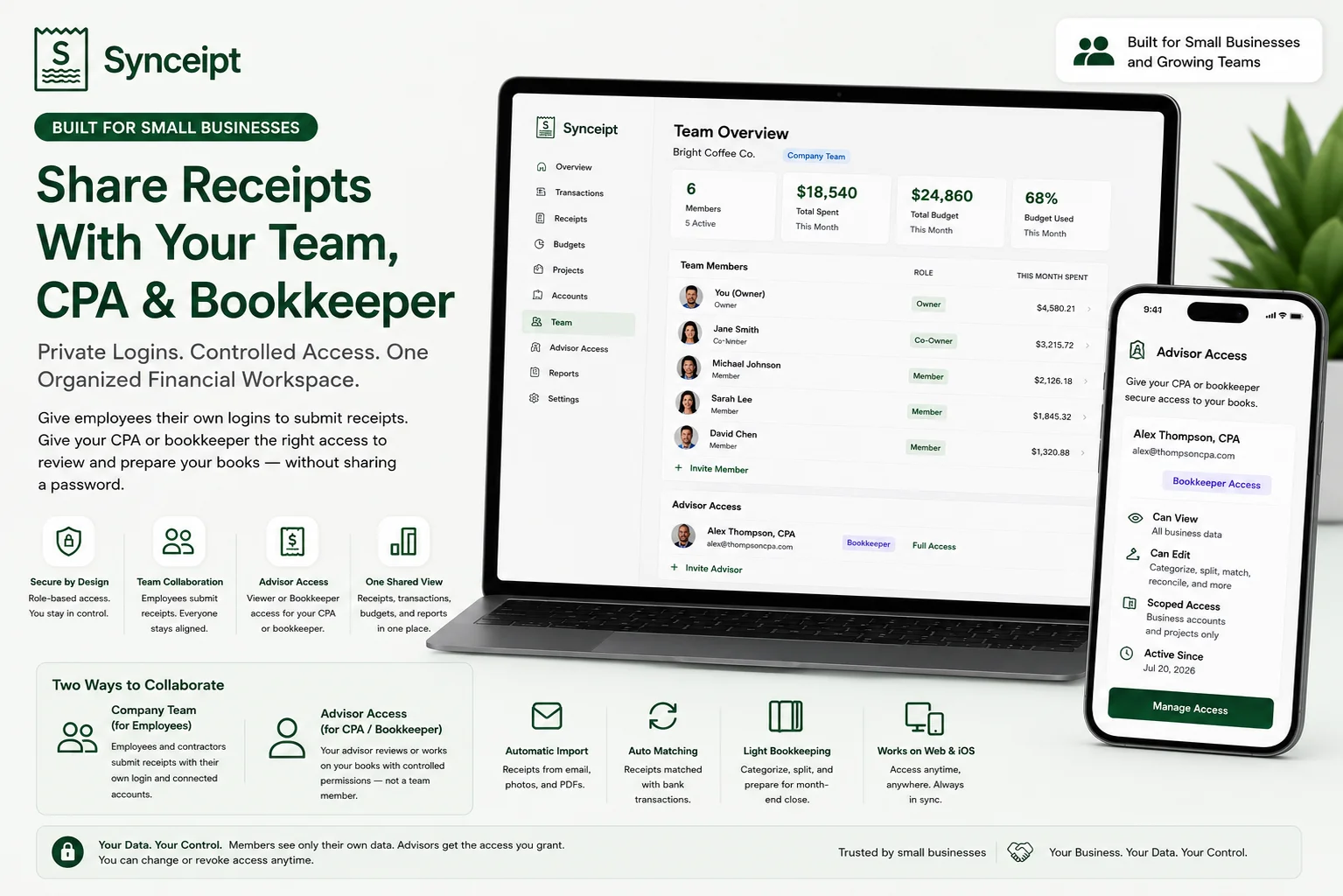
Synceipt solves this with two purpose-built mechanisms on Pro and Pro Plus. Advisor Access gives a CPA or bookkeeper secure, permissioned access to your books for accountant collaboration and financial review — without a shared password and without making them a team member. Team sharing gives employees or contractors their own private login, where they connect a business email inbox and bank account rather than exposing anything of the owner's — while the owner gets one consolidated view of the business records shared through the team, for expense management and business expense tracking. This guide covers both: how Advisor Access works, then team sharing's roles, setup, and privacy model in detail.
Plan note: Both Advisor Access and team sharing are paid features. Pro and Pro Plus each include a set number of team/advisor slots in the plan price — up to 4 people total (including the owner) on Pro, up to 8 total on Pro Plus. Neither is part of the Free or Regular plans. If you need more than your included capacity, the owner can add individual slots for $1.99/month each from the Add-Ons page. Sharing spending with a spouse or family instead of a business? See our dedicated guide to family sharing.
What Team and Advisor Access Help You Do
- Stop sharing passwords with employees or your accountant
- Reduce month-end receipt chasing by letting employees submit receipts continuously, as purchases happen, and having a bookkeeper review them in the same workspace instead of collecting paperwork after the fact
- Let a bookkeeper categorize, split, and match transactions, then prepare them for period close, directly in Synceipt
- Give a CPA read-only access for tax prep or an annual financial review
- Restrict access to specific business accounts or Projects, keeping personal spending out of view
- Maintain one consolidated view across the whole team
- Revoke access immediately when a role, engagement, or membership ends
Who Should Use Team and Advisor Access?
- Small business owners who want their CPA or bookkeeper to review, categorize, and prepare the books for close directly in Synceipt — without sharing a login or exporting files back and forth every month
- Small business owners tracking employee or contractor business receipts and expenses, each person using their own login for accurate expense tracking
- Freelancers and solo business owners who want a lightweight accountant access workspace for tax prep or an annual financial review, without requiring the advisor to purchase a separate Synceipt subscription or giving them unrestricted access to a full accounting platform
Looking to share a budget and receipts with a spouse or family instead? Synceipt's Family teams use the same underlying sharing engine with a Co-Owner role built for households — see the dedicated family sharing guide linked in Sources below.
Advisor Access: Give Your CPA or Bookkeeper Secure Access
A CPA or bookkeeper isn't quite a team member. They don't have their own email or bank accounts to connect to your books, and they're usually working with several clients at once, not just yours. Adding one as a regular Member wouldn't even help — a Member only ever sees their own data, so a bookkeeper added that way would see nothing of yours at all. For this exact relationship — accountant collaboration without sharing the business owner's login — Synceipt provides Advisor Access, a separate mechanism from team membership, available on the same Pro or Pro Plus plan as team sharing.
Instead of sending monthly exports, receipt folders, and spreadsheet corrections back and forth, you can let your advisor review the same matched records you use throughout the month — directly in Synceipt, at whatever permission level you choose.
Choose Viewer or Bookkeeper Access
Two access levels, your choice, changeable anytime. Viewer is read-only, and limited to your already-reviewed transactions and receipts — the finished books, ideal for a CPA doing tax prep or an annual financial review. Bookkeeper can also review, unreview, categorize, split, match/unmatch, exclude and restore, flag, add receipts and transactions, and close or reopen accounting periods for month-end close — but can never delete anything, edit a transaction's amount or date, or touch billing or team management.
Share Only Selected Accounts or Projects
Account-level scoping restricts a grant to specific connected bank accounts or Projects, so a bookkeeper handling only the business side never sees a personal card mixed into the same login.
Give Access to Your Own Books or the Whole Team
Choose owner-only or whole-team scope. Give your CPA access to only your own books, or to the records shared across your entire Company team, using a per-grant toggle you can flip anytime.
Let One Advisor Manage Multiple Clients
A bookkeeper who works with several businesses accepts a separate invitation from each one and switches between clients from a "Viewing [client]'s data" banner. Each client's books and client records stay completely separate; nothing from one client is ever visible while viewing another.
Revoke Access Without Sharing or Changing Passwords
Your CPA or bookkeeper gets their own Synceipt account and their own invitation — never your login. You can revoke access at any time and it's cut off immediately.
Viewer vs Bookkeeper: Exactly What Each Level Can Do
| Capability | Viewer | Bookkeeper |
|---|---|---|
| View reviewed receipts and transactions | Yes | Yes |
| Categorize transactions | No | Yes |
| Split transactions | No | Yes |
| Match or unmatch receipts | No | Yes |
| Add receipts and transactions | No | Yes |
| Close or reopen accounting periods | No | Yes |
| Delete transactions | No | No |
| Change transaction amounts or dates | No | No |
| Manage billing or team settings | No | No |
Advisor Access draws from the same member-slot capacity as team sharing — inviting a CPA or bookkeeper uses one of your Pro (4 total) or Pro Plus (8 total) slots, or an add-on slot at $1.99/month if you're already at capacity. It isn't a separate cost. Your advisor's own subscription plan doesn't matter at all: the access is entirely a grant from your plan, and it's free for them to accept.
How to Give Your CPA or Bookkeeper Access to Receipts and Transactions
- 1
Open Advisor Access
Go to Settings → Advisor Access on the web app, or More → Advisor Access on mobile.
- 2
Enter your advisor's email
No account required on their end yet — they'll create one when they accept.
- 3
Choose Viewer or Bookkeeper
Pick read-only review access, or controlled bookkeeping access for categorizing, matching, splitting, and preparing transactions for period close. You can change this later.
- 4
Choose owner-only or whole-team scope, and account-level limits if needed
Give access to just your own books or the whole business, and optionally restrict it to specific accounts or Projects.
- 5
Send the invitation
Your CPA or bookkeeper gets an emailed invite and can also accept directly from their Dashboard if they're already signed in.
- 6
Revoke or adjust access anytime
Change the access level or scope, or revoke it entirely, from the same Advisor Access screen — it's cut off immediately.
Team Member vs Advisor: What's the Difference?
Advisor Access is separate from team membership. An employee or contractor added as a team Member brings their own receipts and connected accounts into the team. A CPA or bookkeeper uses Advisor Access to review or work on the business owner's existing books instead — they never connect accounts of their own.
Before setting either one up, it helps to see the two mechanisms side by side — they solve different problems and aren't interchangeable.
| Team Member | Advisor (Advisor Access) | |
|---|---|---|
| Brings their own receipts and accounts | Yes | No |
| Works on your books | No — only their own | Yes |
| Intended for | Employee or contractor | CPA or bookkeeper |
| Access type | Full control of own data only | Viewer (read-only) or controlled Bookkeeper permissions, your choice |
| Can serve multiple clients at once | No — belongs to one team | Yes |
| Uses their own login | Yes | Yes |
Company Teams: Built for a Small Business
When you create a team on Pro or Pro Plus, you choose a team type. This guide focuses on Company teams — the type built for a small business, with employees or contractors instead of family members:
- Built for a small business — the owner plus employees or contractors, each with their own login
- No Co-Owner role — the owner holds sole full-visibility access; every other member sees only their own data
- When a member leaves or is removed, the owner keeps read-only audit access to their data for 90 days, and can also suspend the member's Synceipt login entirely if needed
- Typical use: employee expense tracking, business receipts, and a light audit trail
Synceipt also has a Family team type, built for a household instead of a business — it adds an optional Co-Owner role for a spouse or partner and handles departures differently. If that's what you're setting up, see the dedicated family sharing guide linked in Sources below.
Team Roles and Permissions: Who Can See Your Financial Data?
Every Company team has exactly one owner, plus members. Visibility is deliberately conservative: nobody can see another person's data unless their role explicitly grants it.
- Owner — the plan holder. Permanent and in full control: invites and removes members, renames the team, buys or cancels member slots, disbands the team, and can view every active member's transactions, receipts, and budgets.
- Member — the standard role. A member has full read/write control of their own data and sees only their own transactions, receipts, and budgets. Members cannot see each other's data, and cannot see the owner's.
The privacy default is one-directional: data flows up to the owner, never sideways between members and never down from the owner to members. A member joining your team never exposes their data to the rest of the team — only to the person running the plan.
Step 1: Create Your Team
On a Pro or Pro Plus plan, open the Add-Ons page and click Create Team. Give the team a name, then choose its type:
- 1
Name the team
Something recognizable — "Bright Coffee Co." or "Bright Coffee — Field Team." You can rename it later from the team page.
- 2
Choose Company as the team type
Company keeps a 90-day owner audit window on departed members plus the ability to suspend a departed member's login entirely, and has no Co-Owner role — the owner holds sole full access. (Setting up a household instead? Choose Family — see the dedicated family sharing guide in Sources below.)
- 3
Create it
You're added automatically as the Owner, and the team is ready for invitations. Each plan holder can own one team at a time.
Step 2: Invite Your Members
From the team page, open the invite dialog and enter the person's email address. You can optionally add their first name, which is only used to personalize the greeting in the invitation email. Click Send Invite and Synceipt emails them a secure link.
- The invitation is a one-time, expiring link. For security, only a hashed version of the token is stored on Synceipt's servers — the link itself lives only in the email — and it's invalidated the moment it's accepted or declined.
- Invitees don't need a Synceipt account first. They can create one when they accept, and the email they accept with must match the address you invited.
- While an invite is pending you'll see "awaiting acceptance," and you can resend the email, copy the invite link to share it yourself, or revoke it.
- If an invitee already pays for Synceipt, the acceptance screen offers to pause their existing subscription as they join — so they aren't paying twice — and it resumes automatically if they later leave.
A member slot is only consumed once someone actually joins — capacity is counted from active members and advisor grants only, so a pending, unaccepted invitation never occupies a slot in the first place. That means you're free to send more invitations than you have open slots for; the limit only applies once people actually accept.
Step 3: Members Accept and Connect Their Accounts
Each invitee accepts using their own Synceipt login — creating one if they don't already have one — then connects their own email and bank accounts, exactly as they would on a solo account.
- Their data stays theirs — connecting an inbox or bank account here doesn't hand anything over automatically; it's what makes their transactions and receipts visible to the owner through the team member tabs in the next step.
- Already a Synceipt user? If the invitee already pays for Synceipt individually, the acceptance screen offers to pause their existing subscription as they join the team, so they're not paying twice — and it resumes automatically if they ever leave.
- Nothing to configure — there's no separate setup step for joining a team beyond accepting the invite; connecting accounts is the same flow every Synceipt user goes through.
Step 4: See Everyone's Finances in One Place
Once members join, the owner gets a set of team member tabs at the top of the Transactions, Receipts, Budgets, and Reports pages. These tabs switch the scope of what you're looking at:
- All members — an aggregate view across the whole team, for a single combined picture of spending, receipts, or budgets.
- You — just your own data, exactly as a solo account would show it.
- Each member by name — one tab per active member, so you can drill into any individual's transactions or receipts.
Members themselves don't see these tabs at all — the strip only renders for the owner. For a member, Synceipt looks and behaves exactly like a normal single-user account.
Step 5: Manage Members Over Time
The team page is also where you manage the team as it changes:
- Remove a member — revoke their access to the team. The owner keeps a 90-day read-only audit window on their data.
- Suspend and reinstate — for a removed member, this blocks them from logging into Synceipt at all until reinstated, not just from the team. It doesn't delete or hand their personal data to the owner; it only prevents the member from accessing their own account while suspended.
- Export a member's data — the owner can export a member's records, useful for handing off to an accountant or closing out a period.
- Leave or disband — any member can leave voluntarily; the owner can disband the entire team. Membership history is preserved (soft-deleted, not erased) so the record stays accurate.
Adding More Members
Pro starts at 4 people total and Pro Plus at 8, always counting the owner. If your business grows past that, the owner can buy additional member slots from the Add-Ons page for $1.99/month each. Each slot permanently raises the team's capacity by one until you cancel it, so you only pay for the size you actually need. Only the team owner can purchase or cancel slots.
Small-Business Workflows
Team sharing and Advisor Access are meant to combine. Here's what that looks like for a few common small-business setups:
- 1
A contractor with field employees
Employees or contractors connect a dedicated business email inbox and bank account to their own login — since connecting an inbox or account shares everything in it, not just business items, a separate business-only inbox and card keep personal activity out of the picture entirely. The owner sees the team's business spending, while a Bookkeeper-level advisor categorizes costs and closes the accounting period each month.
- 2
A solo consultant with a CPA
No team needed — the owner grants Viewer-level Advisor Access during tax preparation season, scoped to business accounts only, so the CPA sees exactly what's relevant and nothing personal.
- 3
A retail or service business
Employees submit receipts and expenses through their own accounts as purchases happen, while the owner maintains one consolidated expense view across the team instead of collecting paperwork at month-end.
- 4
A bookkeeper onboarding a new client
Instead of requesting exports and email attachments every month, the bookkeeper accepts an Advisor Access invitation and gets ongoing access to matched receipts and transactions as the client's records are updated — no monthly handoff required.
- 5
A bookkeeper serving several clients
The advisor accepts a separate Advisor Access grant from each client and switches between client books from a "Viewing [client]'s data" banner — never sharing a password, and never seeing one client's data while working in another's.
How Synceipt Protects Shared Financial Data
Because team sharing crosses the boundary between separate people's finances, the access rules are enforced on the server for every request, not just hidden in the interface:
- Own-data-first — every user can always read their own data; cross-member access is checked on each request and granted only to the owner.
- Separate logins and accounts — each member authenticates as themselves and connects their own email and bank accounts; there's no shared password or shared mailbox.
- Secure invitations — invite links are single-use and expiring, and only a hashed token is ever stored, so a link can't be reused or recovered from the database.
- Audit-friendly by design — memberships are soft-deleted rather than erased, and Company owners get a defined 90-day window on a departed member's data rather than indefinite access.
- The same enforcement covers Advisor Access — a CPA or bookkeeper's Viewer/Bookkeeper permissions, team scope, and any account-level restrictions are checked on the server for every request, the same as a team member's, not just hidden behind a disabled button in the interface.
- Built on independently verified security — team sharing runs on the same platform that completed the Cloud Application Security Assessment (CASA) Tier 2, reviewed by TAC Security, an App Defense Alliance authorized assessor.
Is Synceipt a Replacement for Full Accounting Software?
Because this guide compares Synceipt to QuickBooks and uses bookkeeping terminology, it's worth being direct about this: Synceipt provides receipt matching, business expense tracking, controlled advisor access, invoicing and accounts receivable on Pro and Pro Plus, and a light bookkeeping ledger. It isn't intended to replace every capability of a full double-entry accounting platform — payroll, accounts payable, and complex accrual accounting aren't part of it. It's best suited to small businesses that want their receipts, bank transactions, budgets, and bookkeeping records organized in one simpler workflow, with a real option to bring a CPA or bookkeeper into that workflow directly.
Synceipt vs QuickBooks and Expensify for Team and Accountant Access
If you're evaluating accountant access and team features across tools, here's how Synceipt's approach compares to QuickBooks Online and Expensify — the two most common alternatives small businesses look at for this. (Full head-to-head comparisons, including pricing and receipt capture, are linked in Sources below.)
| Capability | Synceipt | QuickBooks Online | Expensify |
|---|---|---|---|
| Dedicated CPA / bookkeeper access | Viewer (read-only) or controlled Bookkeeper access, your choice | Accountant-user access via QuickBooks Online Accountant; permission model differs from Synceipt's Viewer/Bookkeeper split | No directly equivalent Viewer/Bookkeeper advisor model identified in official documentation reviewed |
| Employee / team accounts | Pro & Pro Plus, each with a private login | Multi-user, admin-assigned permissions | Corporate seats, admin-managed policies |
| Automatic inbox receipt extraction | Yes — standing OAuth connection to Gmail, Outlook, or Yahoo | Photo upload, mobile capture, and email-forwarding workflows — not a standing inbox connection | Photo upload, mobile capture, and email-forwarding workflows — not a standing inbox connection |
| Personal budgeting and net worth tracking | Yes | No — built for business bookkeeping | No — built for expense reports |
| Built-in bookkeeping ledger | Light bookkeeping — chart of accounts, P&L export | Full double-entry accounting platform | Expense management, not bookkeeping |
QuickBooks Online includes established accountant collaboration, but its permissions and accounting workflow differ from Synceipt's Viewer and Bookkeeper model — see the QuickBooks source links below for exactly how its accountant-user role works. Expensify is primarily built around employee expenses and reimbursement rather than a dedicated CPA or bookkeeper role. Synceipt focuses on giving small businesses controlled advisor access alongside receipt matching, team expenses, budgeting, and light bookkeeping.
Synceipt's own plan limits and features above were verified July 29, 2026. Competitor features were reviewed using each provider's official documentation and may change — confirm current details directly with QuickBooks or Expensify before deciding, or see the full comparisons linked in Sources below for exact plan tiers and pricing.
Frequently Asked Questions
Which Synceipt plans include team sharing?
Pro and Pro Plus only — not Free or Regular. Pro covers up to 4 people total (owner plus 3), Pro Plus up to 8. The owner can add more capacity at $1.99/month per member slot from the Add-Ons page.
Can team members see each other's transactions?
No. Each member sees only their own data. Only the owner can see all members' transactions, receipts, and budgets — members never see one another's data or the owner's. (Family teams also support a Co-Owner role with full visibility; see the dedicated family sharing guide if that's a better fit than a business Company team.)
Do team members need their own Synceipt account?
Yes. Everyone keeps their own login and connects their own email and bank accounts. You invite people by email and they accept with their own account — which they can create at accept time if they don't have one yet.
I already pay for Synceipt — will I be charged twice if I join a team?
No. When you accept an invitation you can pause your existing paid subscription while you're covered by the team, and it resumes automatically if you leave the team later.
How many people can I add to my team?
Up to 4 total on Pro and 8 total on Pro Plus, including the owner. Buy additional member slots at $1.99/month each to go higher — each slot adds one to the capacity.
What happens to a member's data when they leave or are removed?
It stays with their own account. Company-team owners keep read-only access for 90 days — the member's accounts keep syncing normally during that window, and the owner can view but not edit any of it. Access expires automatically after 90 days. Membership records are soft-deleted, never erased, to keep an accurate history.
Can I give my CPA or bookkeeper access without making them a full team member?
Yes — that's Advisor Access, a separate mechanism from team membership, available on the same Pro and Pro Plus plans. Invite them by email and choose Viewer (read-only, reviewed data only) or Bookkeeper (can also categorize, match, split, and close periods, but never delete anything or edit amounts/dates). It draws from the same paid member-slot capacity as a team member, but your CPA or bookkeeper doesn't need their own paid plan — the access is a grant from yours, and it's free for them to accept.
What's the difference between adding someone as a team Member and giving them Advisor Access?
A team Member gets their own separate books — their own connected accounts, visible only to them and to you as owner. Advisor Access is the opposite: your CPA or bookkeeper doesn't bring any data of their own, they only view or work on yours, and one advisor can hold access to several different clients at once — something a team Member relationship can't do, since a person can only belong to one team.
Does my CPA or bookkeeper need a paid Synceipt subscription?
No. Advisor Access is granted through the business owner's Pro or Pro Plus plan. The advisor accepts using their own Synceipt account without purchasing a separate paid plan — it's free for them to accept. The advisor does use one slot from the owner's plan capacity, same as a team member.
What can't a bookkeeper do through Advisor Access?
A Bookkeeper-level advisor can't delete transactions, edit a transaction's amount or date, manage billing, or administer the team. The owner stays in full control and can change or revoke access at any time.
Can I invite my accountant without sharing my password?
Yes. Your credentials are never shared or needed — your CPA or bookkeeper authenticates as themselves, on their own account. Revoking their access later doesn't require you to change your own password, unlike a genuinely shared login would.
Can my bookkeeper access multiple clients from one Synceipt login?
Yes. A bookkeeper working with several businesses accepts a separate Advisor Access invitation from each client and switches between them from a "Viewing [client]'s data" banner. Each client's books stay completely separate.
Can my CPA edit my transactions through Advisor Access?
Depends on the access level. Viewer is read-only. Bookkeeper can review, categorize, split, match, exclude/restore, and close or reopen periods — but can never delete a transaction or edit its amount or date, and can't touch billing or team management.
Can employees upload receipts without seeing the whole company's finances?
Yes. A standard team Member has full read/write control of only their own data — they never see other members' data or the aggregate company view. Only the owner sees everyone's data combined.
Do employees need to connect their personal bank accounts?
Not if they use a dedicated business account instead. Connecting an account or inbox brings in everything in it — Synceipt can't selectively expose only "business" items within a personal account or inbox. A separate business-only bank account and email inbox keep personal activity out entirely.
Can I revoke my CPA's or bookkeeper's access anytime?
Yes, from Settings → Advisor Access, and it's cut off immediately — no notice period or retention window like a Company team's 90-day departed-member audit access.
Can I limit my CPA's Advisor Access to just my business accounts?
Yes, using account-level scoping — restrict a grant to specific connected bank accounts or Projects so a bookkeeper handling only the business side never sees a personal card mixed into the same login.
Can a bookkeeper review employee receipts across my entire business?
Yes — choose whole-team scope instead of owner-only when granting Advisor Access, and the bookkeeper reviews records shared across your whole Company team, not just yours. Account-level restrictions still apply on top of that scope if needed.
How do I share receipts with my accountant in Synceipt?
Go to Settings → Advisor Access (More → Advisor Access on mobile), enter their email, choose Viewer or Bookkeeper and owner-only or whole-team scope, then send the invitation. Once accepted, they see your already-matched receipts and transactions — no export, upload, or attachment required.
Keep employee receipts and bookkeeping in one secure workspace
Invite employees, give your CPA or bookkeeper the right permissions, and keep receipts matched to transactions throughout the month — without shared passwords or last-minute document chasing.