
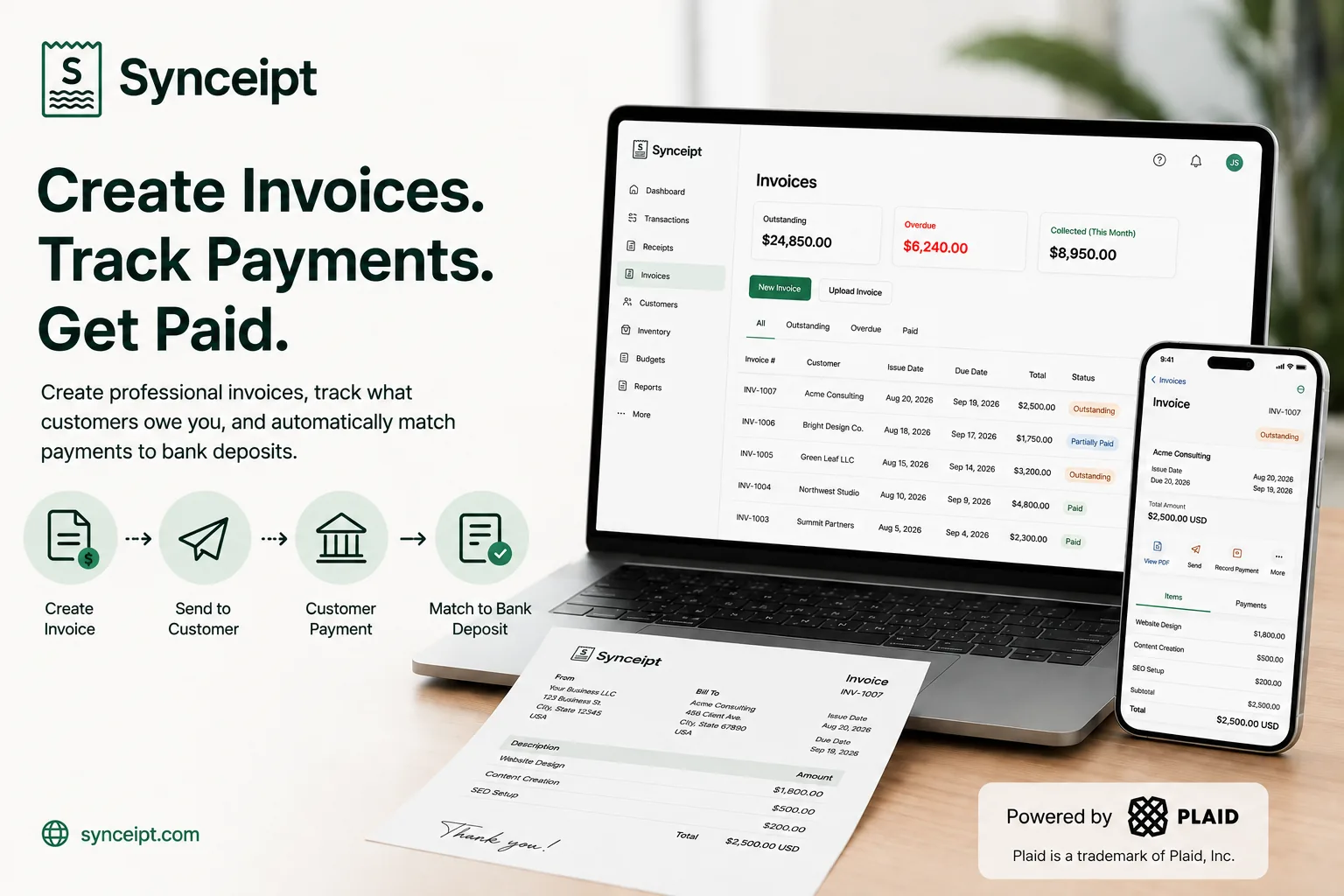
Receipts tell you where your money went. Invoices tell you what still hasn't arrived.
Synceipt's invoicing lets you create invoices, track accounts receivable, and match customer payments directly to bank deposits. When a deposit lands in a connected bank account, Synceipt suggests which outstanding invoice it paid — including partial payments, and one deposit settling several invoices at once. That reconciliation is the part most invoice generators leave to you, and the reason this feature lives in a receipt-matching app rather than a separate product.
You can create invoices in Synceipt, or upload the ones you already produce in another tool. Either way they join the same accounts receivable workflow. This guide covers the whole loop, plus the accounting rule that decides when invoiced money counts as income and an honest list of what the feature doesn't do.
What You'll Learn
- Set up your invoice business details, letterhead, and numbering
- Create and issue a professional invoice
- Send an invoice from your own email account
- Upload invoices created in other software
- Match customer payments to bank deposits, automatically or by hand
- Handle partial payments and one deposit paying several invoices
- Track outstanding and overdue invoices with an aging breakdown
- Record cash payments, processing fees, and returned payments
- Understand how invoice payments affect cash-basis reporting
How Invoicing and Accounts Receivable Work in Synceipt
Synceipt already reconciles money going out. Invoicing is the same job pointed the other way, which is why the two workflows mirror each other exactly:
| Direction | The document | The money | What Synceipt does |
|---|---|---|---|
| Money out | Receipt or vendor invoice | Bank charge | Matches the receipt to the charge |
| Money in | Invoice you issued | Customer deposit | Matches the deposit to the invoice |
Invoices reach that workflow from two directions, and stop being distinguishable almost immediately:
| Path | Who it's for | What happens |
|---|---|---|
| Create it here | You have no invoicing tool, or want one less subscription | Fill in a form, get a PDF with your own letterhead and numbering |
| Upload one you made elsewhere | You already invoice in Wave, Stripe, Word, or anything else | AI reads the PDF or photo into a draft for you to check |
Once an invoice is live, both kinds sit in the same list, get matched by the same engine, and roll into the same Outstanding, Overdue and Collected figures.
Availability: invoicing and accounts receivable are included with Synceipt Pro and Pro Plus, on web and mobile. On web, Invoices sits in the sidebar between Receipts and Inventory. On mobile, open the More tab and tap Invoices. On a Free or Regular plan the page opens to a preview with an upgrade path rather than disappearing from the menu.
Step 1: Set Up Your Invoice Business Details
Do this once, before your first invoice. Your Synceipt account has your name and email, but no business identity — and that's what gets printed on the document your customer reads.
- Open Invoices and choose Invoice settings.
- Under Your business, enter your business name, billing email, phone, and address.
- Upload a logo (PNG or JPEG) to print at the top of every invoice, if you use one.
- Add your tax number and pick its type — VAT number, GST number, EIN — or leave it set to Not shown.
- Under Numbering, set a prefix, the next number, and how many digits to pad to.
- Under Defaults for new invoices, set your usual payment terms, currency, tax mode, and a standard customer note.
- Choose Preview a sample invoice to see exactly what your customers will receive, then save.
Three details are worth knowing. Your tax number is stored encrypted and write-only — after saving, the field shows a masked hint rather than the number, and it's printed inside the PDF but deliberately kept out of the email body. Keep a copy of each invoice PDF is on by default, so you can always reopen exactly what a customer received. And the sample preview is built from what's on screen, unsaved edits included, so you can decide before you commit — it never consumes an invoice number.
How Invoice Numbering Works
The three numbering fields produce numbers like INV-1001. A number is never duplicated and never reused — a voided invoice keeps its number forever — and always increases. Numbers are assigned when you issue an invoice, not when you start drafting, so an abandoned draft never burns one.
Step 2: Create and Issue a Customer Invoice
- Open Invoices and choose New invoice.
- Select an existing customer, or type a new name and fill in what you have.
- Set the issue date and payment terms; check the resolved due date shown underneath.
- Add at least one line: description, quantity, optional unit, and unit price.
- Add a discount, tax, customer note, private note, or project if you need them.
- Choose Save draft.
- Review it, then open its actions menu and choose Issue invoice.
What each of those steps is actually asking for:
- 1
The customer
Their email address matters later — it pre-fills the recipient when you email the invoice. Synceipt warns you when a new name looks like a near-duplicate of one you already have, which is how you avoid ABC Corp and ABC Corp. splitting one customer's revenue between them.
- 2
Payment terms and the due date
Terms run from Due on receipt through Net 7, 15, 30, 45, 60 and 90, plus Custom. Whichever you pick, the resolved due date appears under the field as a real date — Net 30 is the agreement, but a date is the answer. The due date is always editable, and typing one switches the terms to Custom. Terms are calendar days, and the date is fixed at issue, so changing your defaults later never moves an invoice you already sent.
- 3
The lines
Each takes a description, quantity, an optional unit (hours, days, units) and a unit price. If you bill the same things repeatedly, save them once to Saved items — the equivalent of QuickBooks' Product/Service list — and pick them from the line's search box.
- 4
Discount and tax
Discount is a flat amount off. Tax can be a percentage rate, an amount you enter yourself, or none — three modes, because a zero you typed deliberately means something different from no tax at all. You control the label, so it prints as VAT, GST or Sales Tax. A running Subtotal / Discount / Tax / Total sits at the bottom of the form.
- 5
Notes and project
A note for the customer prints on the invoice; a private note doesn't. You can also attach the invoice to a Project, which ties the work back to the rest of your budgeting.
Saved, it's a draft: fully editable, no number yet, and counted nowhere. It doesn't appear in Outstanding, isn't matched against deposits, and affects no total. That's the point of it.
What Changes When You Issue an Invoice
Issuing is the one-way door. In a single step Synceipt draws the next number in your sequence, sets the due date, and locks the invoice's financial substance — amounts, line items, parties, number, and issue date. That lock is deliberate: your customer may now hold a copy, and editing the amount of INV-1005 afterwards creates two documents with the same number, which is the fastest way there is to lose an argument with an auditor. Corrections happen by voiding and re-issuing.
| Draft | Issued | Voided | |
|---|---|---|---|
| Edit amounts and lines | Yes | No | No |
| Delete it | Yes | No — void it instead | — |
| Counts toward Outstanding | No | Yes, until paid | No |
| Can be matched to a deposit | No | Yes | No |
| Copy to a new draft | Yes | Yes | Yes |
Voiding asks why, and keeps your reason on your record rather than the customer's copy. The number stays with the voided invoice permanently, and the original PDF isn't rewritten — a VOID watermark is applied at render time instead.
Step 3: Send an Invoice to Your Customer
Synceipt composes the message, attaches the PDF, and records that you sent it — but you send it from your own account. That's deliberate: a customer replying “can we split this across two POs?” needs to reach your business, not ours, and an invoice arriving from a third-party domain is weaker on trust before it's weaker on anything else.
- 1
Mobile
Email invoice opens your device's mail composer with the recipient, subject, body and PDF already in place. Review it and send from your own Gmail, Outlook or iCloud account. With no mail account set up, it offers the share sheet instead of an error.
- 2
Web
Where your browser can share files — Safari on macOS and iOS, Chrome on Android and Windows — you get a share sheet with the PDF genuinely attached. Everywhere else, Synceipt opens a pre-addressed email draft and downloads the PDF alongside it, because the mailto: standard has no field for an attachment. There's also a plain Download PDF button whenever you'd rather handle delivery yourself.
The message body changes with the invoice's state. An unpaid invoice reads as a bill. A partly paid one states the total and the balance, so a customer who already part-paid isn't invited to pay twice. A settled one says it's paid in full and thanks them; a voided one says it's cancelled and no payment is due. Your private notes, void reasons and tax number are never in it.
What Synceipt records is a hand-off, not a delivery. “Emailed 25 Aug” means you passed the invoice to something that sends mail — it cannot confirm the message was delivered or opened, so nothing in the app claims otherwise. Where the platform can't tell us anything, you're simply asked whether you sent it, and backing out of a composer to save a draft records nothing.
It also powers the most useful warning on the page: invoices you created and never sent carry a Not sent yet tag, and the summary counts them. An aging report structurally cannot show you that, and it's frequently the actual cause of the overdue column above it. Uploaded invoices are excluded, since they were emailed by whatever tool produced them.
How to Upload an Invoice You Made Somewhere Else
If you're happy with the invoices you already produce, you don't have to switch — upload them and use Synceipt for the receivables side.
- On the Invoices page, choose Upload an invoice.
- Pick the PDF or a photo of the invoice. Synceipt's AI reads the customer, number, dates, line items and totals into a draft.
- Review the draft, answering anything it flags.
- Choose Add to receivables to make it live.
It lands as a draft because the draft is the review screen. Before you accept it, Synceipt says what it couldn't read and asks about anything ambiguous: which existing customer this matches, whether two totals it found disagree, and whether the party it read as the customer is actually you — which is what happens when someone uploads a bill they received rather than one they sent.
- A number collision is flagged, not rejected: if another of your invoices already carries that number, you're told before accepting this one. External tools restart counters and occasionally do reuse a number, so it's a warning rather than a refusal
- That check catches the most common double entry: uploading the copy of INV-1042 your bookkeeper emailed back, when you generated INV-1042 here. A duplicate arriving under a different number isn't detected, so glance at your Outstanding total after a batch of uploads
- The original document is kept, and the card offers View original rather than View PDF so you always know which one you're looking at
- Uploads use one of your monthly document reads — the same pool your receipt scanning draws from — and the button tells you how many are left before you spend one. Creating an invoice in Synceipt uses no quota, because no AI is involved
Step 4: Match Customer Payments to Bank Deposits
This is the half that makes an invoice tracker worth having. When a deposit arrives in a connected bank account, Synceipt looks for the invoice it plausibly paid and puts a suggestion on the invoice itself: “$2,500.00 on 2026-08-20 may pay this,” with the bank description underneath and two buttons — Review, or Not this one.
- Open Invoices. Any invoice with a suggested match shows it on the card.
- Choose Review to open the payment dialog with the amount pre-filled, or Not this one to dismiss it.
- No suggestion? Choose Apply a payment and search for the deposit by description or merchant.
- Adjust the amount if this is a part payment, then confirm.
A suggestion never applies anything on its own. Review opens the ordinary payment dialog with an editable amount, and you confirm — that's the whole difference between a suggestion and a decision.
How Automatic Invoice Payment Matching Works
Three signals, weighted, with a confidence threshold a candidate has to clear before you're ever shown it:
- Amount — treated as a shape rather than a number. An exact match (within 50 cents or 0.5%) scores full marks; a smaller deposit scores half, because “it's smaller than the invoice” isn't evidence of anything; a larger one scores lowest
- Date — from 14 days before the invoice was issued to 90 days after it was due. The early window exists because retainers and deposits landing before the final invoice is written are normal in service work; the late one because a Net 30 invoice paid 60 days late is routine and still needs to match
- Reference — an invoice number in the bank description, or the customer's name against the merchant name. INV-00123, inv00123 and Invoice 00123 all read as the same reference
Two consequences make the difference between a matcher you trust and one you learn to ignore. A clean exact-amount match on a sensible date is suggested with no corroboration needed. But a deposit larger than the invoice is never suggested on score alone — a $5,000 batch ACH fits every invoice under $5,000, and that it could have paid your $600 invoice says almost nothing about whether it did. The one override is a distinctive invoice number in the bank memo, which is close to definitive.
The manual picker isn't limited by that date window at all. If you know March's deposit belongs to June's invoice, you can say so over any date range. The window governs what Synceipt volunteers, never what you're allowed to record.
Partial Payments and One Deposit Paying Several Invoices
Both are ordinary small-business bookkeeping, so both work from the start. The amount you apply is editable on every payment, so a customer who pays $3,000 against a $10,000 invoice leaves a $7,000 balance and the invoice reads as partly paid rather than paid or unpaid.
In the other direction, one deposit can settle several invoices — and Synceipt does the arithmetic. When a deposit exactly equals the sum of a small set of your outstanding invoices, it offers them as a set: “These three invoices add up to this deposit,” applied in one action. Exact sums only, and if two different subsets both add up it says nothing, because the arithmetic can't tell which is right and guessing while looking certain is the worst thing it could do.
Synceipt also refuses to let the same money count twice: it won't allocate more of a deposit than is left unapplied, and it won't let a deposit already linked to an inventory item sale be claimed as an invoice collection too.
Processing Fees and Sales Tax on a Net Deposit
A customer pays a $1,000 invoice through a card processor and $970 lands in your bank. Applied naively, that's a $30 mystery and an invoice that looks underpaid forever. Synceipt proposes the split instead — the invoice's taxable base as revenue, its tax as tax, and whatever the bank is short as a processing fee — reconciling to the deposit that actually arrived:
| Amount | |
|---|---|
| Invoice | $1,000 |
| Customer paid | $1,000 |
| Processing fee | $30 |
| Landed in your bank | $970 |
It stays quiet when there's nothing to say, and when the shortfall is too large to be a fee — that's a partial payment, and calling it a fee would invent an expense you never had.
How to Record a Cash or Check Payment
Record a cash payment handles money that never touches a connected bank account. It is not a “mark as paid” button: it creates a real cash transaction in your wallet and settles the invoice through the same path a bank deposit takes, so the income lands in your books and your cash balance. Enter the date the cash actually changed hands, not today — that decides which month the income falls in.
How to Handle Chargebacks, Bounced ACH Payments, and Returned Checks
All three are reversals rather than deletions. Open Payments & returns on the invoice and reverse the payment: the invoice goes back to outstanding, the payment is marked Payment returned, and both events survive in the record — a payment that arrived and then reversed really is two events, not a mistake to erase. Reversals can be partial, an accidental one can be undone, and where the return debit warrants it, Synceipt offers to record it against revenue.
How to Track Outstanding and Overdue Invoices
Four figures sit at the top of the Invoices page, each answering a different question:
| Figure | What it means |
|---|---|
| Outstanding | Everything issued and not yet fully paid, with a count of invoices |
| Overdue | The subset of that which is past its due date |
| Collected this month | Money that actually arrived — a $10,000 invoice that received $3,000 contributes $3,000, not $10,000 |
| Drafts | Not counted anywhere yet — labeled as such, so it never reads as a receivable |
Under those, a How late it is row breaks your receivables into standard accounts receivable aging buckets — Not due yet, 1–30, 31–60, 61–90, and Over 90 days. Each is clickable, filtering the list to the invoices behind it. A Revenue by customer card sits alongside, reading collected income rather than receivables — and it's where you'll notice a customer's revenue splitting across two near-identical spellings of their name.
- Filter by payment status (Outstanding, Overdue, Paid, All invoices), which is a different question from lifecycle state (Drafts, Issued, Voided) — both filters exist because both questions get asked
- Search by invoice number, customer, or project, and sort by issue date, due date, amount, or when it was added
- Export payments writes one CSV row per payment, dated by the deposit — the honest shape for a batch deposit that paid several invoices, and the one your accountant can reconcile
Under Cash-Basis Accounting, an Invoice Is Not Yet Income
Synceipt's reporting is cash basis. Issuing an invoice has no effect on your income totals — revenue is recognized when the customer's payment arrives — and the invoice is tracked as an expectation in its own receivables panel beside your profit and loss rather than inside it.
Worth stating plainly, because it's the opposite of accrual accounting, where issuing an invoice does recognize revenue and create a receivable. Synceipt doesn't offer accrual-basis reporting, so the cash-basis rule holds throughout — and it's what keeps the same money from being counted twice. One economic event, recognized once:
| Date | Event | Effect |
|---|---|---|
| Aug 1 | Issue INV-1050 for consulting, $2,000 | Income $0 · Outstanding receivables $2,000 |
| Aug 20 | ACH deposit of $2,000 arrives, matched to INV-1050 | Income $2,000 · Invoice balance $0 · Invoice paid |
So Reports and your P&L reflect money you've actually collected, and the Invoices page reflects money you're still owed. If you close your books periodically, issuing, voiding, applying and reversing all respect a locked period — recording that you sent an invoice is the one exception, since a closed quarter is exactly when you're chasing its receivables.
Invoicing in More Than One Currency
Every invoice carries its own currency, defaulting to the one in your invoice settings rather than being hard-coded to dollars. Receivables are reported per currency and never summed across them, because an Outstanding figure folding euros into dollars would simply be wrong.
Matching requires the currencies to be equal: a USD invoice can't be paid by a EUR deposit, and Synceipt says so rather than inventing an exchange rate and quietly deciding what your customer paid. So invoice in the currency you'll be paid in.
What Synceipt Invoicing Does — and Doesn't Do
Synceipt is built for invoice tracking, accounts receivable, and payment reconciliation — not as a payment processor or a full accounting platform. The gaps below are deliberate rather than accidental:
| Not available | What that means in practice |
|---|---|
| Sending on your behalf | Synceipt composes and attaches; you send from your own mail account. No delivery receipts, no open tracking |
| Online payment links or a customer portal | Your customer pays you however they already do. Synceipt tracks the deposit, it doesn't collect it |
| Scheduled reminders | A second send is available any time and is counted, but nothing goes out automatically |
| Recurring invoices | Each invoice is created individually; Copy to a new draft is the closest thing |
| Quotes and estimates | Not part of the feature |
| Credit notes | The proper instrument for post-payment reductions and write-downs isn't built yet |
| Cross-currency payment | A deposit must be in the invoice's own currency |
| Accrual-basis reporting | The P&L is cash basis; receivables live beside it, not in it |
If you need a customer portal, card payments on the invoice, or automated dunning, a dedicated invoicing platform is the right tool — and the upload path exists precisely so you can keep using one. What you get here is receivables that reconcile against your real bank activity, in the same place as the rest of your books.
Frequently Asked Questions
Can Synceipt automatically match invoices to bank transactions?
Yes. When a customer deposit appears in a connected bank account, Synceipt suggests the outstanding invoice it may have paid, scored on the amount, the date, and any reference it can find — an invoice number in the bank description, or the customer's name against the merchant name. You review and confirm the amount before anything is applied.
Does Synceipt do invoicing now?
Yes, on Pro and Pro Plus plans. You can create and issue invoices with your own letterhead and numbering, upload invoices made in other tools, track what's outstanding and overdue, and match customer payments to the bank deposits that paid them. There's still no payroll, double-entry accounting, or formal balance sheet.
Can Synceipt replace QuickBooks for invoicing?
For some businesses, yes; for others, no. Synceipt covers invoicing, accounts receivable tracking, and payment reconciliation, but it isn't a replacement for double-entry accounting software: there's no payment link for customers to pay from, no recurring invoices, no payroll, and no balance sheet. If you already create invoices elsewhere, a third option is to upload them to Synceipt and use it purely to track receivables and match payments.
Does Synceipt email the invoice to my customer for me?
No, and that's deliberate. It composes the message, attaches the PDF and records that you sent it, but the email goes from your own account — so your customer's reply reaches your business rather than a third-party domain. On mobile it opens your native mail composer; on web it uses your browser's share sheet, or a pre-addressed draft plus a PDF download.
Can I edit an invoice after I've sent it?
Not its financial substance. Amounts, line items, the parties, the number and the issue date all lock when the invoice is issued, because your customer may already hold that document and two versions of one invoice number is an audit problem. Corrections are made by voiding the invoice and issuing a replacement.
What happens if a customer only pays part of an invoice?
Apply the amount that actually arrived. The invoice keeps the remaining balance, shows as partly paid, and stays in your Outstanding total for the difference. Later payments apply against the same invoice until the balance reaches zero.
Can I match one bank deposit to multiple invoices?
Yes. Apply the deposit across as many invoices as it settles, editing the amount each time. If the deposit exactly equals the sum of a small set of your outstanding invoices, Synceipt proposes that set and applies it in one action — but only when the answer is unambiguous.
Does an invoice count as income before it's paid?
Not in Synceipt. Reporting is cash basis, so an open invoice has no effect on your income totals; revenue is recognized when the deposit arrives and is matched. Outstanding invoices are tracked separately as receivables. Under accrual accounting the answer would be different, but Synceipt doesn't offer accrual-basis reporting.
Can I keep using my current invoicing tool?
Yes — upload the invoices you produce there and Synceipt's AI reads them into drafts. Once accepted they behave identically to invoices created here: same list, same matching, same Outstanding and Collected figures. Uploads use the same monthly document reads as receipt scanning.
What if a customer's payment bounces or is charged back?
Reverse the payment from Payments & returns. The invoice returns to outstanding, the payment is marked as returned, and both events stay in the record — a payment that arrived and then reversed really is two events. Reversals can be partial, and an accidental one can be undone.
How do I record an invoice paid in cash?
Use Record a cash payment on the invoice. It creates a real transaction in your cash wallet and settles the invoice through the same checks a bank deposit goes through, so the money appears in your books and your cash balance. Enter the date the cash changed hands, since that decides which month the income falls in.
Are invoice numbers guaranteed to have no gaps?
No, and no honest system can promise that — failed requests, migrations from other tools, and deliberately skipped numbers all create gaps. What is guaranteed is that a number is never duplicated, never reused (a voided invoice keeps its number), and always increases. Numbers are assigned at issue, so abandoned drafts don't consume one.
Can my accountant see my invoices?
Not through Advisor Access, which covers Transactions, Receipts and Reports only. To hand over receivables data, use the payments export — one CSV row per payment, dated by the deposit — or share the invoice PDFs directly.
What happens to my invoices if I downgrade from Pro?
Nothing is deleted. The invoices, customers and payment history all stay exactly as they are, and become readable again if you re-upgrade. While you're on a plan without the feature, the page shows the upgrade prompt rather than your data.
Track what you're owed, not just what you've spent
Create professional invoices or upload the ones you already use. Synceipt tracks what's outstanding and overdue — and matches customer payments to the bank deposits that actually paid them.