
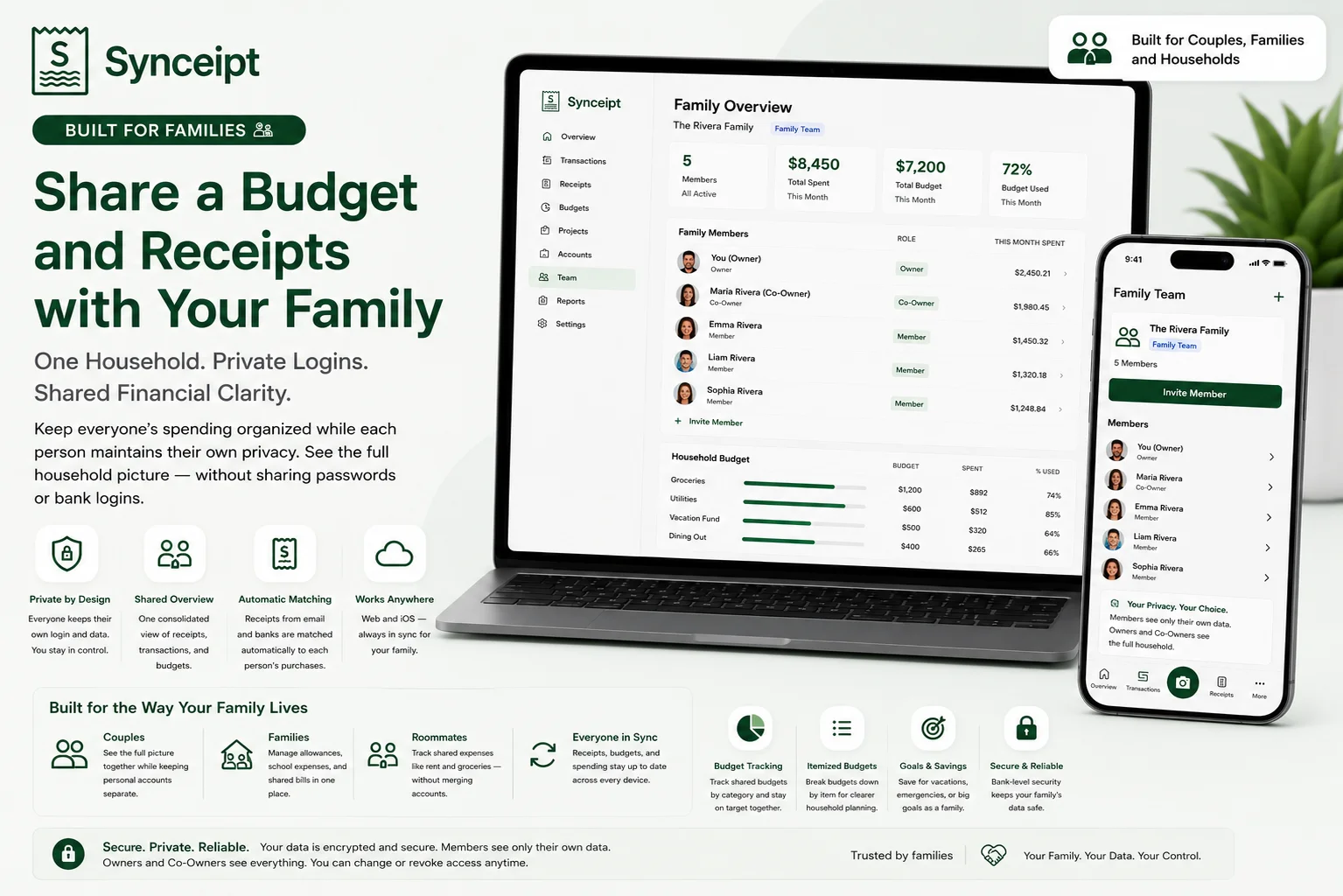
Managing money together shouldn't mean sharing passwords or giving up financial privacy. Couples and families often share groceries, rent, utilities, vacations, kids' expenses, and other household purchases — but most finance apps are built for one person and one login. The result: someone forwards screenshots of receipts, shares a banking password, or re-types a partner's purchases into a shared spreadsheet just to get one combined picture of where the money's going.
Synceipt's Family teams, available on Pro and Pro Plus, solve this without giving up individual privacy. Whether you're a couple, a family with older kids, or roommates splitting household expenses, everyone keeps their own private login and connects their own email and bank accounts to a shared household budget — nothing is shared out of one mailbox or one password. Instead of manually entering grocery runs into a shared spreadsheet, everyone just connects their own accounts, and Synceipt automatically matches receipts to purchases — whether that's a Costco run, an Amazon order, or the weekly grocery trip. The plan owner (and an optional Co-Owner, typically a spouse or partner) gets one consolidated view of the whole household's joint spending, receipts, transactions, and shared budget, while everyone else's individual purchases stay private to them.
Plan note: Family sharing is a paid feature. Pro and Pro Plus each include a set number of member slots in the plan price — up to 4 people total (including the owner) on Pro, up to 8 total on Pro Plus. It isn't part of the Free or Regular plans. If you need more than your included capacity, the owner can add individual slots for $1.99/month each from the Add-Ons page. Running a small business instead? See our dedicated guide to team and advisor access for employees, CPAs, and bookkeepers.
What Family Sharing Helps You Do
- See a combined view of household spending without sharing a password or a bank login
- Let a spouse or partner see everything, while other family members keep their own purchases private
- Give each person their own connected email and bank accounts, matched to their own receipts automatically
- Track shared bills, groceries, and a joint budget across everyone on the plan
- Keep an accurate record when someone joins or leaves the household plan
Who Family Sharing Is For
- Couples who want a shared view of joint spending while each person keeps their own accounts and privacy
- Families managing shared bills and a common household budget across several members
- Roommates who want to track shared household expenses without merging bank accounts or sharing logins
- Parents who want visibility into an older teen's or young adult's spending, once that family member has their own email and bank account to connect
- Adult children helping organize a parent's finances, or vice versa, while everyone keeps their own separate login
- Partners who want to keep their individual finances separate day to day, but still see a combined household picture
- Anyone who's been forwarding receipt screenshots or sharing a banking password just to keep a partner or family member in the loop
One practical limit worth knowing up front: every family member needs their own email account and bank account to connect, since that's how Synceipt captures their receipts and transactions. That makes Family teams a good fit for a spouse, an older teen or young adult with their own accounts, or another adult in the household — not for a young child who doesn't have accounts of their own yet.
Common Family Workflows
Team sharing works a little differently depending on who's using it. Here's what that looks like in practice:
- 1
A newly married couple
Each spouse keeps their own bank account and email connected under their own login. Either can be the owner, and promoting the other to Co-Owner means both of you see the full shared household picture — not just your own transactions.
- 2
Parents and an older teen or young adult
A parent (as owner) sees the household view, including a teen's or young adult's spending once that family member connects their own accounts. The teen, as a standard Member, sees only their own transactions and receipts — not the rest of the family's.
- 3
Adult children and a parent
An adult child helping a parent stay organized can be the owner or Co-Owner, with visibility into shared or household spending, while the parent keeps their own login and connects their own accounts rather than handing over banking credentials.
- 4
Roommates
Everyone connects their own bank account for shared costs like groceries and utilities, keeping personal accounts and purchases out of the picture entirely — there's no Co-Owner role needed if nobody wants full household visibility beyond the owner.
The Co-Owner Role: Full Visibility for a Spouse or Partner
A Family team's owner can promote one member to Co-Owner — usually a spouse or partner who should see the same complete picture the owner does, rather than just their own transactions. It's the one role in Synceipt's sharing model built specifically for a household's second decision-maker.
- Same visibility as the owner — a Co-Owner sees every active member's transactions, receipts, and budgets, not just their own.
- Optional — you don't have to designate one. Without a Co-Owner, only the owner sees the consolidated household view; everyone else, including a spouse, sees only their own data.
- Limited management rights — a Co-Owner can't disband the team, purchase or cancel member slots, or manage billing. Those stay with the owner alone.
- Family-only — the Co-Owner role only exists on Family teams. A business Company team has no equivalent second full-access role.
Team Roles and Permissions: Who Can See Your Family's Data?
Every Family team has exactly one owner, plus members, and optionally one Co-Owner. Visibility is deliberately conservative by default: nobody sees another person's data unless their role explicitly grants it.
- Owner — the plan holder. Permanent and in full control: invites and removes members, renames the team, buys or cancels member slots, promotes a Co-Owner, disbands the team, and sees every active member's transactions, receipts, and budgets.
- Co-Owner — a member the owner promotes, typically a spouse or partner. Has the same data visibility as the owner, so both partners see the whole household, but can't disband the team or manage member slots.
- Member — the standard role. Full read/write control of their own data, and sees only their own transactions, receipts, and budgets. Members cannot see each other's data, and cannot see the owner's or Co-Owner's.
The privacy default is one-directional: data flows up to the owner (and Co-Owner, if enabled), never sideways between members and never down to members. A teenager, roommate, or family member joining your team never exposes their spending to anyone but the owner (and Co-Owner) — not to other members.
Step 1: Create Your Family Team
On a Pro or Pro Plus plan, open the Add-Ons page and click Create Team. Give the team a name, then choose Family as its type:
- 1
Name the team
Something recognizable — "The Rivera Family" or "Our Household." You can rename it later from the team page.
- 2
Choose Family as the team type
Family enables the optional Co-Owner role and ends a departing member's access immediately, matching how most households want shared finances handled. (Setting this up for a small business instead? Choose Company — see our team and advisor access guide.)
- 3
Create it
You're added automatically as the Owner, and the team is ready for invitations. Each plan holder can own one team at a time.
Step 2: Invite Your Family Members
From the team page, open the invite dialog and enter each person's email address. You can optionally add their first name, used only to personalize the greeting in the invitation email. Click Send Invite and Synceipt emails them a secure link.
- The invitation is a one-time, expiring link. Only a hashed version of the token is stored on Synceipt's servers — the link itself lives only in the email — and it's invalidated the moment it's accepted or declined.
- A spouse, partner, or family member doesn't need a Synceipt account before you invite them — they create one at accept time, using the same email address the invitation was sent to.
- Until someone responds, the team page shows them as "awaiting acceptance," where you can resend the invitation email, copy the link to share it another way, or revoke it.
- If an invitee already pays for Synceipt individually, the acceptance screen offers to pause their existing subscription as they join — so they aren't paying twice — and it resumes automatically if they later leave.
Step 3: Family Members Accept and Connect Their Accounts
Each invitee accepts using their own Synceipt login — creating one if they don't already have one — then connects their own email and bank accounts, exactly as they would on a solo account.
- Their data stays theirs — connecting an inbox or bank account here doesn't hand anything over automatically; it's what makes their transactions and receipts visible to the owner (and Co-Owner) through the team member tabs in the next step.
- Nothing to configure — there's no separate setup step for joining a family team beyond accepting the invite; connecting accounts is the same flow every Synceipt user goes through.
Step 4: See Your Household's Finances in One Place
Once family members join, the owner (and an enabled Co-Owner) gets a set of team member tabs at the top of the Transactions, Receipts, Budgets, and Reports pages. These tabs switch the scope of what you're looking at:
- All members — an aggregate view across the whole household, for a single combined picture of spending, receipts, or budgets.
- You — just your own data, exactly as a solo account would show it.
- Each member by name — one tab per active member, so you can drill into any individual's transactions or receipts.
Members without the Co-Owner role don't see these tabs at all — the strip only renders for the owner and an enabled Co-Owner. For a regular member, Synceipt looks and behaves exactly like a normal single-user account.
Step 5: Manage Your Family Team Over Time
The team page is also where you manage the household plan as it changes:
- Promote to Co-Owner — give a spouse or partner the same full household visibility you have. A Co-Owner still can't disband the team or manage slots, which stay with the owner.
- Remove a member — revoke their access to the team. On a Family team, access ends immediately, and their own financial data stays with their own account.
- Leave or disband — any member can leave voluntarily; the owner can disband the entire team. Membership history is preserved (soft-deleted, not erased) so the record stays accurate.
Adding More Family Members
Pro starts at 4 people total and Pro Plus at 8, always counting the owner. If your household grows past that — an adult child moves back in, a new partner joins, a roommate wants in on shared bills — the owner can buy additional member slots from the Add-Ons page for $1.99/month each. Each slot permanently raises the team's capacity by one until you cancel it. Only the team owner can purchase or cancel slots.
Privacy and Security
Because family sharing crosses the boundary between separate people's finances, the access rules are enforced on the server for every request, not just hidden in the interface:
- Own-data-first — every user can always read their own data; cross-member access is checked on each request and granted only to the owner and an enabled Co-Owner.
- Separate logins and accounts — each family member authenticates as themselves and connects their own email and bank accounts; there's no shared password or shared mailbox.
- Invitation links can't be replayed — each one is single-use and time-limited, and Synceipt stores only a hashed version of the token, so it can't be recovered from the database and reused.
- Immediate departure — unlike a business Company team's 90-day audit window, a Family team owner's access to a departed member's data ends the moment they leave.
- Built on independently verified security — family sharing runs on the same platform that completed the Cloud Application Security Assessment (CASA) Tier 2, reviewed by TAC Security, an App Defense Alliance authorized assessor.
Need to Share with Your Accountant Too?
If your household also runs a side business, freelance income, or just wants a CPA's help at tax time, Family teams aren't the mechanism for that — a CPA or bookkeeper doesn't bring their own accounts to connect, and adding one as a regular member wouldn't give them access to anything. Synceipt has a separate, purpose-built mechanism for this called Advisor Access, available on the same Pro or Pro Plus plan: you choose Viewer (read-only) or Bookkeeper (can categorize, match, and prepare transactions for close) access, and your accountant gets their own login — never your household's shared view or anyone's password. See our full guide to team and advisor access for small businesses for the complete walkthrough.
Synceipt vs Monarch and YNAB for Shared Family Budgeting
Monarch and YNAB both have real household-sharing features, so it's worth being specific about how they compare rather than just claiming Synceipt is better across the board.
| Feature | Synceipt | Monarch Money | YNAB |
|---|---|---|---|
| Shared household plan | Yes — Family teams on Pro/Pro Plus, up to 8 people | Yes — built into the Core plan from the start | Yes — YNAB Together, up to 6 people, no extra cost |
| Separate login per person | Yes | Yes | Yes |
| Default privacy model | Private by default — a Member's data is hidden unless the owner or Co-Owner role grants visibility | Shared by default — both partners see everything unless a transaction is manually marked private | File-level — each person has their own budgets; the Group Manager chooses which ones to share |
| Automatic email receipt matching | Yes — OAuth to Gmail, Outlook, or Yahoo | No — manual upload or photo only | No — no email or inbox feature |
| Item-level (line-item) budget categorization | Yes | Partial — category-level splitting only | Partial — manual splitting only, no line-item detection |
The real difference is the privacy default, not just whether sharing exists. Monarch shows both partners everything unless you remember to mark a transaction private one at a time; YNAB shares at the level of a whole budget file. Synceipt defaults the other way — a Member's data is private until the owner's role explicitly grants visibility — which fits a family that wants shared visibility to be the deliberate choice, not the default.
Frequently Asked Questions
Which Synceipt plans include family sharing?
Pro and Pro Plus only — not Free or Regular. Pro covers up to 4 people total (owner plus 3), Pro Plus up to 8. The owner can add more capacity at $1.99/month per member slot from the Add-Ons page.
What's a Co-Owner, and do I need one?
An optional second full-visibility role, typically a spouse or partner. A Co-Owner sees the whole household's data, the same as the owner. It's optional — without one, only the owner sees the consolidated view.
Can family members see each other's individual purchases?
No, unless they're the owner or an enabled Co-Owner. Standard members see only their own transactions, receipts, and budgets — not each other's, and not the owner's.
Do family members need their own Synceipt account?
Yes. Everyone keeps their own login and connects their own email and bank accounts. You invite people by email and they accept with their own account, creating one at accept time if needed.
What happens if a family member leaves the team?
Their data stays with their own account, and the owner's access to it ends immediately — unlike a business Company team, which keeps a 90-day read-only audit window instead.
How many people can I add to my family plan?
Up to 4 total on Pro and 8 total on Pro Plus, including the owner. Buy additional member slots at $1.99/month each to go higher.
I already pay for Synceipt — will I be charged twice if I join my family's plan?
No. When you accept an invitation you can pause your existing paid subscription while you're covered by the family plan, and it resumes automatically if you leave later.
How do I promote a family member to Co-Owner?
From the team page, select the member and choose Promote to Co-Owner. Only the owner can do this, and only on a Family team — a Co-Owner still can't disband the team or manage member slots.
What's the difference between a Family team and a Company team?
A Family team allows one Co-Owner with full visibility, and access ends immediately when a member leaves. A Company team (built for a small business) has no Co-Owner, keeps 90-day read-only audit access to a removed member's data, and lets the owner suspend an account. See our team and advisor access guide if you need the business version.
Can I also give my accountant or bookkeeper access through my family plan?
Yes, if you also need one — Advisor Access is a separate mechanism, available on the same plan, that lets a CPA or bookkeeper work on your books without becoming a team member or getting your password. See our team and advisor access guide for the full walkthrough.
Can my spouse see my personal purchases?
Only if they're the owner or an enabled Co-Owner. As a standard Member, they see only their own transactions — not yours. Co-Owner is optional, not automatic just because you're married.
Can roommates keep their expenses private from each other?
Yes. Without a Co-Owner promotion, every member sees only their own data. Roommates can share visibility into joint costs with the owner while keeping individual purchases private from each other.
Can I stop sharing my family's finances later?
Yes. Any member can leave voluntarily, or the owner can remove someone or disband the team. On a Family team, access to a departed member's data ends immediately, with no retention window.
Organize your family's spending without sharing passwords
One household, separate logins, one shared budget. Invite your spouse or family on Synceipt Pro and Pro Plus, and see your household's receipts, transactions, and budgets in one place.