
Editorial note: This article mentions YNAB and Mint as examples of budgeting apps with manual transaction splitting. To the best of our knowledge, the information about YNAB was accurate as of the publish date, based on publicly available documentation — source cited at the bottom of this article. Mint was shut down by Intuit in January 2024 and is no longer available. Synceipt is not affiliated with any third-party products mentioned.
Your bank statement says you spent $135 at Amazon last Tuesday. Your budgeting app marks the entire charge as 'Online Marketplace' and moves on. But that single order included a USB cable for work, paper towels for the kitchen, and a bag of coffee beans — three completely different budget categories, all collapsed into one unhelpful label.
This is the core problem with merchant-level budgeting: it tells you where you spent money, not what you bought. One Target run covers groceries, cleaning supplies, and clothing. One Amazon order spans electronics and household goods. Plaid's merchant categories, as useful as they are for transaction labeling, can't see inside the receipt to split the order accurately.
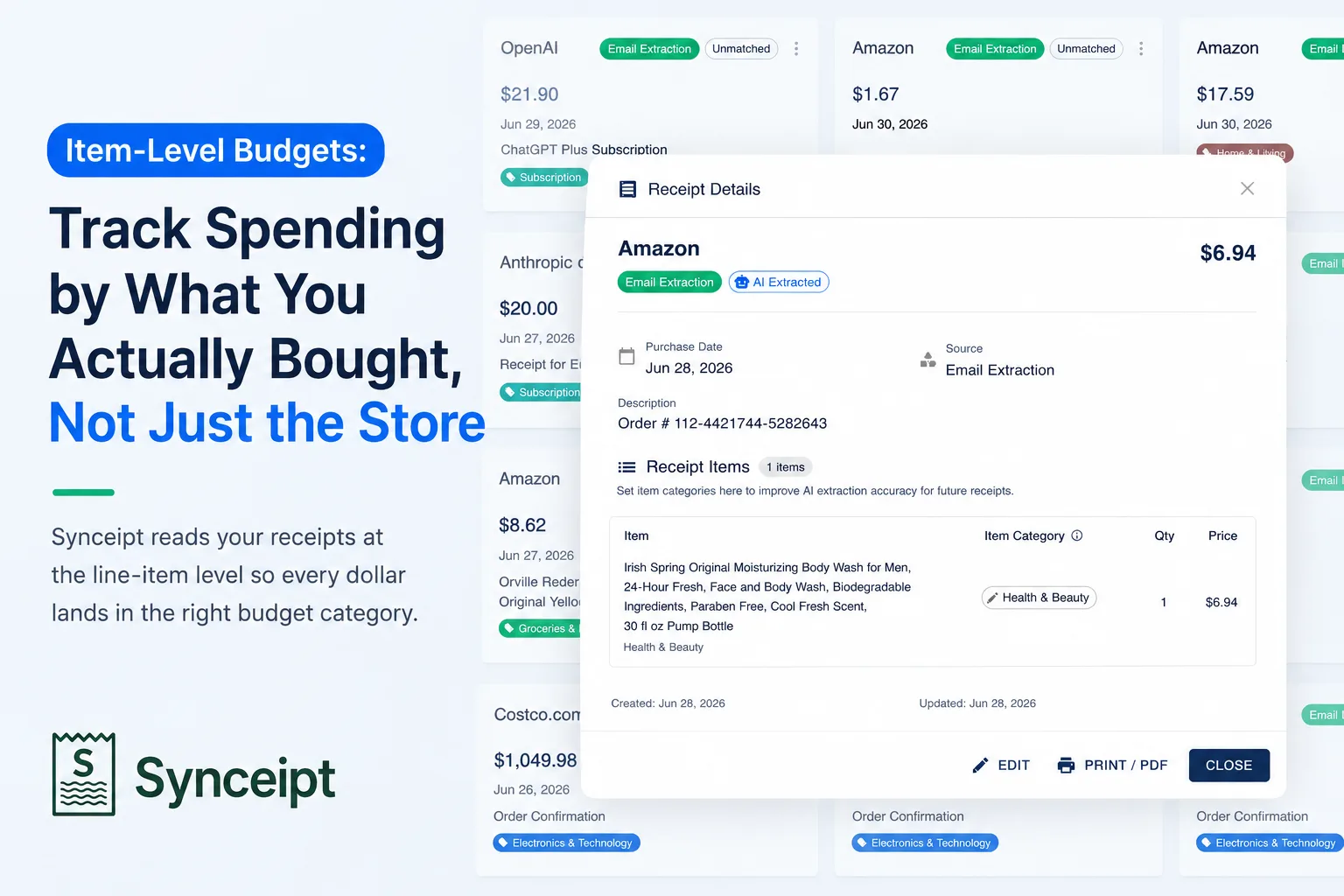
Synceipt's unified item-category budget system solves this by reading your receipts at the line-item level. Every dollar is attributed to the exact product category it belongs to — automatically, as receipts arrive in your inbox. Here's how it works and how to get the most out of it.
The Problem with Merchant-Level Budgeting
Before item-category budgets, every budget in Synceipt was tied to a Plaid merchant category — broad labels like 'Supermarkets & Groceries', 'Department Stores', or 'Online Marketplace'. These categories are assigned at the merchant level, which means the entire transaction amount goes into one bucket regardless of what was actually purchased.
- A $140 Walmart run labeled 'Supermarkets & Groceries' — even if $60 of it was clothing and cleaning supplies
- A $135 Amazon order labeled 'Online Marketplace' — even if it included electronics, food, and household items
- A $45 Uber Eats delivery counted as a single 'Restaurants' charge — with no visibility into the food, delivery fee, and tip separately
- Gas station purchases mixed with convenience store snacks under 'Gas Stations' — when only the fuel is relevant to a transportation budget
The result is that your grocery budget may look fine while your actual grocery spending is quietly hidden inside Target, Costco, and Amazon charges. Item-category budgets fix this by going one level deeper.
The traditional workaround — saving paper receipts and manually splitting each transaction in YNAB or a spreadsheet line by line — works, but requires discipline and time for every single purchase. (Mint, which offered similar manual splits, was shut down in January 2024.) Synceipt automates the split from the source: when your purchase email arrives, the AI reads each line item and assigns its category before the transaction ever reaches your budget screen.
How Item-Category Budgets Work
Each item-category budget tracks spending across 32 product categories — Groceries & Food, Electronics & Technology, Clothing & Fashion, Healthcare & Medical, Dining & Restaurants, Gas & Fuel, and more. When you set a monthly budget for Groceries & Food, Synceipt finds every grocery dollar you spent that month — even the ones inside a mixed Amazon order — and counts them against your grocery budget.
Behind the scenes, the spending calculation runs a three-part engine for every budget category:
- Receipt item attribution: For transactions with a linked receipt, each line item's price is counted toward its assigned item category. A $135 Amazon order with a $45 electronics item and a $30 household cleaning item attributes exactly those amounts to the Electronics & Technology and Cleaning Supplies categories respectively.
- Receipt-level fees: Tax, tips, and shipping are tracked in dedicated categories — Sales Tax, Tips & Gratuity, and Shipping & Delivery — and attributed from the corresponding fields on each linked receipt.
- Plaid fallback: For transactions without a linked receipt, Synceipt uses Plaid's merchant category to estimate the best-fit item category via a 130+ entry mapping table. A $45 Uber Eats charge with no linked receipt maps to Dining & Restaurants. This fallback improves automatically as you extract more receipts.
Every dollar is attributed exactly once. There is no double-counting between the receipt item path and the Plaid fallback path — if a transaction has receipt items, those items drive the attribution and the Plaid fallback is skipped for that transaction.
Your 30 Item Categories
Synceipt's item taxonomy covers the full range of personal spending. The system includes both long-standing categories and several new ones added specifically for better budget accuracy:
- Groceries & Food — supermarket purchases, bulk stores, fresh produce
- Dining & Restaurants — restaurants, fast food, coffee shops, food delivery services
- Electronics & Technology — gadgets, cables, accessories, software
- Clothing & Fashion — clothes, shoes, accessories
- Home & Living — furniture, home improvement, décor
- Healthcare & Medical — doctor visits, dentists, prescriptions, hospitals (new)
- Gas & Fuel — fuel for vehicles, EV charging, gas station purchases (new)
- Transportation — rideshare (Uber/Lyft), public transit, parking, tolls (new)
- Sales Tax — tax extracted from receipts, tracked separately (new)
- Tips & Gratuity — restaurant tips and service gratuities (new)
- Shipping & Delivery — shipping charges and delivery fees (new)
- Subscriptions & Services — streaming services, software subscriptions, membership fees
- And 20 more categories including Travel, Entertainment, Health & Beauty, Pet Supplies, and Other
Creating Custom Categories When the Built-In Ones Don’t Fit
The 32 built-in item categories cover the vast majority of personal spending, but everyone’s situation is different. Paid plan users can create their own item categories and set budgets for them exactly like built-in ones. Custom categories are available in every category picker and appear on budget cards. One important caveat: custom categories require manual assignment — because the AI categorizes receipt items based on product names and common spending patterns, it cannot infer personal or context-specific categories on its own. Plan to assign items to your custom categories by hand each time.
- Regular plan: up to 5 custom categories
- Pro plan: up to 20 custom categories
- Pro Plus plan: unlimited custom categories
- Free plan: built-in system categories only
The easiest place to create a custom category is directly inside a receipt. When you open the category picker for a line item and don’t see what you need, type a new name and select the ‘+ Create’ option. Synceipt creates the category on the spot, assigns it to that line item, and makes it immediately available in every other picker across the app.
- 1
Open a receipt and tap a line item’s category
In the Receipt Details sheet, find the item you want to categorize and tap its current category label (or the Uncategorized badge). The category picker opens showing all system categories followed by any custom categories you’ve already created.
- 2
Type a name that isn’t in the list
Start typing the name of the category you want. If it doesn’t match any existing category, a ‘+ Create “[your name]”’ option appears at the bottom of the picker.
- 3
Select + Create to save it
Tap the Create option. The new category is saved to your account, assigned to the current line item, and immediately available in budget creation, inventory, and all other category pickers. Synceipt auto-assigns a color from a distinct palette so custom categories are visually differentiated from system ones.
- 4
Set a budget for your custom category
Go to the Budget Overview screen and tap + to create a new budget. Your custom categories appear at the bottom of the category picker alongside the built-in ones. Select your custom category, set the monthly amount, and save.
Custom categories require manual assignment. The AI labels receipt items based on product names and common spending patterns — it cannot know that a Lego set belongs to ‘My Son’s Activities’ or that a bottle of hops belongs to ‘Home Brewing’. After the AI extracts a receipt, open it and assign your custom category to the relevant line items by hand. Custom categories are best used as a personal tracking and budgeting tool that you control directly, not as an automatic labeling target.
To remove a custom category you no longer need, open the category in Settings or the category picker and tap Delete. Synceipt will only allow deletion if no receipt items or inventory items currently reference the category — if they do, reassign those items first, then delete.
Setting Up Your Item-Category Budgets
If you had existing budgets before this update, they have been automatically migrated to item categories using Synceipt's Plaid-to-item-category mapping. A migration notice appeared on your Budget Overview screen when the migration completed. Review it to confirm the category assignments look right for your spending.
- 1
Open the Budgets tab
Navigate to the Budgets section in the app. Your existing budgets now show item categories instead of Plaid categories. The spending source attribution badge (From Receipts / From Bank Data) on each budget card shows how much of the spending came from extracted receipt items versus the Plaid fallback.
- 2
Create a new budget
Tap the + button on the Budget Overview screen. Select the item category you want to budget for from the picker — for example, Groceries & Food or Dining & Restaurants. Set your monthly budget amount and choose an alert threshold percentage. Tap Save to create the budget.
- 3
Set budgets for tax, tips, and shipping (optional)
Sales Tax, Tips & Gratuity, and Shipping & Delivery are available as separate budget categories. Setting budgets for these lets you track how much you spend on fees and gratuities across the month — useful if you order delivery frequently or shop heavily online.
- 4
Review your spending each month
The Budget Overview screen shows each item-category budget with a progress bar, the amount spent, and the amount remaining. Tap any budget card to see the spending breakdown — which transactions and receipt items contributed to the total.
Improve Accuracy: Connect Your Email Account
Item-category budget accuracy scales with how many of your transactions have linked receipts. The more receipts Synceipt can read, the more spending flows from the Plaid fallback estimate into precise line-item attribution.
The fastest way to improve accuracy is to connect your email account. Synceipt reads purchase confirmation emails from Gmail, Outlook, and other providers via read-only OAuth — extracting the merchant, total, items, and categories automatically as new orders arrive.
- 1
Go to Settings → Email Accounts
Open the Settings page and select the Email Accounts tab. Tap Add Email Account and choose your provider.
- 2
Authorize read-only access
Complete the OAuth authorization with Google, Microsoft, or your email provider. Synceipt requests only read access to purchase-related emails — it cannot send email or access any other account settings.
- 3
Let the initial sync run
Synceipt scans your inbox for past purchase confirmations and extracts receipt line items from them. Depending on inbox size, the initial scan may take a few minutes. After that, new receipts are processed automatically as emails arrive.
- 4
Watch accuracy improve
As receipt items flow in, the spending attribution on your budget cards shifts from 'From Bank Data' to 'From Receipts'. A mixed Amazon order that previously counted as one 'Online Marketplace' lump now splits across multiple item categories based on what was actually in the order.
Adding Tips and Shipping for Full Accuracy
Restaurant tips and shipping charges are often the gap between the receipt amount and the actual bank charge — and they belong in their own budget categories. Synceipt extracts these from receipts automatically when they appear in the email, but some scenarios require a manual step.
- Shipping charges on online order confirmations: extracted automatically by the AI and attributed to the Shipping & Delivery category
- Tax on receipts: extracted automatically and attributed to the Sales Tax category
- Restaurant tips added at the card terminal: not on the printed receipt, so they cannot be extracted automatically — add them manually on the receipt detail screen
- Service tips not on the original email receipt: enter them manually using the tip field on the receipt detail
- 1
Open a receipt from a restaurant
Navigate to the Receipts tab, find the restaurant receipt, and open the detail screen. If a tip was added at the terminal and is missing from the receipt, you will see a nudge: 'Tip not found on this receipt. Restaurant tips are often added at the terminal.' Tap Add tip manually.
- 2
Enter the tip amount
Type the tip amount in the field that appears. Tap Save. The tip is stored on the receipt and immediately counted toward your Tips & Gratuity budget for the month.
- 3
Check shipping on online orders
Open any receipt from an online order. The shipping amount is shown in the receipt breakdown. If it is missing — for example, if the email format didn't include it — tap the shipping field and enter the amount manually.
Tip and shipping fields are only shown where relevant: the tip field appears on dining receipts, and the shipping field appears on retail and e-commerce receipts. This keeps the detail screen clean while ensuring the right data is easy to enter.
Categorizing Items the AI Couldn't Identify
Grocery stores and retailers often use abbreviated item names on receipts — 'H/H CLN SPY 28OZ', 'ITEM 40127', 'GRCRY CHKN' — that even a well-trained AI model can't confidently categorize. These items are flagged so you can assign them yourself with a single tap.
- 1
Find uncategorized items
Open any receipt. Items the AI couldn't categorize show an 'Uncategorized' badge next to the item name. On the Transactions screen, transactions with uncategorized receipt items also display a badge so you can find them quickly without opening every receipt.
- 2
Tap the badge to assign a category
Tap the Uncategorized badge on any item to open the category picker. Select the correct item category — for example, Groceries & Food for a food item, or Cleaning Supplies for a household product. The category is saved immediately.
- 3
See the budget update in real time
As soon as you assign a category, the spending is moved from the Other / fallback bucket to the correct item-category budget. If you have a Groceries & Food budget, the grocery item now counts against it.
AI Budget Suggestions Based on Your Actual Spending
Setting up budgets for every category by hand is tedious. Synceipt's AI budget suggestion feature analyzes your historical spending — using the same three-part item-category engine — and proposes a budget amount for each category based on what you typically spend.
- 1
Tap AI Suggest on the Budget Overview screen
Look for the AI Suggest button on the Budget Overview tab. Tap it to open the AI budget generation screen.
- 2
Choose your history window and income
Select how many months of history to analyze — 1, 3, 6, or 12 months. Optionally enter your monthly income to let the AI calculate savings potential. You can also add notes about goals like 'reduce dining spending by 20%' to guide the suggestions.
- 3
Review the suggestions
The AI returns a suggested budget amount for each item category it detected spending in, along with your average historical spend for that category and a confidence score. Each suggestion includes a brief rationale explaining how the amount was chosen.
- 4
Accept individually or all at once
Tap Accept on any individual suggestion to create that budget, or tap Accept All to create budgets for every suggested category in one step. You can edit any amount before accepting.
AI budget suggestions are generated using only your own spending data — item categories from your receipts and Plaid transaction history. No data is shared across users.
Spending Insights: See Where Every Dollar Went
Beyond individual budget cards, the Budget Overview screen includes a Spending Insights section that shows your item-category spending breakdown for the current month — all categories at once, whether or not you have a budget set for them.
This view is useful for discovering categories you haven't budgeted for yet. If Spending Insights shows a significant amount flowing into Healthcare & Medical but you have no healthcare budget, that's a signal to set one. The breakdown also shows the receipt attribution vs. Plaid fallback split per category, so you can see where to focus your receipt extraction efforts for more accuracy.
Item-level data also surfaces patterns that merchant-level tracking completely hides:
- Impulse purchases: snacks, magazines, or add-on items that don't show up in any merchant-level category but quietly add up across the month
- Wrong-store signals: if you see recurring charges for the same product type at a premium retailer, you have the data to ask whether a bulk store or online alternative would be cheaper
- Bulk-buy opportunities: buying the same item category repeatedly in small quantities often costs more than a single larger purchase — item-level history makes this visible
- Hidden fee creep: delivery fees and service charges buried in restaurant or grocery delivery totals now appear as their own line items in Shipping & Delivery and Tips & Gratuity
Frequently Asked Questions
What is an item-category budget in Synceipt?
An item-category budget tracks spending at the product level, not the merchant level. Instead of labeling a $135 Amazon order as 'Online Marketplace', Synceipt reads the receipt line items and splits the spending — $45 to Electronics & Technology, $30 to Cleaning Supplies, $60 to Groceries & Food — so each budget reflects what you actually bought.
What happens to transactions that don't have a linked receipt?
Synceipt falls back to Plaid's merchant category to estimate which item category the transaction belongs to. A $45 Uber Eats charge with no linked receipt is attributed to Dining & Restaurants via the built-in Plaid-to-item-category mapping. As you extract more receipts, more of your spending shifts from this estimate to precise item attribution.
Do I need to categorize every receipt item manually?
No. The AI automatically assigns categories to most receipt line items during extraction. Items it couldn't confidently categorize are flagged with an Uncategorized badge. Tapping the badge opens a category picker — one tap to fix it. Everything else is handled automatically.
Will my existing budgets be affected?
Yes, but automatically. Synceipt migrated all existing Plaid-category budgets to the closest matching item category. A migration notice appeared on your Budget Overview so you could review the changes. You can create, edit, or delete any budget at any time.
How does Synceipt handle tips and shipping for budget accuracy?
Shipping charges are extracted automatically from online order emails and attributed to the Shipping & Delivery budget category. Tips added at a card terminal don't appear on the email receipt, so they can't be auto-extracted — when Synceipt detects a dining receipt with no tip, it shows a nudge on the receipt detail screen. Tap 'Add tip manually' to enter the amount and it's immediately attributed to your Tips & Gratuity budget.
Can I create my own item categories if the built-in ones don't fit my spending?
Yes, on paid plans. Regular plan users can create up to 5 custom categories, Pro users up to 20, and Pro Plus users have no limit. Type a new name in any category picker and select '+ Create' to add it instantly. Custom categories appear in budget creation, receipt item pickers, and inventory just like built-in ones. One important caveat: the AI cannot automatically assign items to personal or context-specific categories — it has no way to know that a Lego set belongs to 'My Son's Activities' or that hops belong to 'Home Brewing'. Plan to assign items to your custom categories manually by opening the receipt and tapping the line item.
I used to manually split transactions in Mint or YNAB to separate groceries from household items. Does Synceipt replace that workflow?
Yes, and without the manual work. YNAB lets you split a transaction by hand — entering each line item and its amount yourself. (Mint, which offered similar manual splits, was shut down by Intuit in January 2024.) Synceipt automates this entirely: when your purchase email arrives, the AI extracts each line item and assigns its category automatically. You only need to step in for items flagged as Uncategorized or to assign a custom personal category that the AI can't infer on its own.
Can the AI suggest item-category budgets for me?
Yes. The AI Suggest feature on the Budget Overview screen analyzes your historical item-category spending and proposes budget amounts for each category. You can review, edit, and accept suggestions individually or all at once.
Budget based on what you bought, not just where you shopped
Connect your email and Synceipt automatically reads your receipts at the line-item level — so your grocery budget actually tracks groceries, not your entire Amazon bill.