
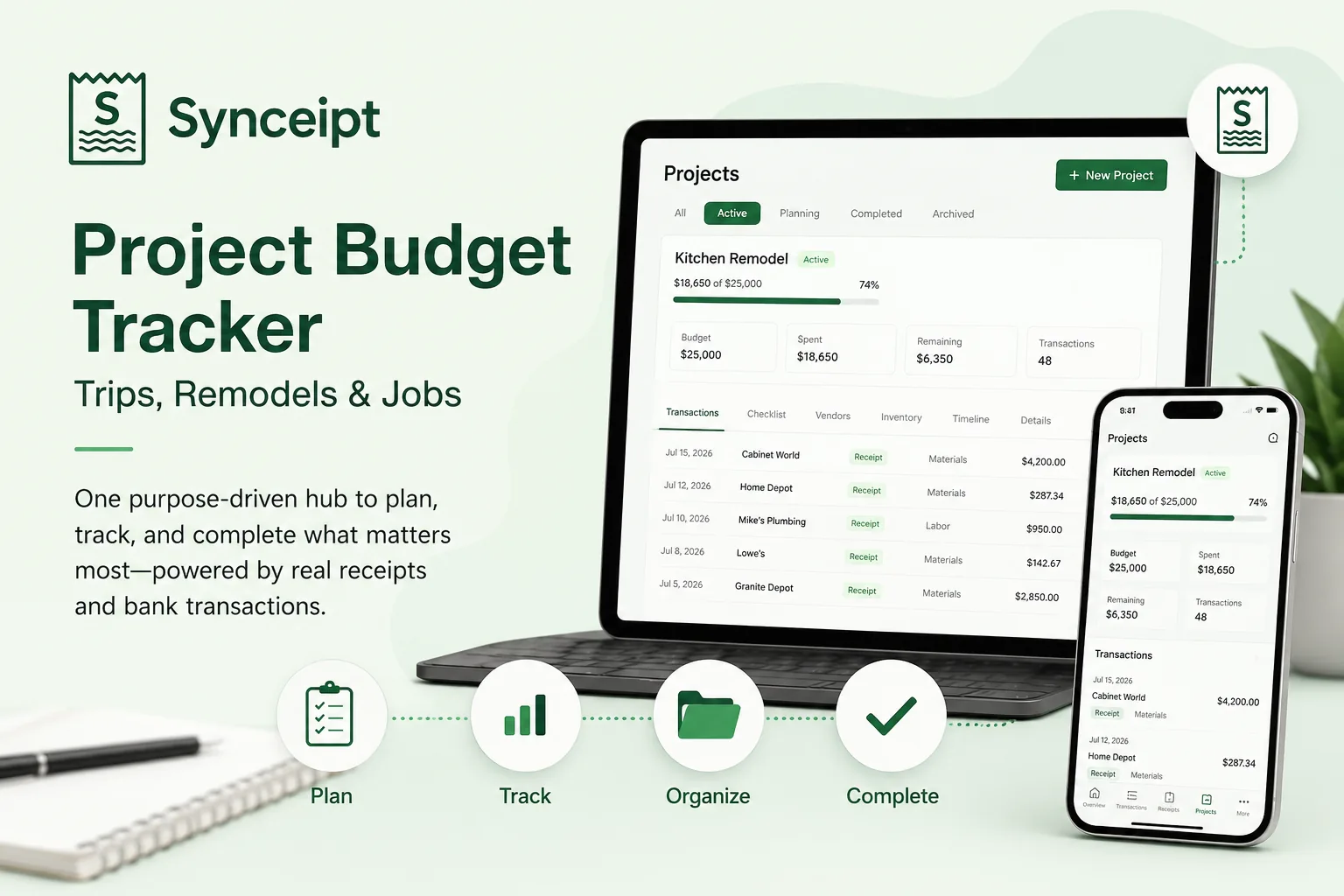
How do you track the budget for a vacation, a kitchen remodel, a wedding, or a client job — one that racks up travel, supplies, food, services, and deposits all at once? Most budgeting apps, Synceipt included, are built around spending categories tracked by calendar month: a cap on Groceries in July, a cap on Dining this year. That's perfect for recurring spending, but it falls apart for a one-off that cuts across categories and stretches over weeks, because no single category budget can tell you what the whole thing is costing.
A Project Journal is Synceipt's answer to that. It's a named, purpose-driven hub — not tied to a category or a month — where you set one overall budget and link every related transaction, then watch a single progress bar. Because Synceipt already reads your receipts and syncs your bank transactions, you're grouping real, verified spending, not typing estimates into a spreadsheet. This guide walks through creating a project and using every part of it, in the order you'd actually use them.
Who Should Use a Project Budget?
A project budget fits anyone with a big, one-off expense that spans categories and time instead of repeating every month. In practice, that's:
- Homeowners tracking a renovation or remodel against a contractor's quote.
- Contractors and tradespeople monitoring job profitability across materials, labor, and subcontractors.
- Families planning and tracking a vacation or trip budget.
- Couples organizing wedding expenses across venues, catering, and vendor deposits.
- Freelancers and consultants tracking the costs — and the payment — of a specific client project.
- Small businesses and side hustles costing out a one-time job, event, or grant.
How Other Budget Apps Handle Project Spending
Most popular budgeting apps are built around the same model Synceipt's own monthly budgets use: spending categories, tracked per calendar month. That model is excellent for recurring household spending, and several of these tools do it better than anyone — YNAB is the benchmark for zero-based monthly budgeting, Monarch and Copilot shine at whole-household tracking and net worth, Quicken Simplifi keeps personal budgeting simple, and QuickBooks is a full accounting suite with genuine job costing. What none of the consumer apps treat as a first-class object is the project itself — a single event whose true cost is spread across many categories and months. Here's how each stacks up on the capabilities that make up a project budget:
| Capability | YNAB | Monarch | Copilot | Simplifi | QuickBooks | Synceipt |
|---|---|---|---|---|---|---|
| Project or event budget | ❌ | ❌ | ❌ | ⚠️ | ✅ | ✅ |
| Budget cap per project | ⚠️ | ❌ | ❌ | ⚠️ | ✅ | ✅ |
| Link bank transactions | ❌ | ❌ | ❌ | ❌ | ✅ | ✅ |
| Vendor tracking | ❌ | ❌ | ❌ | ❌ | ✅ | ✅ |
| Planning checklist | ❌ | ❌ | ❌ | ❌ | ⚠️ | ✅ |
| Inventory from receipts | ❌ | ❌ | ❌ | ❌ | ❌ | ✅ |
| Project PDF report | ❌ | ❌ | ❌ | ❌ | ✅ | ✅ |
| Built for personal projects | ⚠️ | ⚠️ | ⚠️ | ⚠️ | ❌ | ✅ |
Synceipt approaches the problem from a different angle. Rather than confining a budget to a calendar month or a spending category, it lets you organize spending around a specific goal — a vacation, a renovation, a wedding, or a client job. A transaction stays part of its normal monthly category budget while also belonging to a project, so you can see the full cost of one event without pulling it out of the rest of your finances. And because Synceipt already matches your email and photo receipts to synced bank transactions, a project is built from real, verified spending rather than numbers you type into a spreadsheet.
If you're weighing Synceipt against a specific tool, we keep honest, feature-by-feature breakdowns — including where each competitor is genuinely stronger — in our Synceipt vs YNAB, Synceipt vs Monarch Money, and Synceipt vs QuickBooks comparisons, linked at the end of this guide.
Plan note: Project Journal — budget caps, the checklist, vendors, inventory, the timeline, and PDF export — is a paid feature, available on Regular, Pro, and Pro Plus. It isn't part of the Free plan. How many projects you can create depends on your tier: Regular 10, Pro 30, and Pro Plus unlimited.
Step 1: Open the Projects Tab
Project Journal lives on the Budget page. At the top you'll see three tabs — Overview, Manage Budgets, and Projects. Select Projects. This is the same page as your monthly category budgets, on purpose: projects and category budgets are designed to work side by side, not replace each other.
The first time you land here you'll see "No projects yet" with a Create Your First Project button. Once you have projects, the top of the page shows a My Projects header with a New Project button, status filter chips (All, Active, Planning, Completed, Archived), and — on a paid plan — a summary strip across the top: Total Projects, Active, Total Budget, and Total Spent.
Step 2: Create a Project
Click New Project to open the Create New Project dialog. Only a name and a type are required; everything else is optional and can be edited later.
- 1
Name it
Project Name is the one required text field — e.g. "Hawaii Trip", "Kitchen Remodel", or "Johnson Bathroom Job". You can add an optional Description below it.
- 2
Pick a project type
Choose from ten types, each with an icon: Travel ✈️, Home Improvement 🏠, Event / Party 🎉, Wedding 💍, Education 🎓, Healthcare 🏥, Business 💼, Gift 🎁, Vehicle 🚗, or Other 📦. Picking a type also sets a matching default color, which you can override.
- 3
Set the dates (optional)
Add a Start Date and End Date if the project has a timeframe. When an end date is set, each project card counts down the days remaining and shows "Ended" once it passes.
- 4
Set a Budget Cap (optional)
Enter your overall budget for the project — your trip budget, your renovation quote, your job estimate. It's optional: leave it empty to track spending without a cap and just watch the running total.
- 5
Tune the alert threshold
Alert Threshold defaults to 0.80 (80%). It's the point at which the project's progress bar turns to a warning color, giving you a heads-up before you hit the cap. Enter any value from 0 to 1.0.
- 6
Create it
Add a Color and Notes if you like, then click Create Project. New projects start in the Planning status.
Step 3: Link Bank Transactions to Your Project
This is the step that makes a Project Journal different from a budgeting spreadsheet: instead of typing what you think you spent, you attach the actual bank transactions Synceipt already synced. Open the project to see its detail view, which opens on the Summary tab.
Scroll to the Linked Transactions section and click Add Transactions. A panel slides in with two ways to find what belongs to the project:
- AI Suggested — Synceipt scores your transactions by how well they match the project's date range, merchant, and category, and lists the most likely ones first with a percentage match badge. This is the fastest way to bulk-link a trip or a project's worth of spending.
- Search by merchant — a search box to pull up any specific transaction by merchant name, for anything the suggestions missed.
Check the transactions that belong to the project and click Add — they link instantly and their amounts roll into the project's spent total. Back on the Summary tab, each linked transaction shows its merchant, date, category, and amount, with a receipt icon when it has one attached. To unlink something, use the delete icon on its row.
Linking is additive and non-destructive. A linked transaction still lives in your transactions list, still counts toward its category's monthly budget, and still appears in your reports. The project is a lens over your existing data — nothing is moved or duplicated.
Step 4: Read the Summary
The Summary tab is the project's dashboard. At the top it breaks your linked transactions into three figures — Money In, Money Out, and Net — so a project isn't just a spending bucket: money coming in (a client payment, a refund, a resale, a deposit) is tracked alongside money going out, and Net (Money In minus Money Out) shows in green when you're ahead and red when you're behind.
Below that, with a budget cap set, is a spent-vs-budget line ("Spent $X of $Y") with a percentage and a progress bar that shifts from normal to warning to over-budget as you approach and pass the cap. "Spent" here is your net cost — Money Out minus Money In — so linking an incoming payment lowers it rather than inflating it. Then three quick stats:
- Remaining — budget minus net spend, shown in green, or red if you've gone over.
- Transactions — how many transactions are linked to the project.
- Days Remaining — the countdown to your end date, or "Ended" once it passes.
Under the stats, the Category Breakdown shows where the project's money actually went — how much and how many transactions fell into each category. For a remodel, that's the difference between knowing you spent $8,000 and knowing it was $5,200 on materials, $2,100 on labor, and $700 on tools.
Step 5: Plan Purchases With the Checklist
The Checklist tab is for planning what you intend to buy before you buy it. Click Add Item, give it a name ("Flights", "Countertops", "Venue deposit") and an optional estimated amount, and it's added as a Pending item. The header tracks your progress as "{confirmed} of {total} confirmed", and a totals row shows Estimated versus Confirmed spending.
- As you complete a planned purchase, use the Confirm quick-action on the item (or the ⋮ menu → Mark Confirmed). A confirmed item can be backed by its receipt, shown with a View receipt icon.
- Use Skip for anything you decided not to buy — it's greyed out and struck through but kept for the record.
- The ⋮ menu also offers Reset to Pending and Delete.
The checklist gives you the planned-versus-actual view: your Estimated total is what you expected the project to cost, and it fills in against real spending as you confirm each item.
Step 6: Track Vendors
For projects where you're hiring people — a remodel, a wedding, a client job — the Vendors tab keeps everyone in one place. Click Add Vendor and record a Name (required), plus optional Phone, Email, and a Note. It's a lightweight contact list scoped to the project, so when you need to reach the electrician or the caterer months later, they're right there with the rest of the project.
Step 7: Inventory and Timeline
Two more tabs round out the project view:
- Inventory — automatically pulls the line items from the receipts on your linked transactions into one table (Product, Category, Qty, Unit Price, Total, Merchant). If you photographed or forwarded receipts for your project purchases, this is every item you bought across the whole project, itemized, with no manual entry.
- Timeline — a chronological, most-recent-first feed of the project's activity: when it was created, when transactions were added, when checklist items were confirmed, and when vendors were added.
Step 8: Export a PDF
When the project is done — or any time you need a record — click Export PDF on the Summary tab. Synceipt generates a shareable summary of the project (named for the project, like project-journal-Kitchen-Remodel.pdf) that you can keep for taxes, hand to a client, or file with your records. PDF export is part of the paid Project Journal.
Managing a Project Over Time
A project moves through statuses as it progresses — Planning, Active, Completed, and Archived — shown as a colored chip on the card and in the detail header, and usable as filters on the My Projects list. Use the Edit button (the pencil in the project header) to rename it, adjust the budget, change dates, or move it to a new status. Completed and archived projects stay searchable via the status filter chips, so last year's vacation or a finished job is always one click away.
Real-World Examples
The same project workflow adapts to very different budgets. A few ways people put it to work:
- Track a Disney or family vacation budget — one project for flights, hotels, park tickets, dining, and souvenirs, so you see the trip's true all-in cost instead of charges scattered across three months.
- Track wedding expenses — a single hub for the venue, catering, photographer, attire, and every vendor deposit, with a checklist of what's still to book.
- Track a kitchen renovation or home remodel — link every hardware-store run and contractor payment against your quote, and watch the spent-vs-budget bar as the work progresses.
- Track a client or freelance project — group the project's costs and, by linking the client's payment too, read the job's net profit right on the project.
- Track a one-time business job or research grant — cost out a construction job, an event, or funded research, then export a PDF for your records, a client, or a reimbursement.
A Closer Look: A Contractor's Job Costing
Here's how a contractor might run a single bathroom-remodel job end to end:
- 1
Create the project
New Project → "Johnson Bathroom", type Business (or Home Improvement), Budget Cap set to the job estimate, with the start and expected end dates.
- 2
Pre-load the checklist
Add the planned buys — tile, vanity, plumbing fixtures, subcontractor labor — each with an estimated amount, so the estimate total reflects the quote.
- 3
Link costs as they happen
Each week, open Add Transactions and link that week's supply runs, hardware-store purchases, and subcontractor payments from the suggested list. The spent-vs-budget bar updates live.
- 4
Track the trades
Add each subcontractor to Vendors with their contact info as you bring them on.
- 5
Close it out
When the job's done, mark it Completed and Export PDF for your records and the client's invoice backup. The category breakdown shows exactly where the budget went.
Profit at a glance: because the Summary tracks Money In and Money Out separately, linking the client's payment alongside the job's costs gives you the job's Net right on the project — a quick profit read without leaving the project. For a formal profit-and-loss statement across your whole business (not just one job), pair projects with Synceipt's Customer/Project tags and the Light Bookkeeping P&L export.
How is a project budget different from a normal monthly budget?
A monthly budget caps one category for one month. A Project Journal is a named hub for one purpose — a trip, a remodel, a wedding, a job — that spans categories and months. You give it one overall budget and link every related transaction, so you see the whole event's cost in one place. A project-linked expense still counts toward its category's monthly budget too.
Which Synceipt plan do I need for Project Journal?
Project Journal is a paid feature — Regular, Pro, or Pro Plus. It isn't available on the Free plan. How many projects you can create depends on your tier: Regular 10, Pro 30, and Pro Plus unlimited.
What kinds of projects can I create?
Ten types, each with an icon: Travel, Home Improvement, Event / Party, Wedding, Education, Healthcare, Business, Gift, Vehicle, and Other. The type is for organization and color-coding — you budget and track any of them the same way.
Can a contractor or small business track a job with this?
Yes — a project per job, budget set to your estimate, with every material and subcontractor cost linked as it syncs. The Summary tracks Money In, Money Out, and Net, so linking the client's payment too gives you the job's net (a quick profit read) on the project, plus a spent-vs-budget bar, a category breakdown, a vendor list, and a PDF export. For a formal business-wide P&L, pair projects with tags and the Light Bookkeeping P&L export.
How do I link transactions to a project?
Open the project, go to the Summary tab, and click Add Transactions. Synceipt shows an AI-suggested list (scored by date, merchant, and category) plus a merchant search. Check the ones you want and click Add — they link instantly and roll into the project total.
Does linking a transaction to a project change my other budgets or reports?
No. Linking is additive — the transaction stays in your transactions list, still counts toward its category's monthly budget, and still shows in reports. A project is a lens over your existing data, not a separate ledger.
Can I track a project budget in YNAB or Monarch Money?
Not as a dedicated feature. Both are excellent monthly, category-based budgeting apps, but neither has a project hub that ties one event's transactions, vendors, checklist, and PDF report together. You can approximate it with a category or tag, but you lose the single spent-vs-budget view across categories and months — which is what Synceipt's Project Journal adds, built on receipts already matched to your bank transactions. See our Synceipt vs YNAB and Synceipt vs Monarch Money comparisons for the full breakdown.
Budget Your Next Project the Easy Way
Create a project, set a budget, and let Synceipt link your real bank transactions to it automatically — trip, remodel, wedding, or client job, all tracked in one place.