
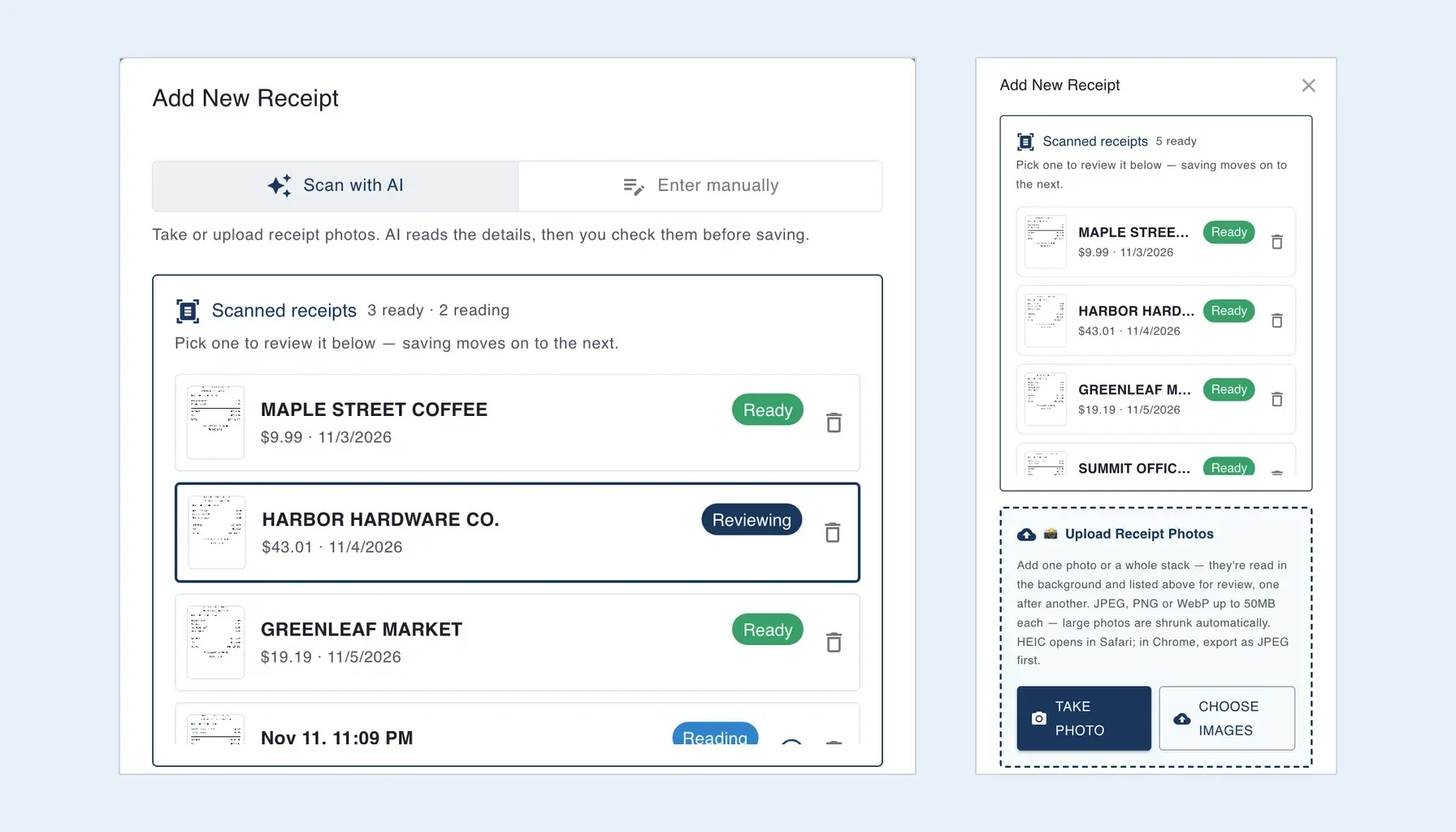
Need to deal with a wallet, glovebox or shoebox full of paper receipts? Synceipt is a receipt scanner and expense tracker that turns receipt photos into searchable digital records. You photograph the entire stack in one session, and Synceipt's AI reads the merchant, purchase date, total, tax, currency and line items in the background.
You don't wait between photos, and you don't have to watch the screen while they're read. When they're ready, you check them one after another in the order you scanned them, correcting anything the AI misread. Each saved receipt keeps its photo as proof of purchase and can be matched to the bank transaction that paid for it, so you never have to type every merchant, date and total by hand.
Try it with your own pile: scan receipts free in your browser, or download the Synceipt receipt scanner for iPhone. A free plan is available, and no credit card is required.
More than a receipt scanner: keep and track every receipt
Scanning is only the first step. Once a receipt is saved, Synceipt keeps it as an organized expense record you can find and use later:
- Search your receipts by merchant, item, order number or amount, and filter them by date.
- Keep the original receipt photo with each record as proof of purchase for returns, reimbursements and taxes.
- Match receipts to bank transactions automatically, so every charge on your statement has its receipt beside it.
- Track spending by what you bought, not just where, with item-level budgets built from receipt line items.
- Keep foreign receipts in their own currency with multi-currency expense tracking.
- Capture emailed receipts automatically from Gmail, Outlook or Yahoo, alongside the receipts you photograph.
Who batch receipt scanning is for
- Freelancers and the self-employed catching up on business expenses at the end of the week or month.
- Small-business owners organizing purchase records before handing them to a bookkeeper.
- Employees gathering receipts for an expense reimbursement after a trip.
- Households keeping receipts for returns, refunds and warranty claims.
- Travelers with receipts in several currencies.
Why scanning a batch saves time
- Scan without waiting. Take photo after photo, or pick a batch from your library; nothing waits on the AI while you capture.
- Reading happens in the background. Close the window and carry on; the iPhone app notifies you when the batch is ready.
- Review in order. Saving a receipt takes you straight to the next one, in the order you scanned them.
- One receipt is still quick. A single photo is read straight away and the form fills in while you watch.
- Receipt photos aren't lost. In the iPhone app they wait on your phone until they upload, even if you close the app or lose signal; if the AI reader is unavailable, Synceipt keeps retrying instead of failing the scan.
How to scan multiple receipts at once
Step 1: Open Add Receipt and choose Scan with AI
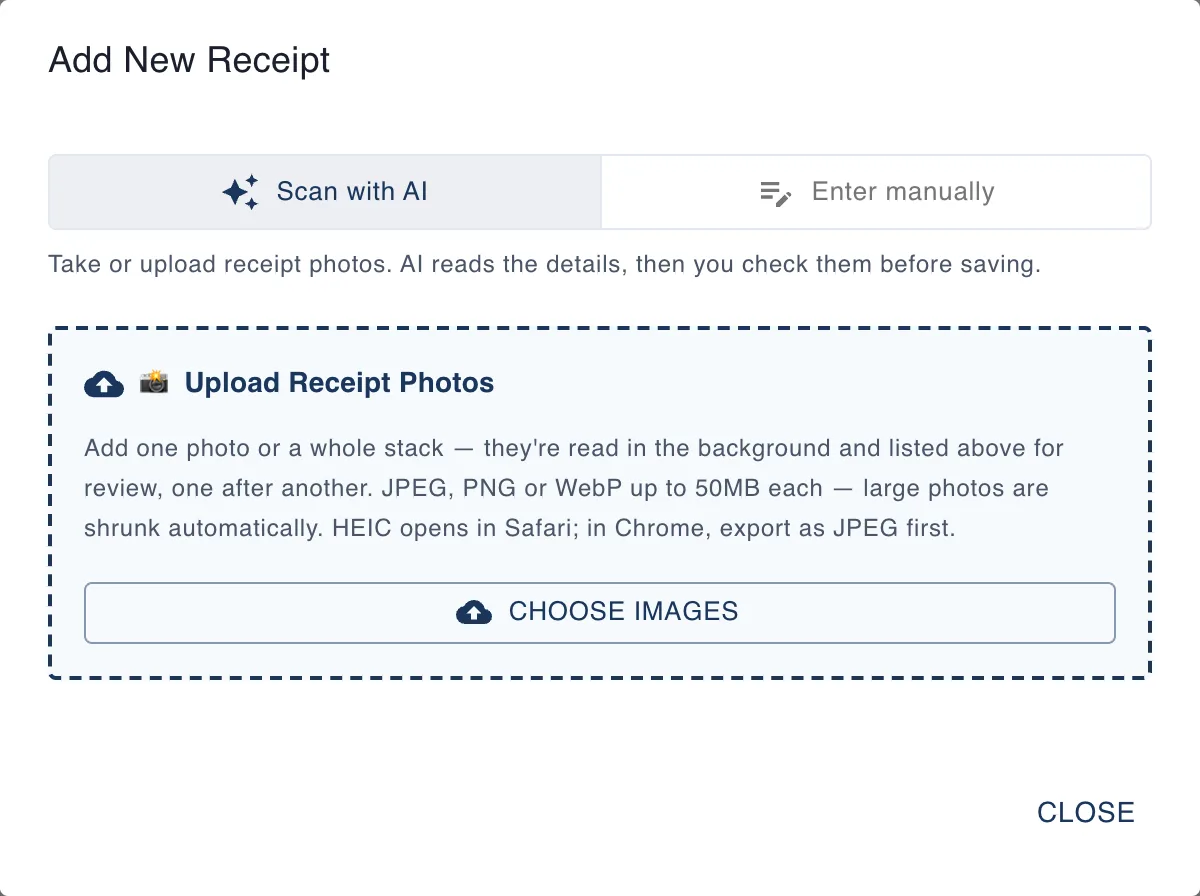
On the web, open Receipts and choose Add Receipt. In the iPhone app, open the Receipts tab and tap Add. At the top of the window, choose Scan with AI. The other option, Enter manually, is for typing in a receipt yourself and is covered below.
Step 2: Scan the whole stack
In the iPhone app, you have two ways to add receipts:
- Tap Scan to open the camera. It stays open, and each receipt you photograph is added as a thumbnail you can remove. When you've worked through the pile, tap Done, which shows how many you took — for example, Done (7).
- Tap Photos to open your photo library and select up to 30 receipt photos at a time. Need more? Repeat for the next 30.
On the web, choose Choose Images and select several receipt images at once. In a phone browser you also get Take Photo, which opens the camera; each receipt you photograph joins the list, and you can open the camera again for the next one.
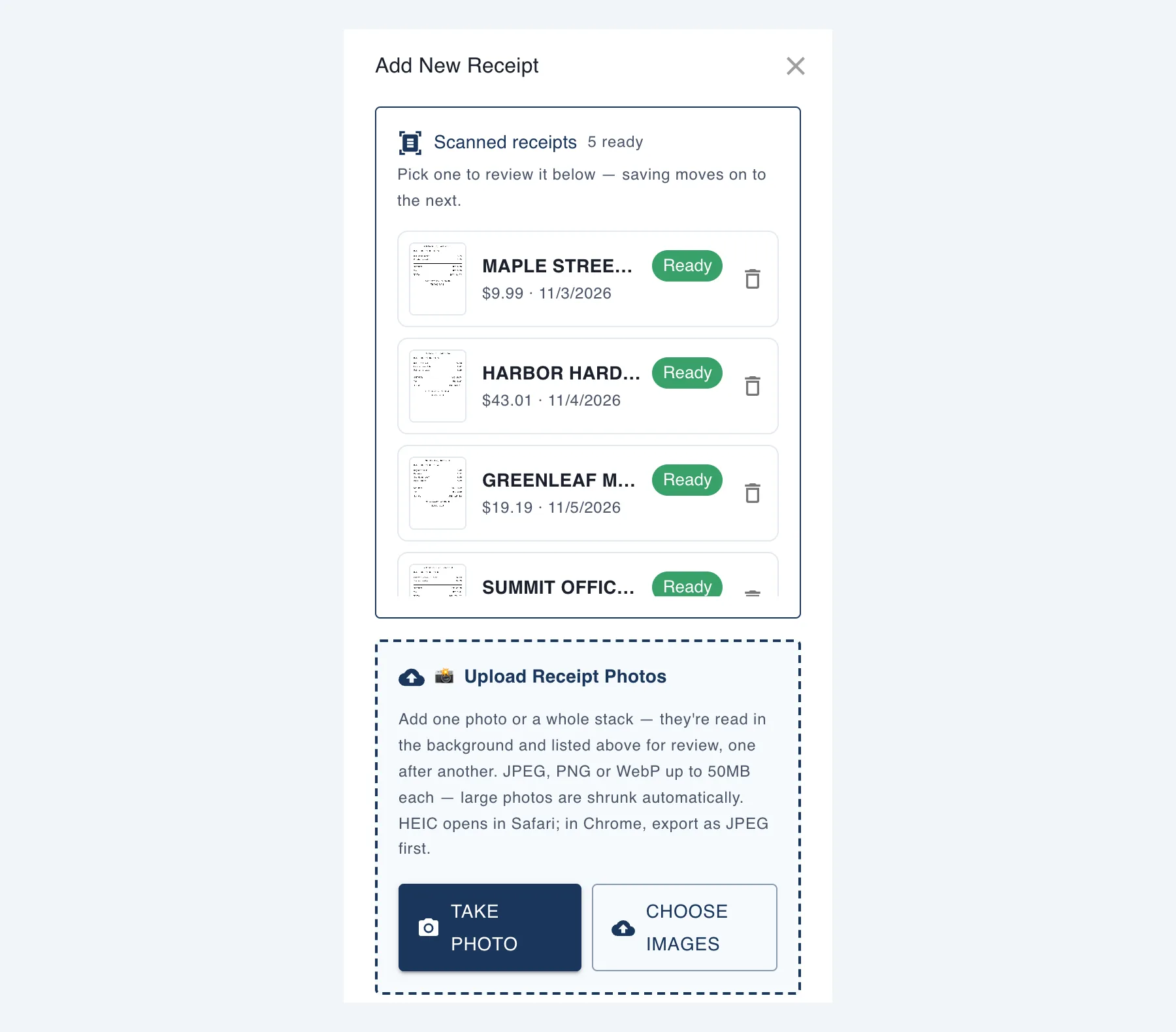
Scanning in a browser? Keep the tab open until every receipt has moved from Uploading to Reading — after that it's safely uploaded and you can close the window. The iPhone app keeps receipt photos on your phone until they upload, so it doesn't have this limitation.
Step 3: Let the receipts be read in the background
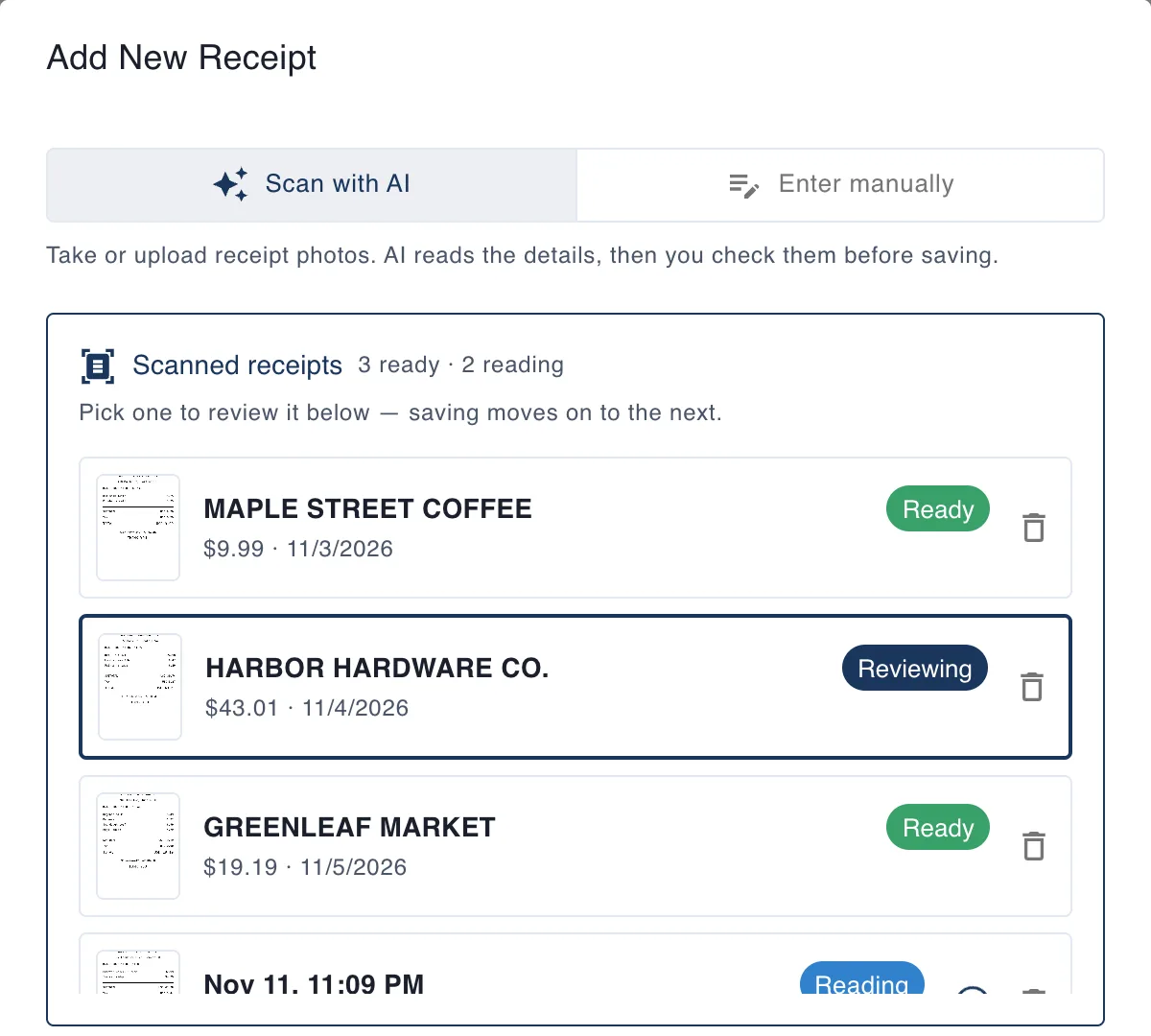
Your receipts appear in a Scanned receipts list in the order you took them, each with a status. Most are read within a minute; a big stack takes a little longer.
| Status | What's happening | What you can do |
|---|---|---|
| Uploading | The receipt photo is on its way to Synceipt | Wait. In the iPhone app, a photo that hasn't started uploading can still be removed |
| Not uploaded | The upload was refused: your receipt scans are used up, or 100 receipts are already waiting to be read | Get more scans, or retry in a minute; or remove the photo |
| Reading | The photo is uploaded and the AI is reading it | Nothing — you can close the window |
| Ready | The receipt's details have been read | Review and save it |
| Retrying | The AI reader is busy or unavailable; Synceipt keeps trying | Wait, or enter the details yourself |
| Couldn't read | The photo couldn't be read | Retry, or enter the details yourself — the photo is kept |
When receipts are ready, a banner on the Receipts page — or the Receipts tab in the app — says how many are waiting, with a Review button.

Step 4: Review each receipt in order
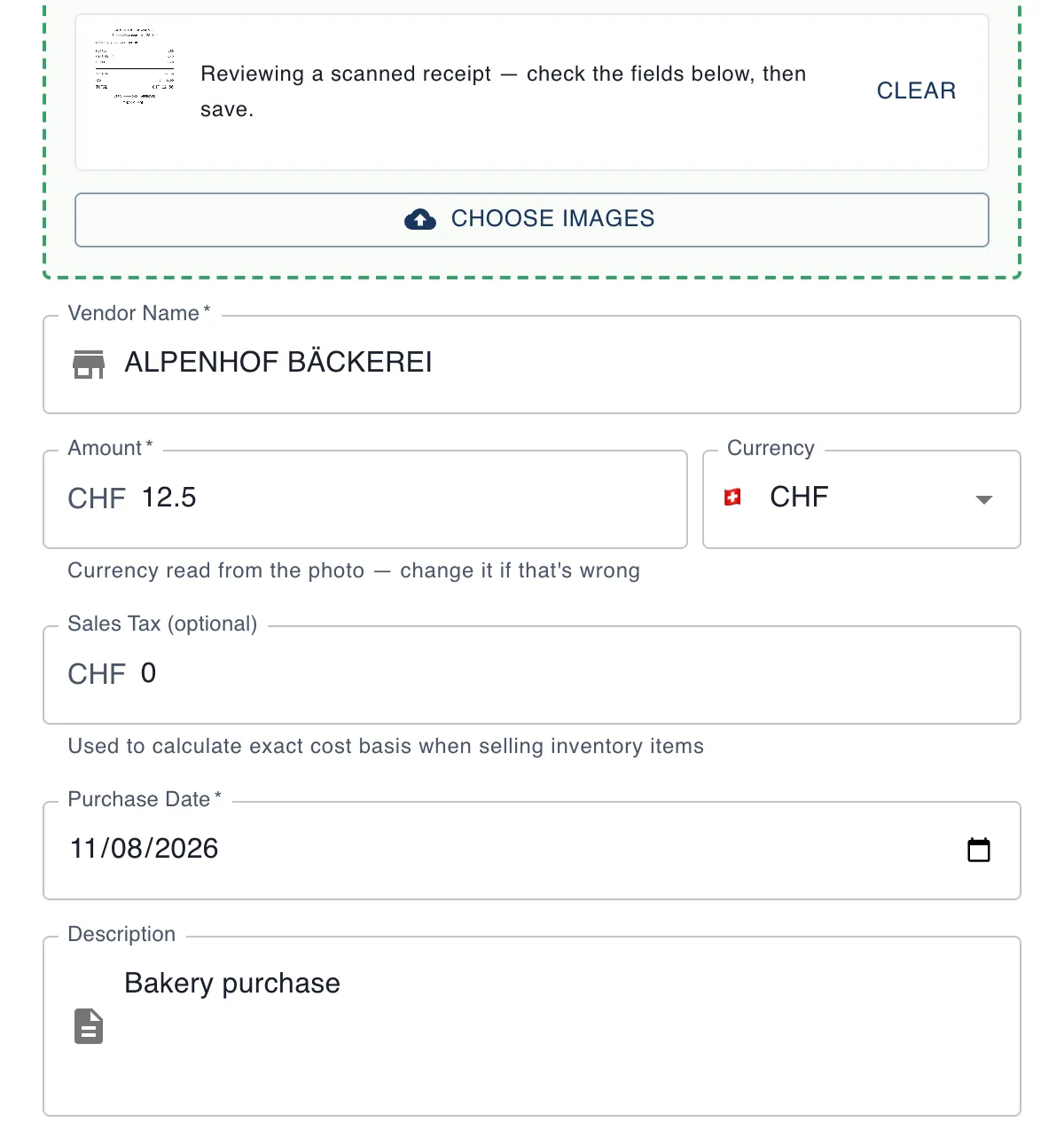
Choose Review. On the web, pick a receipt from the list, or let Synceipt open the first ready one; its details fill the form, with the photo beside them. In the iPhone app, open Review Scans and tap Review N in order.
Check the merchant, total, date, tax and line items, and change anything that's wrong. Then save — Create Receipt on the web, Confirm in the app — and the next receipt opens straight away.
- Skip for now (in the app) leaves a receipt for later and moves on. On the web, pick a different receipt from the list.
- Discard removes a scan you don't need, such as a duplicate or a blurry photo.
- Review scanned receipts within 30 days. A scan that's still unreviewed after 30 days expires and has to be scanned again.
What Synceipt reads from a receipt
From each receipt photo, Synceipt's AI extracts:
- Merchant name and purchase date
- Total, tax, and tip or shipping where the receipt shows them
- Currency — a receipt from a trip abroad stays in its own currency
- Line items with quantity and price, plus a description and category
- Order number and payment method where they're printed
Accuracy depends on the photo. A flat, well-lit receipt that fills the frame reads best; faded thermal paper, creases and shadows make mistakes more likely. That's why every receipt is shown to you before it's saved.
Scanning a single receipt
If you take or pick just one photo, you don't need the review list. In the app, a Reading Receipt screen follows the photo through uploading and reading, then opens the filled-in form. If it's taking a while, tap Continue in background and the receipt will wait for you on the Receipts tab. On the web, a single photo fills in the form as soon as it has been read.
When a receipt can't be read
A scan marked Couldn't read keeps its photo. Retry it, or open it and type in the merchant, total and date yourself; the photo is saved with the receipt either way. If the problem is on our side — the AI reader is unavailable — scans don't fail. They show Retrying, and Synceipt keeps trying for up to three days; the iPhone app notifies you once they've been read. Need a receipt sooner? Open it and enter the details yourself.
Entering a receipt by hand, with its photo as proof
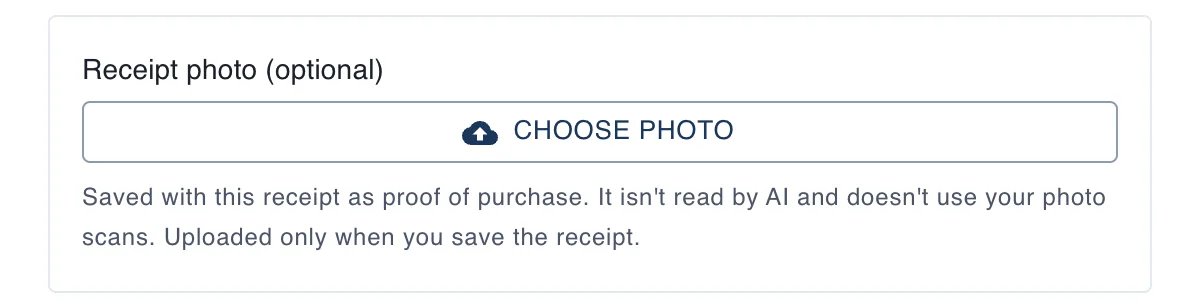
Sometimes it's quicker to type a receipt in yourself, such as a handwritten receipt or one you already have the numbers for. Choose Enter manually, fill in the details, and add the photo under Receipt photo (optional). It's saved with the receipt as proof of purchase, isn't read by AI, and doesn't use your photo scans.
Privacy and security of your receipt photos
Receipts are financial records, so it's worth knowing where they go. Receipt photos travel between your device and Synceipt over an encrypted (TLS) connection. When you choose Scan with AI, the photo is sent to one of our AI providers to read its details; the providers, and what they may do with the data, are listed in our privacy policy. A photo attached to a receipt you typed in is only stored, never read by AI.
You can delete individual receipts at any time. If you delete your account, it's closed immediately and your receipts and other content are permanently deleted 30 days later. Synceipt has also passed an independent CASA Tier 2 security assessment.
Plans, limits and where it works
| Batch receipt scanning | |
|---|---|
| Where | The Synceipt app for iPhone and iPad, and the web app in any modern browser, on a computer or a phone |
| Android | An Android app is coming soon. Meanwhile, the web app works in Chrome on Android, including Take Photo |
| Plans | Every plan. The free plan includes 10 receipt scans to try it; paid plans include a monthly photo receipt allowance, and add-on packs are available — see Synceipt plans and receipt scan limits |
| Doesn't count | Receipts that couldn't be read, and photos attached to a receipt you typed in |
| Batch size | Up to 30 receipt photos per pick from your iPhone library — pick again for the next 30. Up to 100 receipts can be waiting to be read at once; past that, the extra photos wait: the iPhone app uploads them by itself as earlier ones finish, and on the web you retry them after a minute |
| File types (web) | JPEG, PNG or WebP up to 50 MB each; large photos are shrunk automatically. HEIC opens in Safari — in Chrome, export as JPEG first |
| Review window | 30 days from scanning |
If you select more receipts than you have scans left, the extra ones aren't uploaded. They stay in the list with an option to get more scans, and the rest are read as usual.
Can I scan multiple receipts at once?
Yes. In the iPhone app, keep the camera open and photograph receipt after receipt, or pick up to 30 receipt photos from your library at a time. On the web, select several receipt images at once. Synceipt reads them in the background and you review them in order.
How many receipts can I scan in one batch?
As many as your plan's photo receipt limit allows. There are two practical limits: 30 photos per pick from your iPhone library (pick again for the next 30), and up to 100 receipts waiting to be read at once. Past 100, the extra photos wait until earlier ones are read — automatically in the iPhone app, or with a retry after a minute on the web.
Is Synceipt free to use as a receipt scanner?
You can try it free: the free plan includes 10 receipt scans, and no credit card is required. After that, add-on packs or a paid plan with a monthly photo receipt allowance let you keep scanning. Emailed receipts and receipts you type in yourself don't use photo scans.
Do I have to keep the app open while receipts are read?
No. In the iPhone app, receipt photos stay on your phone until they upload, even if you close the app or lose signal, and you get a notification when the batch has been read. On the web, keep the tab open only until each receipt shows Reading.
Is there an Android receipt scanner app?
An Android app is coming soon. Until then, open the Synceipt web app in Chrome on your Android phone: Take Photo opens the camera, and receipts are read and reviewed the same way.
What order are scanned receipts reviewed in?
The order you scanned them. In the iPhone app, a photo picked from your library uses the time it was taken, where the photo records it; on the web, a file uses its last-modified date.
Will scanning the same receipt twice create a duplicate?
In the iPhone app, a library photo picked again within an hour is skipped, and the app tells you how many were skipped. Otherwise, use Discard on the copy you don't need when you review.
Can I find a receipt later?
Yes. Saved receipts are searchable by merchant, item, order number and amount, and can be filtered by date. Each one keeps its original photo.
Are my receipt photos private?
Receipt photos are sent over an encrypted connection and are only sent to an AI provider when you choose Scan with AI, to read their details. Our privacy policy lists the providers and how long data is kept, and deleting your account permanently deletes your receipts 30 days later.
What about receipts that arrive by email?
You don't need to scan those. Connect Gmail, Outlook or Yahoo and Synceipt extracts email receipts automatically — see how to capture receipts from email, photos and PDFs.
Scan and organize your first stack of receipts
Turn receipt photos into searchable expense records without typing every merchant, date and total by hand. Available on iPhone, iPad and the web; a free plan is available and no credit card is required.