
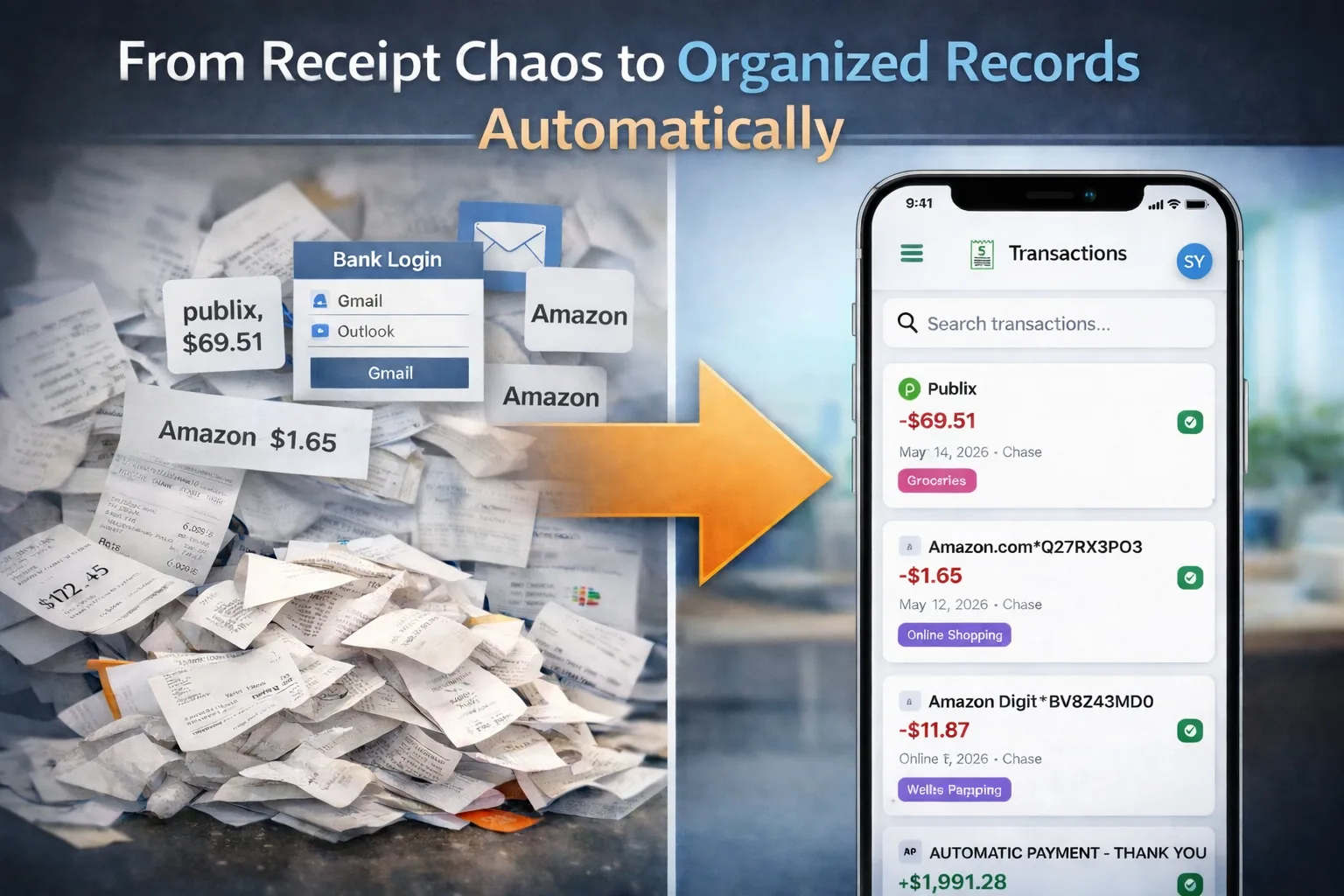
Every purchase you make online generates a receipt email. Amazon order confirmations, Uber receipts, subscription renewals, restaurant charges from delivery apps — they all land in your Gmail inbox automatically, timestamped and itemized, without any action on your part. The challenge isn't capturing receipts. It's connecting them to the corresponding charge on your bank or credit card statement.
This guide walks through how to connect Gmail to Synceipt, let it extract receipts automatically, and match them against transactions pulled directly from your bank via Plaid — so reconciliation happens in the background without manual scanning, forwarding, or copy-pasting.
Why Email Is the Best Source for Receipts
Photo scanning works for paper receipts, but most modern purchases don't produce paper at all — they produce email. Connecting your inbox as the receipt source makes the capture step fully automatic. Every eligible receipt that lands in Gmail is extracted without any action on your part.
- No scanning required — receipts arrive in your inbox before the bank charge even clears
- Higher accuracy — email receipts contain the exact merchant name, itemized amounts, and order numbers that enable precise matching
- Automatic coverage — every eligible purchase is captured as long as the confirmation email goes to your connected inbox
- Status tracking — Synceipt also extracts order status updates (Shipped, Delivered, Refunded) so you see the full lifecycle of each purchase
- Retroactive extraction — Synceipt can look back through existing emails, so connecting today picks up receipts from previous months as well
How Gmail OAuth Works — and Why It's Safe
When you connect Gmail, Synceipt does not ask for your Google password. Instead, it uses OAuth 2.0: you authorize access through Google's own login page, and Google issues Synceipt a read-only access token. That token grants read access to your inbox messages but cannot send email, delete messages, or access any other Google service.
Read-only access: Synceipt's Gmail permission is scoped to gmail.readonly. It can search and read your emails — it cannot send, delete, or modify them. You can revoke the connection at any time from your Google Account → Security → Third-party apps with access.
The access token is stored securely on the server and is used only to search for purchase-related emails. Synceipt searches for messages containing keywords like order, receipt, confirmation, shipped, delivered, and refund. A multi-stage AI validation step then filters each candidate message before extracting any receipt data, so emails that don't match purchase patterns are never read or stored.
Step-by-Step: Connect Gmail to Synceipt
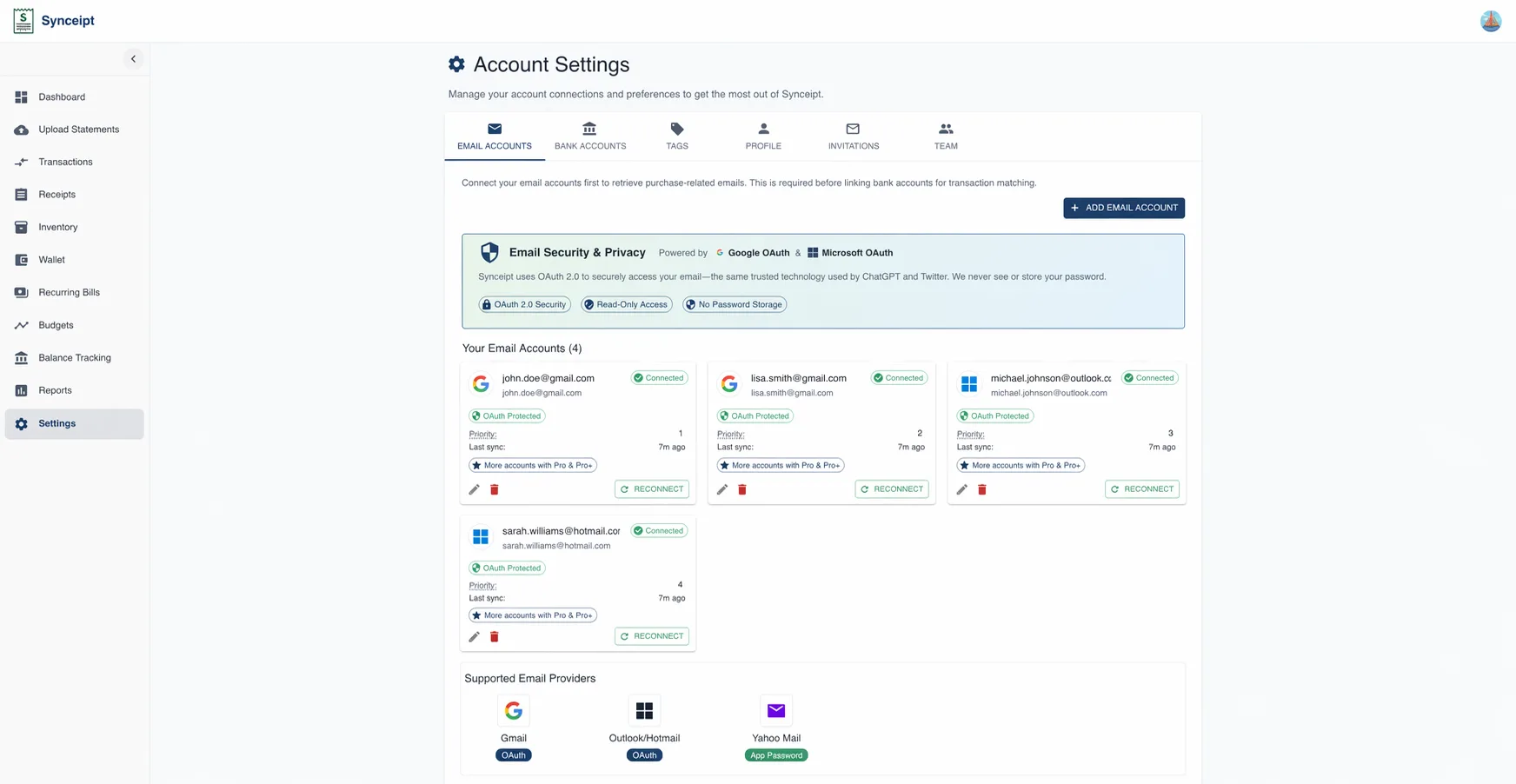
- 1
Open Email Accounts in Settings
From the main navigation, go to Settings and select Email Accounts. This page lists all your connected email accounts and their sync status.
- 2
Click Add Email Account
Click the Add Email Account button to open the connection wizard.
- 3
Select Gmail as your provider
Choose Gmail from the list of supported providers. Synceipt displays a summary of the read-only permissions it will request before you proceed.
- 4
Complete Google's OAuth authorization
Click Authorize. You'll be redirected to Google's login page. Sign in to the account you want to connect and click Allow. You'll be returned to Synceipt immediately — your password is never shared.
- 5
Let the automatic extraction run in the background
Once connected, let the automatic daily extraction run in the background.
Connect Your Bank via Plaid
Plaid connects Synceipt to over 12,000 financial institutions across the US, Canada, and Europe. Once a bank account is connected, transactions sync automatically so there's always a current set of charges to match against your extracted receipts. You log in on your bank's own page — or, for banks without that support, directly inside Plaid's secure window — never in Synceipt, and Synceipt never sees your banking username or password.
- 1
Open Bank Accounts in Settings
Go to Settings → Bank Accounts. This page shows all connected bank accounts and their last sync timestamps.
- 2
Click Add Bank Account
Click Add Bank Account to launch the Plaid Link interface.
- 3
Search for and log in to your bank
Type your bank's name in Plaid's search field, select it, then log in on your bank's own page — or, for banks without that support, directly inside Plaid's secure window. Either way, Synceipt does not receive or store these credentials.
- 4
Select the accounts to connect
Choose which checking, savings, or credit card accounts to include. Synceipt will pull transactions from each account you select.
Plaid alternative: If your bank isn't in Plaid's network or you prefer not to link directly, upload a PDF bank statement instead. Go to Settings → Bank Accounts → Upload Statement and Synceipt's AI will extract transactions automatically.
How the Automatic Matching Works
Once Gmail and your bank are both connected, Synceipt's matching engine runs automatically whenever new data arrives. For each bank transaction, the engine searches for a receipt with a matching amount, merchant name, and date. When a confident match is found, the transaction is linked to its receipt and marked Matched.
Matching runs in both directions. When a new receipt arrives from Gmail — via the nightly extraction job or a manual sync — Synceipt checks existing transactions for a match. When a new Plaid transaction syncs, it's checked against the Receipt Inbox. You don't need to trigger matching manually; it runs as part of the extraction and sync cycle.
- Exact amount matching ensures you catch discrepancies between what you paid and what was charged
- Merchant name matching accounts for common abbreviations and payment processor names (e.g., 'SQ *' prefixes from Square terminals)
- Date matching includes a small window around the transaction date to handle processing delays
- Order numbers from shipping status emails (Shipped, Delivered) link back to the original receipt, giving you complete order tracking alongside your bank data
What to Do with Unmatched Receipts
Automatic matching handles the majority of purchases, but some receipts and transactions need a small amount of help. The most common reasons are tip-adjusted amounts (the receipt total differs from the final card charge), abbreviated merchant names on bank statements, and transactions that are still pending when the receipt arrives.
Unmatched receipts collect in your Receipt Inbox. To link one manually, open it and switch to Manual Matching mode — search by merchant name, date range, or amount to find the right transaction, then confirm the pair. Once linked, both the receipt and the transaction are marked Matched and removed from the unmatched queue.
- Tip adjustments — match manually after the final charge posts (usually 1–3 days after the meal)
- Pending transactions — sync again once the transaction clears and check the Receipt Inbox
- Abbreviated merchant names — use the amount filter to identify the correct transaction
- Refunds — Synceipt extracts Refunded status emails and can match them to the corresponding return credit on your statement
Adding Outlook and Yahoo as Additional Inboxes
If you use multiple email accounts — for example, a personal Gmail for online shopping and a work Outlook for software subscriptions — you can connect all of them. Synceipt consolidates receipts from every connected inbox into a single Receipt Inbox.
- Gmail — OAuth 2.0 (gmail.readonly scope), no password required
- Outlook / Microsoft 365 — OAuth 2.0 via Microsoft Graph API (Mail.Read permission), no password required
- Yahoo Mail — IMAP using a Yahoo app-specific password (Yahoo does not support third-party OAuth for IMAP access)
Yahoo and iCloud require an app-specific password because these providers do not support OAuth 2.0 for third-party email clients. You generate the app password in your Yahoo or Apple account settings — it's separate from your main account password and can be revoked independently at any time.
Frequently Asked Questions
Does Synceipt store my Gmail password?
No. Synceipt uses OAuth 2.0. You authorize access on Google's own login page and Google issues a read-only token. Your password is never transmitted to or stored by Synceipt. Revoke access anytime from Google Account → Security → Third-party apps with access.
What emails does Synceipt actually read?
Synceipt searches for messages with purchase-related keywords (order, receipt, confirmation, shipped, delivered, refund). An AI validation step filters each result before extracting data. Personal conversations, newsletters, and non-purchase emails are not read or stored.
What if a receipt doesn't match any transaction?
It stays in your Receipt Inbox. Open Manual Matching mode and search by merchant, date, or amount to find and confirm the pair. Common causes: tip-adjusted total, pending transaction that hasn't cleared, or an abbreviated merchant name on your statement.
Can I connect Gmail and Outlook simultaneously?
Yes. Add as many email accounts as you like. Each inbox is scanned independently and all extracted receipts are merged into one Receipt Inbox.
Do I need a Plaid bank connection to use Gmail extraction?
No. Email extraction and bank connections are independent features. You can upload a PDF bank statement to add transactions and matching will work the same way.
Connect Gmail and See Your First Automatic Match
Link your inbox and bank account once. Synceipt extracts receipts, syncs transactions, and matches them automatically — no scanning, no forwarding, no manual reconciliation.