
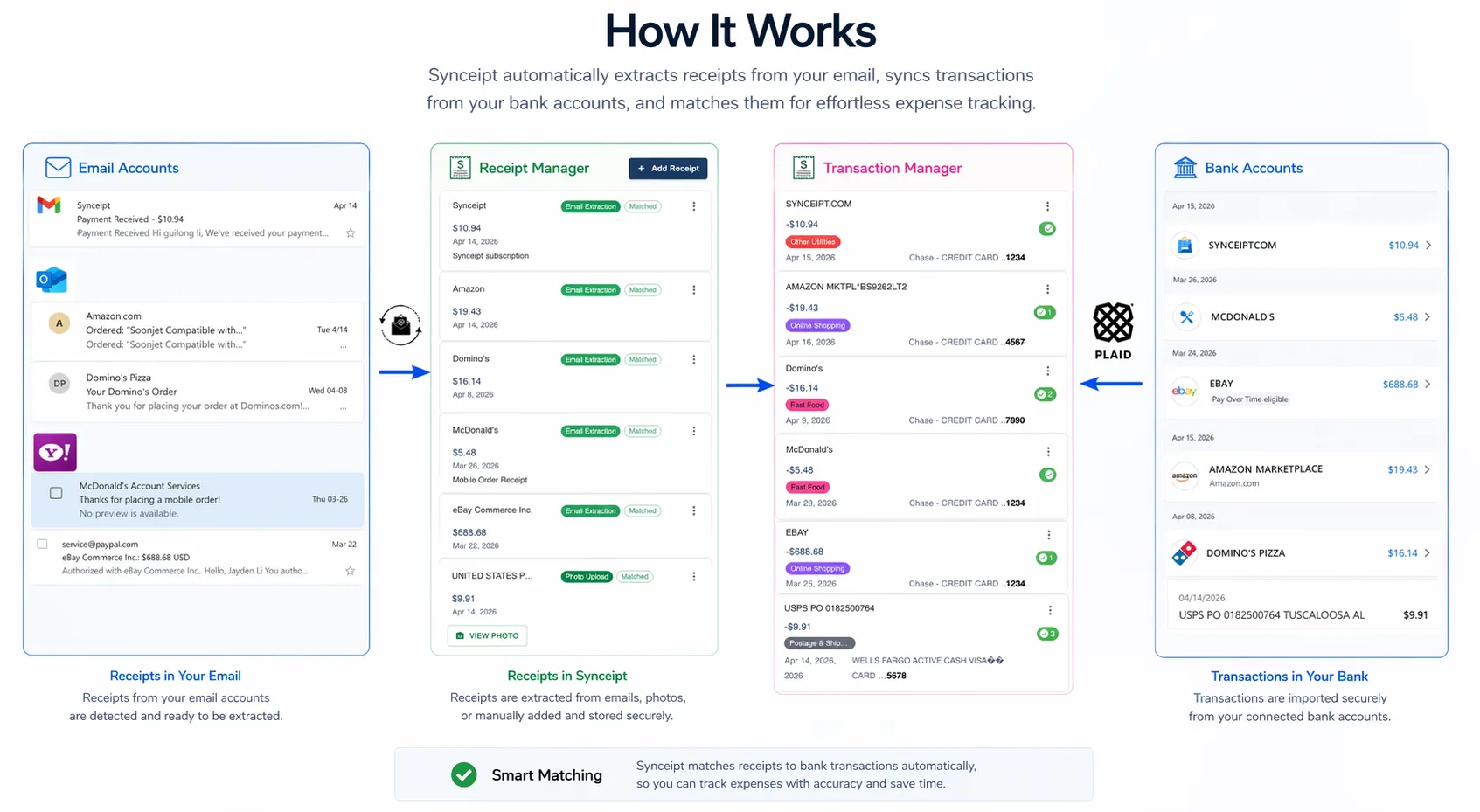
The core idea behind Synceipt is simple: a receipt is proof of a purchase, and that purchase should appear as a transaction in your bank account. Matching connects these two pieces of information.
How Automatic Matching Works
When you connect both email and bank accounts, Synceipt runs a matching engine that looks for receipt-transaction pairs using three key signals:
- Merchant name — Amazon charge + Amazon receipt
- Amount — Exact match (e.g., $-19.43 to $19.43)
- Date — Typically within 1-3 days (receipts often arrive before charges post)
When all three match, Synceipt automatically links them and tags the transaction as 'Matched'. A green checkmark appears on both the receipt and transaction.
Confidence Score: Behind the scenes, Synceipt calculates a confidence score (0-100) for each match. Only high-confidence matches are applied automatically. Lower-confidence pairs are flagged for your review.
When Automatic Matching Doesn't Work
Some purchases don't match automatically due to special circumstances:
- Amount mismatch — Tip added after receipt, currency conversion, or tax calculated differently
- Date gap — Foreign merchant posting delays, batch settlements
- Merchant mismatch — Charge shows parent company name, not store name (e.g., 'Square Inc.' instead of 'Coffee Shop')
- Missing receipt — Transaction with no email receipt captured
- Missing transaction — Receipt captured but charge hasn't posted yet
Manual Matching (When You Need It)
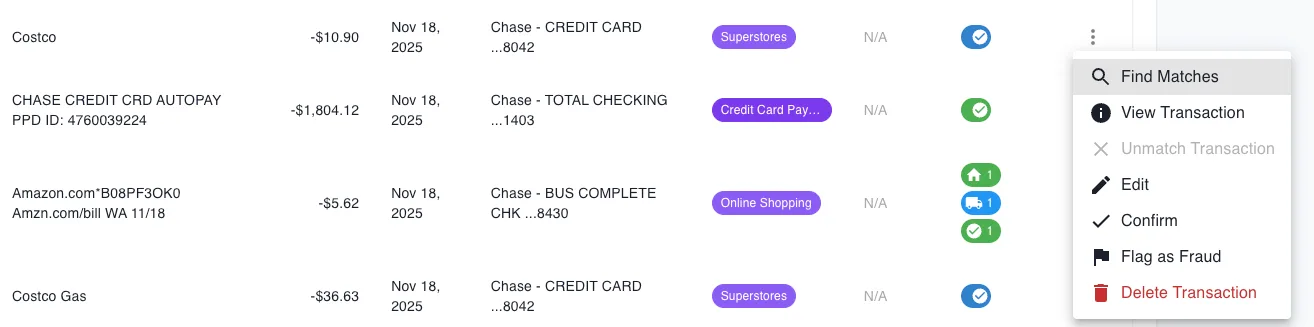
For unmatched pairs, use the 'Find Matches' button to open the Match Transaction dialog:
- Open Transactions page and select an unmatched transaction
- Click 'Find Matches' in the action menu
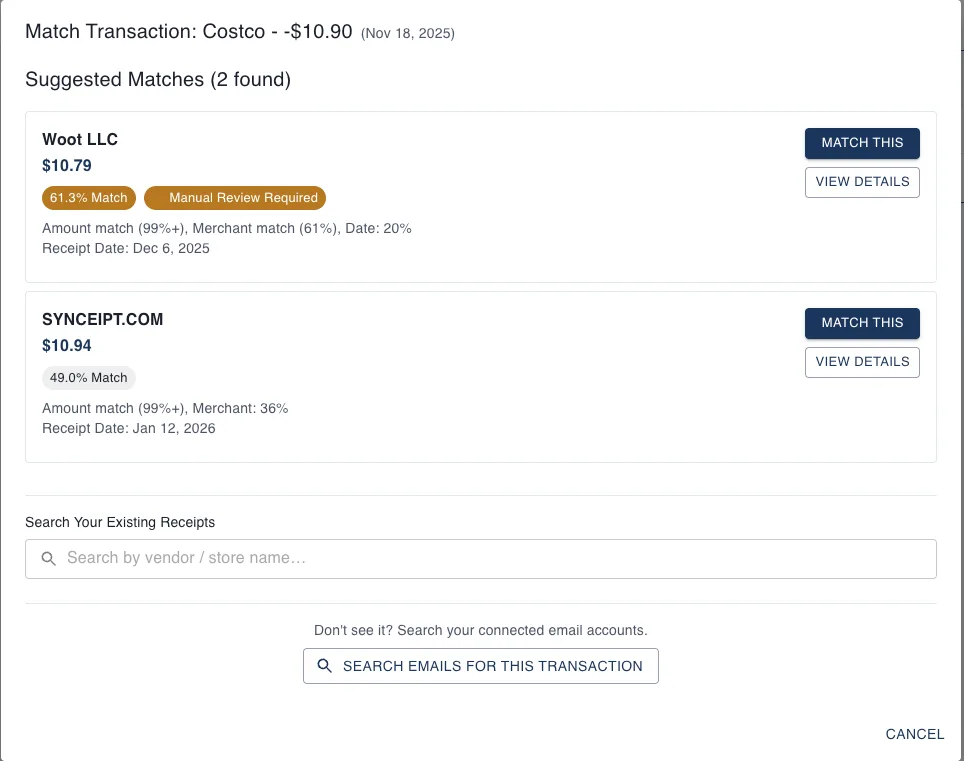
- Review suggested receipts (if available) with confidence scores
- Search for existing receipts using the search box, or browse your receipt list
- Optionally click 'Search Emails for This Transaction' to search your email accounts for receipts you may have missed
- Select the matching receipt (use merchant, amount, date as guides)
- Click 'Match This' to confirm
Here's what the matching workflow looks like:
After clicking 'Find Matches', a modal opens with suggested matches ranked by confidence score. Review the suggestions, search your existing receipts, or search your email accounts for missed receipts:
Once you confirm a manual match, it's linked just like an automatic match. You can unmatch it anytime if you made a mistake.
Understanding Match Statuses
Synceipt displays different match statuses for transactions:
- 'Matched' (Green) — Receipt and transaction are linked
- 'Unmatched' (Red) — Receipt or transaction has no linked pair
- 'Confirmed' (Blue) — Transaction marked as reviewed and confirmed by you; will still be updated to Matched if a receipt is found later
- 'Flagged' (Red) — Transaction flagged as potential fraud or requires investigation
Edge Cases & Special Scenarios
What if the receipt amount is $50 but the charge is $55 (includes tip)?
The automatic matcher won't link them due to the amount mismatch. Manually match them using 'Find Matches', or use the 'Add Tip' feature to log the tip separately.
Can one receipt match multiple transactions?
No. One receipt links to one transaction (1:1 relationship). If a purchase was split across two cards, create two receipts.
What if a transaction posts weeks after the receipt?
This happens with pre-authorizations (hotels, car rentals). Synceipt extends its date-matching window for these cases.
How do refunds appear?
Refund transactions are treated as positive amounts (while charges and other expenses are negative amounts) and appear separately. Synceipt can link them to the original receipt for reconciliation.
Can I unmatch a receipt if I change my mind?
Yes. Open the matched pair and click 'Unmatch'. They'll become unlinked and available for re-matching.
Best Practices for Better Matching
- Keep receipts organized—Synceipt works best when you have receipts for all significant charges
- Connect both sources—Email + bank account gives Synceipt the most data to work with
- Review match suggestions carefully—Pay attention to the confidence scores and match reasons
- Check periodically—Review unmatched transactions weekly or monthly using 'Find Matches' to stay on top of your spending