
A tax summary is built from your transactions. If one is missing — a fee the bank feed never sent, a check that cleared in January — the deduction is missing too. If one is counted twice, you claim an expense you did not have. Neither shows up by looking at the summary, because the summary is only as complete as the transactions underneath it.
Reconciliation is how bookkeepers prove the transactions are complete. You take the bank's own statement for a period, start from its opening balance, add up the transactions in your books, and check that you land exactly on its closing balance. If you do, nothing is missing and nothing is doubled. If you do not, the gap tells you to look — and Synceipt shows you where.
Reconciling checks that your records agree with your bank. It does not check that a transaction is in the right category or on the right tax line, and it is not tax advice. Review your return with a CPA, enrolled agent or tax attorney before you file.
Who can use it
| Plan | Reconcile accounts | Notes |
|---|---|---|
| Free | — | Not included |
| Regular | — | Not included |
| Pro | ✅ | Statement upload, typed closing balance, and automatic checks for bank-linked accounts |
| Pro Plus | ✅ | Everything in Pro |
You can reconcile in the Synceipt web app or the mobile app. If you move to a plan without it, nothing you reconciled is lost: the Reconcile page lists each account's latest reconciled period with a Reopen button, so its transactions can always be edited again.
Three ways to reconcile
| Method | Best for | What you do |
|---|---|---|
| Upload a statement | Year-end, any account, and finding out why something is off | Upload the PDF or a photo; every line is checked against your books |
| Automatic | Bank-linked accounts, month after month | Set the day the statement closes once; each period is checked against your bank's balance every night |
| Enter the closing balance | A quick check when you only have the totals | Type the statement's balances and tick the transactions the bank confirmed |
Uploading the statement is the most informative of the three. A balance-only check can only tell you that you are off by $254.40; a statement check tells you which $254.40 — the insurance payment from March 12 that is on the statement and not in your books.
Before you start
- Download each account's statements from your bank — monthly statements, or the December statement if you are only tying out the year.
- Let your bank sync finish. Transactions still marked Pending are not on any statement yet and cannot be reconciled until they post.
- Mask sensitive details on the statement before uploading: keep only the last four digits of the account number, and remove the routing number, any Social Security number and your home address.
Step 1: Open Reconcile
Choose Reconcile in the left sidebar. Every account that has transactions gets a card with its bank, the last four digits, how many transactions it has and the dates they cover. A card says Never reconciled until its first period is finished, and Tied out to with a date after that.
Step 2: Upload the statement
On the account's card, choose Upload statement. A window opens on the same page — you do not leave Reconcile. Confirm the privacy notice, then drop in the statement as a PDF or a photo (JPEG, PNG, HEIC or WEBP). Synceipt reads it, which can take up to a minute, and opens the reconciliation with every line already checked. Each upload counts toward your plan's monthly statement uploads.
Nothing on the statement is imported. Your bank feed already brought those transactions in, so importing them again would create duplicates — instead, the statement is used as a reference to check your books against.
How lines are matched
- The amount must agree to the cent. A near miss — a tip, a currency fee, a partial refund — is a real difference, so it is never matched automatically.
- The dates may be up to five days apart. Your bank feed often records the day a charge posted while the statement prints the day you bought something, and weekends widen the gap.
- Each statement line pairs with at most one transaction. When two are equally likely, such as two identical coffees on consecutive days, the closest date wins.
If the statement is for a different account than the card you chose, Synceipt says so before anything starts, and offers to reconcile the right account instead.
Step 3: Resolve what does not match
Each statement line shows its status:
| Status | What it means | What to do |
|---|---|---|
| In your books | Paired with a transaction and ticked | Nothing |
| Matched, unticked | Paired, but the transaction is not ticked | Tick it, unless you meant to leave it out |
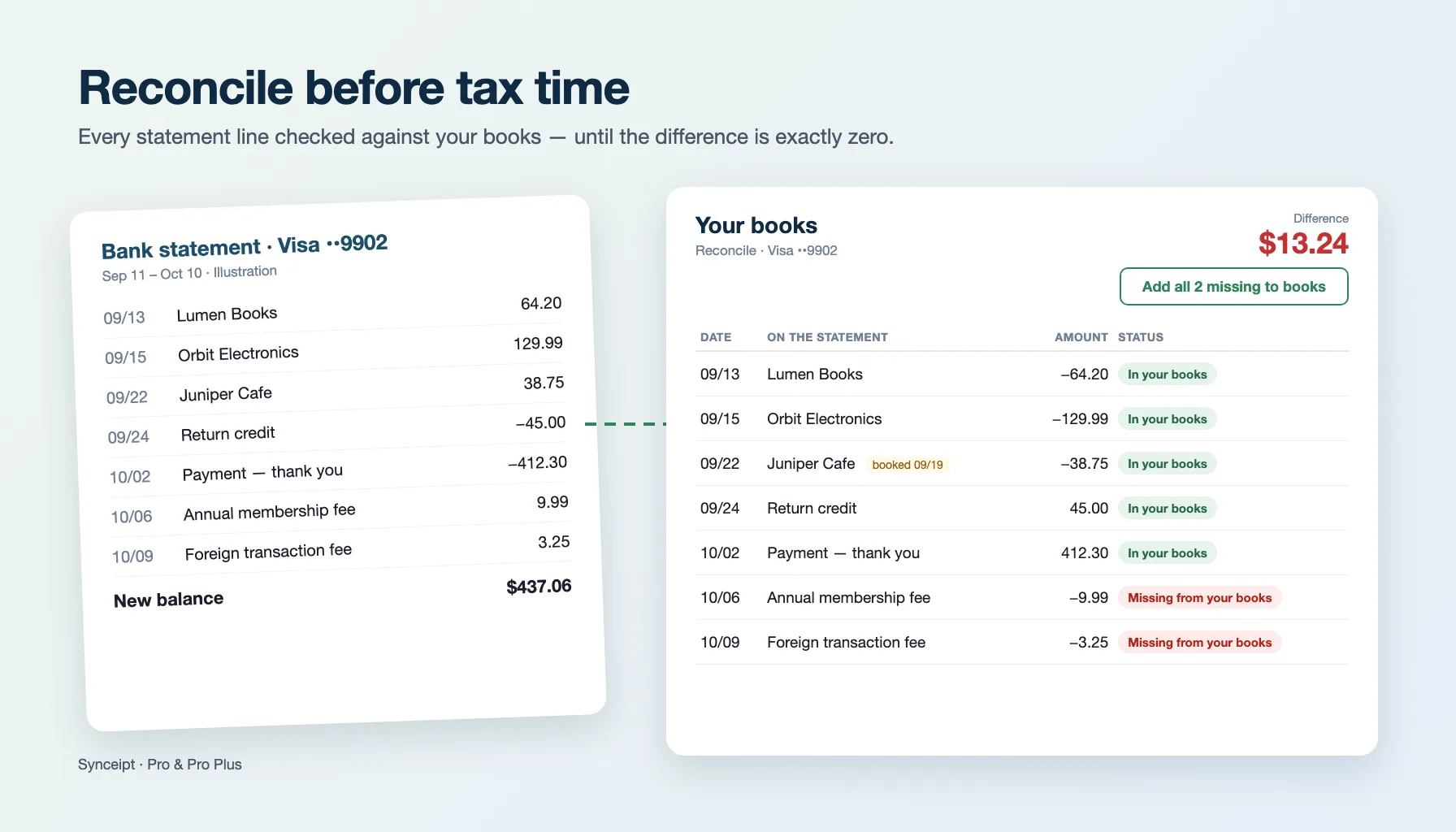
| Missing from your books | On the statement, and nothing in your books answers to it | Choose Add to books — or Add all missing to books — or Match to if it is there under a different date |
- Missing fees and interest — bank fees, annual card fees and foreign transaction fees are the most common lines a bank feed leaves out. Add to books creates the transaction from the statement line.
- A date more than five days off — choose Match to on the line and pick the transaction yourself.
- A transaction in your books that is not on the statement — leave it unticked. It may be a duplicate, or it may belong to the next period; it stays available for the next reconciliation.
If you added a line to your books and change your mind, choose Remove from books. If you discard the whole reconciliation, the statement goes back to your pending statements and the transactions it added are removed again.
Step 4: Get the difference to zero and finish
The Difference at the top is the gap between the statement's closing balance and where your books land: the opening balance plus every transaction you have ticked. Finish stays unavailable until it reads exactly 0.00 — not close to zero, because a few cents off is still a transaction you have not found.
When the difference will not close
- A transaction is missing from your books — look for a statement line marked Missing from your books.
- A transaction is counted twice — look for two identical amounts close together, and untick the duplicate.
- An amount is wrong — a tip added after the receipt, or a refund for part of an order.
- A transaction is dated outside the period — it belongs to the statement before or after.
- A charge is still pending — untick it. It will come back once it posts.
When it reaches zero, choose Finish. Every ticked transaction becomes Reconciled, and any you had not reviewed yet are marked Reviewed — which is what Close Books needs later.
What a reconciled period protects
A reconciled transaction cannot have its amount, date or account changed, and it cannot be deleted or excluded, because any of those would break a period you have proved. You can still change its category or the business it belongs to, which is exactly what tax preparation needs. If your bank later corrects a transaction in a finished period, the correction is accepted and the period is marked Needs re-check, so a stale total never sits there looking right. Choose Reopen to check it again.
Credit cards
A credit card statement shows money owed, so enter its balances the way they are printed: the balance owed as a positive number. Synceipt takes care of the signs — purchases are negative in your books and payments and refunds positive — so there is nothing to flip. A card you have overpaid shows as a credit balance.
Step 5: Let linked accounts check themselves
For an account connected through Plaid, Synceipt can do the check every night. On the account's card, set Statement closes to the day of the month its statement closes — or Last day of the month. If you reconcile the account from a statement first, Synceipt learns the day from it.
Each night, the most recent closed statement period is checked against the balance your bank reported on its two closing days. If it ties out to exactly zero, the period is finished for you and the card shows Tied out to with the period's last day. If it does not, it is left open: the card shows Review automatic check and Upload statement, and uploading that period's statement replaces the automatic attempt and shows you which transactions differ. To run the check without waiting for the night, choose Check bank balances now.
The automatic check needs a balance recorded on both closing days of a period. A newly linked account has no history yet, so its first automatic check starts from a later statement period. Some banks include pending charges in the balance they report — if an automatic check keeps missing by a small amount, reconcile that period from the statement instead.
Step 6: Get the year ready for your tax professional
Reconciliation fits into year-end like this:
- Reconcile every account — checking, savings and each credit card — through its last statement of the year. A card statement that closes on December 17 leaves the rest of December for the January statement, so reconcile that one too.
- Categorize and assign. Make sure business transactions are assigned to the business and in the right categories; reconciled transactions can still be changed here.
- Open the tax summary and clear its readiness list — see How to get tax-ready in Synceipt.
- Close the year with Close Books on the Transactions page, so nothing changes after the numbers go to your accountant — see the Light Bookkeeping walkthrough.
- Hand over the CPA packet, or invite your accountant to look for themselves.
Doing it monthly makes year-end a formality: each month is one statement and usually a few minutes, and a problem is found while you still remember the purchase.
Is reconciling the same as matching receipts?
No. Matching links a receipt to the bank transaction it paid for, which proves what you bought. Reconciling checks your transactions against the bank's statement, which proves your books are complete. A tax-ready year uses both.
My bank is connected through Plaid. Do I still need to reconcile?
Yes — a bank feed can miss a transaction, send one twice, or leave out fees, and reconciling is how you find out. For linked accounts the automatic check does most of the work: set the statement closing day and Synceipt checks each period every night.
Does uploading a statement import its transactions?
No. When you reconcile, the statement is a reference: it is compared with your books and nothing is imported unless you choose Add to books on a line. That is what keeps a bank-linked account free of duplicates.
Why can't I finish with a difference of a few cents?
Because a few cents is still a transaction you have not found — often a small fee or interest charge. Finish only becomes available at exactly zero, so that a reconciled period really means the books agree with the bank.
Can I reconcile on my phone?
Yes. In the mobile app, open More → Reconcile: the same three methods are there, and a statement can be any PDF or image saved to your phone's files. On a long statement the web app's wider screen is easier to work through.
Is my statement sent to AI?
Yes, to read it. The statement is sent to a third-party AI provider solely to extract its transactions; it is not used for training. That is why Synceipt asks you to mask your full account number, routing number, Social Security number and address before you upload.
What happens to reconciled periods if I downgrade?
They stay as they are, and their transactions stay protected. The Reconcile page lists each account's latest reconciled period with a Reopen button, so you can make its transactions editable again on any plan. Starting and finishing reconciliations needs Pro or Pro Plus.
Can I undo a reconciliation?
Yes. Choose Reopen on a finished period to edit its transactions and check it again. If later periods are also reconciled, reopen the most recent first, so the opening balances stay consistent.
Go into tax season knowing your books are complete
Reconcile each account against its statement, let linked accounts check themselves every night, and hand your accountant numbers that agree with the bank.