
Editorial note: This article includes feature comparisons of third-party products (Expensify, QuickBooks Online, YNAB, Copilot, and Monarch Money). Originally published May 8, 2026 and last verified July 29, 2026, based on each company's publicly available documentation and help centers — sources are cited at the bottom of this article. Synceipt is not affiliated with any of the products mentioned. Software features and pricing change frequently; we cannot guarantee this information remains current. Please verify capabilities directly with each provider before making any purchasing decision.
Search for "receipt matching app" and most results fall into two categories: expense report tools designed for corporate teams, and receipt scanners that let you photograph paper receipts. Neither one is built for the specific problem most individuals face — email confirmations sitting in a Gmail or Outlook inbox that need to be connected to charges posting on a bank or credit card statement.
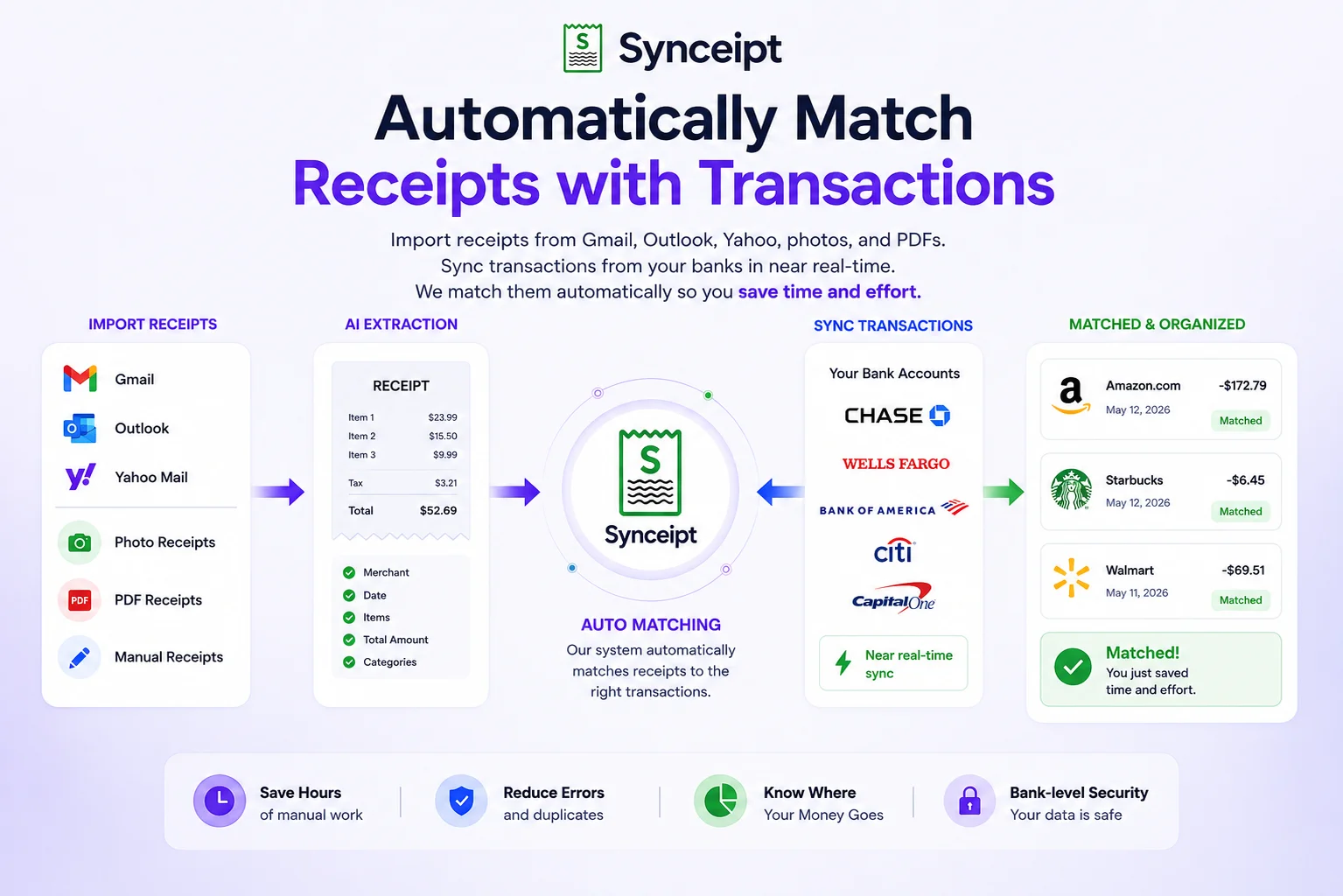
Automatically matching receipts with bank transactions sounds like a straightforward problem. In practice it requires three distinct technical pieces to work together: a system that reads your email inbox without ongoing manual effort, a live feed of your bank transactions, and a matching engine that links the two automatically. This guide explains what that full pipeline looks like, why most tools only cover part of it, and how to evaluate any app's claims about automation.
Receipt Capture and Transaction Matching Software Compared
Before the deep dive below, here's the pipeline broken into its three pieces across the tools people most often search for as alternatives. "Partial" means the tool does part of the job but still requires you to do manual work somewhere in the chain — see the sections below for exactly where.
| Capability | Synceipt | Expensify | QuickBooks Online | Monarch Money |
|---|---|---|---|---|
| Automatic email receipt capture (no per-receipt action) | Yes — OAuth to Gmail, Outlook, Yahoo | No — photo, upload, or forwarding per receipt | No — photo upload or address-forwarding per receipt | No — manual upload or photo per receipt |
| Automatic bank/card transaction sync | Yes — Plaid, 12,000+ institutions | Partial — corporate card feeds or a connected personal account, built for expense-report reimbursement | Yes — direct feeds and Plaid | Yes — core feature |
| Automatic receipt-to-transaction matching | Yes — runs on its own, no approval needed for confident matches | Partial — inside expense-report workflow, needs approval | Partial — inside bookkeeping workflow | Yes — AI matching, but only after you've manually supplied the receipt |
| Item-level (line-item) categorization | Yes | No | No — whole-transaction categorization | No |
| Free plan | Yes — free forever | Yes — individual tier, scan-capped | No | No |
The pattern across every alternative: none of them fully automates the capture step — every one of them requires you to manually hand over the receipt itself, whether by photo, upload, or forwarding. Synceipt is the only one in this table where all three pipeline steps — capture, sync, and matching — run without you touching a single receipt.
What 'Automatic Matching' Actually Requires
The word 'automatic' is used loosely in the receipt tracking space. For matching to be genuinely automatic, three things must happen without ongoing manual input from you:
- Receipts are captured without action on your part — not 'forward this email to receipts@app.com,' not 'take a photo each time you make a purchase,' but a direct connection to your inbox that reads purchase emails as they arrive
- Bank transactions arrive automatically — not 'download a CSV from your bank each month and upload it,' but a live connection that pulls new transactions as they post
- The two are linked automatically — not 'here are some suggested matches, please approve each one,' but a matching engine that runs on its own and records confirmed matches without requiring your review for every pair
Most receipt apps handle one or two of these steps. The result is a workflow that's partially automated — which still requires daily habits or periodic manual effort to stay complete.
The test: if you go on a two-week vacation with no phone and come back, does your receipt-transaction record stay accurate? A truly automatic system keeps working. A partially automatic one falls behind.
The Complete Pipeline, Step by Step
When all three pieces are working, the pipeline looks like this:
- You make a purchase — online, in-store, or via subscription renewal
- The merchant emails a receipt to your Gmail, Outlook, or Yahoo inbox
- The app reads that email automatically via OAuth (a secure, read-only connection established once during setup)
- The bank processes and posts the transaction to your account
- The app receives that transaction via Plaid, the same financial data connector used by thousands of banking and budgeting apps
- A matching engine compares the receipt and transaction on amount, merchant name, and date
- When a confident match is found, it's recorded — no approval needed from you
- When a match isn't confident (e.g., amounts differ, merchant names don't align), the item is flagged for your review
The only step requiring your time is initial setup: connecting your email account and bank account, which takes about ten minutes total. After that, the pipeline runs continuously as new emails and transactions arrive.
Why Popular Apps Only Cover Part of the Pipeline
Competitor features researched in May 2026 from each company's official documentation and help centers — sources are cited at the bottom of this article. Software changes frequently; capabilities described here may have changed since this research was conducted. Verify current features on each app's official website before making decisions based on this comparison.
Most tools that surface in a search for 'receipt matching' were built for adjacent problems — not for the specific use case of linking personal email receipts to personal bank transactions. Understanding what each category of tool is actually optimized for helps explain the gap.
Corporate Expense Report Tools (Expensify, Dext)
Expensify and Dext are designed around the corporate expense workflow: an employee captures a receipt, submits it for manager approval, and gets reimbursed. Expensify offers four capture methods — mobile camera (SmartScan OCR), forwarding receipts to receipts@expensify.com, web upload, and automatic pull from specific travel apps like Uber and Lyft. None of these methods involve a direct OAuth connection to your Gmail or Outlook inbox to extract receipts automatically as they arrive. The workflow is built around expense reports and reimbursement, not personal bank reconciliation.
- Best fit: employees submitting expenses for employer reimbursement; teams with approval workflows
- Receipt capture: mobile camera (SmartScan OCR), forwarding to receipts@expensify.com, web upload, select travel app integrations
- Bank sync: connects to corporate cards and some personal accounts for transaction import
- Who it's not for: individuals who want automatic personal email inbox scanning paired with personal bank matching
Accounting Software with Receipt Features (QuickBooks Online)
QuickBooks Online is full accounting software — invoicing, payroll, profit-and-loss reporting — with a receipt capture feature added alongside. Its receipt capture relies on uploading photos via the mobile app or forwarding emails to a designated @qbodocs.com address. It does not connect to your Gmail or Outlook inbox directly to scan for and extract receipts automatically. Notably, Gmail auto-forwarding to QuickBooks doesn't work out of the box — Gmail requires a verification code sent to the destination address, which QuickBooks has no way to receive, making automated Gmail forwarding a manual workaround for most users. The receipt matching it performs is oriented toward bookkeeping and transaction categorization for accounting purposes.
- Best fit: small business owners who need full accounting, invoicing, and payroll in one platform
- Receipt capture: mobile photo upload, email forwarding to a @qbodocs.com address (Gmail auto-forwarding requires a workaround due to verification limitations)
- Bank sync: bank feeds available via direct connections and Plaid
- Who it's not for: individuals who want automatic inbox scanning for personal finance without the overhead of accounting software
Budgeting Apps (YNAB, Copilot)
Budgeting apps like YNAB and Copilot connect to your bank accounts and categorize your spending — they're excellent at showing you where your money went. What they don't do is capture receipts from your email inbox or match those receipts against your bank transactions. They solve the bank-data side of the pipeline only. Copilot does support email forwarding for Venmo receipts specifically, but this is limited to Venmo transactions and is not a general inbox scanning feature. If your goal is a verified record that links each bank charge to its original merchant receipt, these budgeting tools aren't built for that.
- Best fit: people who want spending visibility, budget tracking, and category breakdowns
- Receipt capture: YNAB — none natively (third-party tools like Snapt exist); Copilot — Venmo email forwarding only
- Bank sync: strong — this is their core feature
- Who it's not for: anyone who needs email receipt extraction paired with bank transaction matching
Budgeting Apps with Partial Matching (Monarch Money)
Monarch Money occupies a middle ground worth noting specifically. It has a receipt scanning feature (launched in their Winter 2025 release) that uses AI to extract merchant, amount, and date from an uploaded receipt image, then finds and links the matching bank transaction — including a 'Waiting for match' mode that keeps searching as new transactions sync. This covers the matching side of the pipeline. However, Monarch does not yet connect to your Gmail, Outlook, or Yahoo inbox automatically. You have to manually share or upload each receipt image yourself. Monarch has stated that email forwarding is planned but was not available as of the time of this writing. The inbox automation step — the piece that makes the pipeline fully hands-off — is still missing.
- Best fit: people who want budgeting, spending insights, and are willing to manually share receipts for transaction matching
- Receipt capture: manual upload or share of photo/screenshot/file; no automatic email inbox connection yet
- Bank sync: strong — core budgeting feature
- Matching: yes — AI extracts receipt details and links to bank transactions, with a 'Waiting for match' queue
- Who it's not for: anyone who wants the receipt capture step to be fully automatic without handling each receipt individually
How Synceipt Covers the Full Pipeline
Synceipt is built around one specific goal: automatically connecting email receipts to bank transactions so that every purchase has a verified paper trail without requiring daily effort. It covers all three pieces of the pipeline:
- 1
Automatic inbox reading (Gmail, Outlook, Yahoo)
Connect your email account once using OAuth — the same secure authorization flow used by apps like Google Calendar and Slack. Synceipt requests read-only access, scans for purchase confirmations and order receipts, and extracts merchant name, amount, date, and line items. Non-purchase emails are ignored. New receipts are processed automatically as they arrive. Because Synceipt reads the whole connected inbox rather than routing to a special forwarding address, this also covers receipts that never arrived there natively: forward a purchase confirmation from any other email account into one you've connected, and it's extracted the same way — no dedicated forwarding address or extra setup required.
- 2
Automatic bank sync (12,000+ banks via Plaid)
Connect your bank accounts through Plaid. You log in on your bank's own page — or, for banks without that support, directly inside Plaid's secure window — never in Synceipt, and your credentials never touch Synceipt's servers. New transactions appear in Synceipt automatically, usually within a few hours of posting. You can connect multiple accounts across multiple banks.
- 3
Automatic matching (amount + merchant + date)
The matching engine runs automatically after each email sync or transaction sync. It compares receipts and transactions on exact amount, fuzzy merchant name (handling differences like 'Amazon' vs. 'AMZN MARKETPLACE'), and date (with a window for multi-day bank processing). Confirmed matches are linked without requiring your approval.
- 4
Manual override for edge cases
When automatic matching can't make a confident call — because a tip was added after the receipt, or the merchant names are too different — those items are flagged. Manual Matching mode lets you search for the right transaction by merchant, date, or amount and link it yourself.
When Automatic Matching Has Limits
No automatic system handles every case. Being clear about the edge cases helps you decide whether a tool fits your actual transaction patterns:
- Tips added after the receipt — a restaurant check for $42.00 might have a $50.00 card charge after tip. The amounts don't match, so automatic matching won't link them; use manual mode
- Cash purchases — if you pay cash, there's no bank transaction to match. You can add a manual transaction or leave the receipt unmatched
- International charges — currency conversion and multi-day processing can affect both the posted amount and date; the matching window accommodates most of these, but unusual cases may need manual review
- Merchant names that differ significantly — some bank descriptions are abbreviated or processed through a payment intermediary. Synceipt's fuzzy matching covers many common cases; unusual merchant names may require manual matching
- Receipts from merchants who don't send email confirmations — paper-only receipts need to be added via photo upload or manual entry
A good rule of thumb: if you primarily shop online and receive email confirmations, automatic matching will handle the vast majority of your transactions. If a significant portion of your spending is cash, tip-based services, or merchants without email receipts, you'll rely more on manual matching.
Who This Tool Is For (and Who It Isn't)
Synceipt is designed for a specific user profile. The fit depends almost entirely on how you spend and what records you're trying to maintain:
- Good fit: individuals who do most of their shopping online and receive email order confirmations regularly
- Good fit: freelancers tracking deductible expenses for tax purposes without a full accounting platform
- Good fit: anyone who wants to verify bank charges against original receipts without spending time on it each week
- Good fit: families managing shared household finances — Pro and Pro Plus plans include family member slots so a parent or account holder can invite family members at no extra per-member cost, and the plan owner gets a unified view of the entire household's transactions, matched receipts, and spending across all connected accounts
- Good fit: small business owners who want a centralized view of employee transactions and matched receipts — Synceipt's team mode lets an owner invite members, see all transactions across the team in one place, and track spending without manual consolidation
- Not a good fit: employees who need to submit expense reports for employer reimbursement — Expensify or Dext handle that workflow better
- Not a good fit: small businesses that need full accounting, invoicing, or payroll — QuickBooks, Wave, or Xero are the right category
- Not a good fit: teams that require expense report submission, manager approval queues, or employee reimbursement tracking — Synceipt gives owners visibility into member transactions but does not have an approval or reimbursement workflow
Frequently Asked Questions
Does Synceipt work with Gmail, Outlook, and Yahoo?
Yes. Synceipt connects to all three via OAuth 2.0 read-only access. You can connect multiple email accounts simultaneously — useful if you use different addresses for different types of purchases.
Which banks does Synceipt support?
Synceipt connects to over 12,000 US financial institutions through Plaid. If your bank isn't in Plaid's network, you can upload PDF bank statements instead and Synceipt extracts the transactions automatically.
What happens when a receipt can't be matched automatically?
Unmatched receipts go to your Receipt Inbox; unmatched transactions stay in your transaction list. Manual Matching mode lets you find the right pair by searching merchant name, date, or amount and link them yourself. You can also unlink any automatic match at any time without losing either record.
How is this different from just using QuickBooks or Expensify?
QuickBooks is accounting software whose receipt feature requires manual photo uploads or email forwarding — there's no direct inbox connection. Expensify is built for corporate expense report workflows with manager approval and reimbursement, not for automatic email inbox matching against bank transactions. Synceipt is purpose-built for the inbox-to-bank-transaction pipeline. It also supports team accounts where a business owner can view transactions and matched receipts across all employees — but without expense report or reimbursement features.
How is Synceipt different from Monarch Money?
Monarch has real receipt scanning and matching, but you still have to manually share or upload each receipt yourself — email forwarding was stated as planned but wasn't available at the time of this writing. Synceipt reads your Gmail, Outlook, or Yahoo inbox automatically, so receipt capture requires no action from you at all.
Is there a free plan?
Yes. The free plan includes one email account, manual statement uploads, and limited AI extractions per month. Paid plans add Plaid bank connections, unlimited extractions, and advanced analytics. The Regular plan no longer includes a trial; the Pro plan now includes a 30-day free trial (credit card required). For the Pro and Pro Plus plans, if you are not satisfied after the first month, contact support and we will issue a full refund — no questions asked.
What platforms automatically match receipts to credit card transactions?
Very few do the whole job automatically. Most receipt apps require you to photograph or forward each receipt yourself before it can be matched. Monarch Money added AI matching, but you still upload each receipt manually — it doesn't read your inbox. Synceipt reads email receipts directly via OAuth, syncs transactions via Plaid, and matches the two automatically with no manual step.
What's the best receipt capture app if I want matching to be fully automatic?
If most of your purchases generate an email confirmation, Synceipt's inbox-reading capture requires zero action per receipt — the strongest form of automatic capture available. For paper receipts, photo capture is still the fastest option, but it's manual by definition since you have to take the photo.
Is transaction matching software different from a receipt scanner or expense tracker?
Yes. A receipt scanner extracts data from a photo but knows nothing about your bank. An expense tracker categorizes bank spending but knows nothing about your receipts. Transaction matching software is the layer that connects the two — which is specifically what Synceipt was built around.
Try the Full Automatic Pipeline
Connect your Gmail, Outlook, or Yahoo inbox and your bank account once. Synceipt handles receipt extraction, transaction sync, and matching automatically from that point forward.