
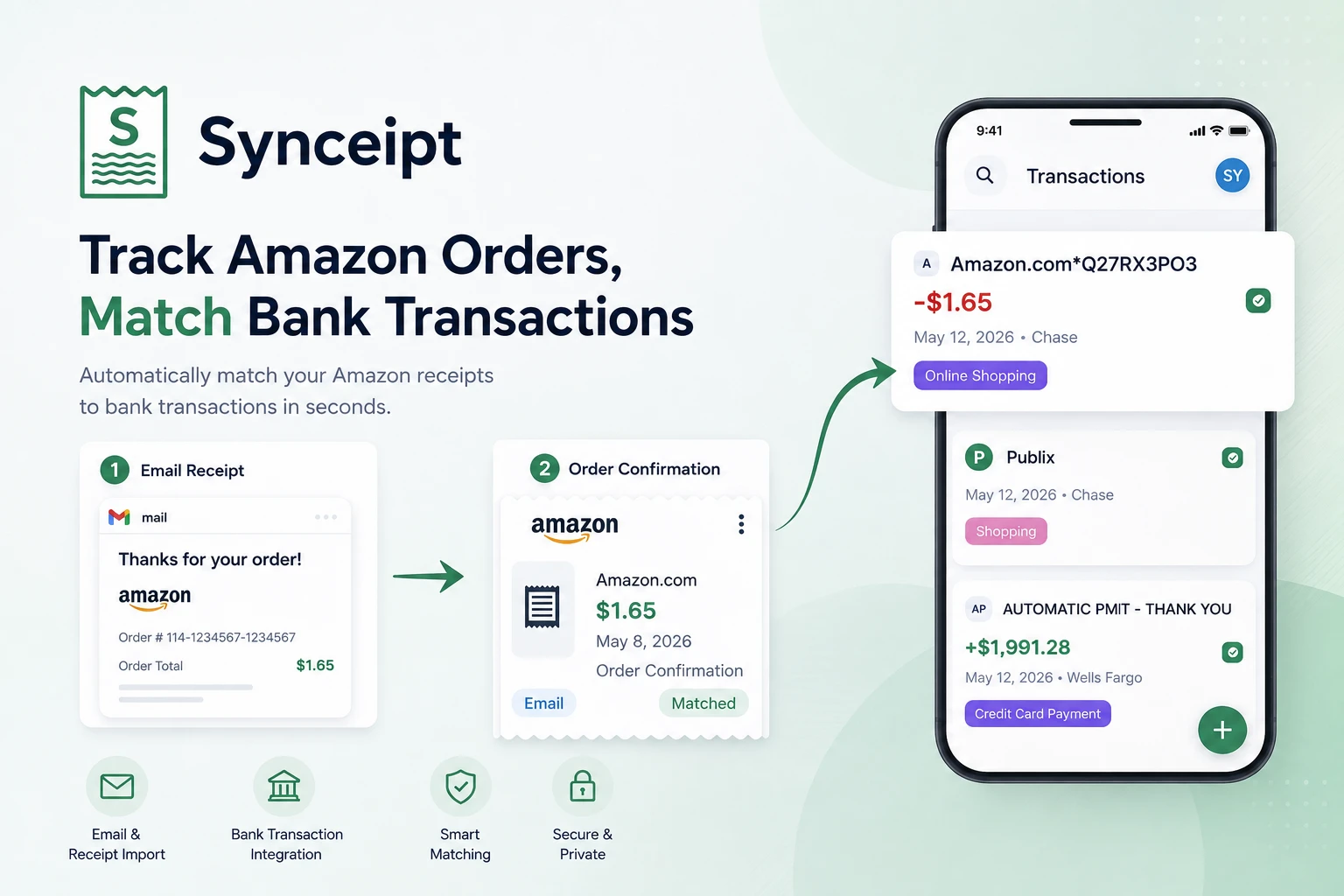
If you shop on Amazon regularly, reconciling your bank statement is more work than it should be. A single order can generate four or five separate emails — order confirmation, shipping notification, delivery update, return confirmation — and show up on your bank statement as a cryptic 'AMZN MKTP US' charge, sometimes split across multiple amounts on different days. Manually connecting all of that takes time that adds up fast.
Synceipt solves this by connecting directly to the inbox where your Amazon receipts land and extracting the full order lifecycle automatically. This guide walks through the complete setup and explains how each type of Amazon email maps to what you see on your bank statement.
How It Works, Start to Finish
Before the step-by-step setup below, here's the whole pipeline in one glance — from the email Amazon sends you to a fully matched, categorized transaction:
- 1
1. Amazon emails you
A confirmation, shipping update, delivery notice, or refund lands in the Gmail, Outlook, or Yahoo inbox you've connected — no forwarding or filing required.
- 2
2. Synceipt extracts the receipt
Order number, item names, price breakdown, and status are pulled out automatically and added to your Receipt Inbox — new emails are picked up in the daily extraction run, or immediately if you run Sync Email Receipts yourself.
- 3
3. Your bank transaction syncs in
The matching Amazon charge arrives from Plaid — or a PDF statement upload — around the same time it posts to your account.
- 4
4. The two are matched automatically
Synceipt's matching engine links the receipt to the charge by amount, merchant name, and date. No manual searching, no approval step for confident matches.
- 5
5. You get one complete record
Order status, tracking info, category, and the exact amount that hit your account — all in one place, and already counted in your budgets and reports.
What Amazon Emails Synceipt Extracts
Amazon sends a separate email for each stage of an order. Synceipt extracts all of them and links the related emails together so you can see the complete history of each purchase in one place.
- Order Confirmation (CONFIRMED) — sent immediately after you place an order. Contains the order number, order total, and item count, and becomes the primary receipt record. For many US shoppers, confirmations sent since July 2026 no longer list item names or per-item prices; other Amazon marketplaces may still include them — see Why Item Details Are Missing below.
- Shipping Confirmation (SHIPPED) — sent when each package leaves the warehouse. Contains a link to track your shipment and an estimated delivery date. Amazon no longer includes a plain tracking number in the email body.
- Delivery Confirmation (DELIVERED) — sent when Amazon confirms the package was delivered. Updates the order status to Delivered on the matched transaction.
- Return or Refund Confirmation (RETURNED / REFUNDED) — sent when a return is processed or a refund is issued. Synceipt links this back to the original order and marks the receipt with a Returned or Refunded status.
All four email types are extracted automatically once your inbox is connected. You do not need to forward, tag, or manually import any Amazon emails — Synceipt finds them in your inbox and processes them as they arrive.
Why Item Details Are Missing (And How to Add Them)
Beginning in July 2026, Amazon started simplifying order-related emails for many Amazon.com shoppers in the United States. Instead of naming what you bought, affected emails describe an order generically — "Ordered: 1 Essentials item" or "2 Home Improvement and Skincare items". Amazon has never published an effective date: 8 July 2026 is simply the earliest cutover reported publicly, in one developer's inbox. Our own extraction data shows the rollout was gradual rather than instant — Amazon emails still arrived carrying real product names for weeks afterwards, converging on consistently stripped by early-to-mid August.
Amazon has confirmed publicly that simplifying these emails is deliberate, and in writing to us that there is no account setting, no per-order toggle, and no way to opt an affected account back out. Amazon's own reply names order confirmations, shipping notifications, and delivery updates — so on an affected account it is not a matter of reading a different email in the chain.
When Amazon sends the newer format, any tool that relies on the email alone — Synceipt included — can only extract what Amazon put in it. What still arrives is the order number, the order total, an item count, and the delivery status: enough for Synceipt to create the receipt and go on matching your Amazon charges to it. The amount of a matched transaction doesn't change, so your transaction-level spending, category budgets, and reports stay intact. What you lose until you restore the items is the per-item breakdown — and with it, item-level budgets, which are calculated from receipt line items rather than from the transaction total.
Synceipt will not invent line items it cannot see. A receipt whose merchant withheld the details is labelled as such and shows the item count Amazon did provide, rather than guessing at names or splitting the total into plausible-looking rows.
What about Amazon outside the US?
As of August 2026 we have found no evidence that the simplified format has been deployed to every Amazon marketplace. The change was widely reported for Amazon.com in the United States; French coverage in late July specifically found the new emails appeared to be going out in the US only, with email-based Amazon order tracking still working normally in France. Amazon's public statement doesn't name Amazon.co.uk, Amazon.ca, Amazon.de, Amazon.co.jp or any other marketplace, and we've found no matching wave of reports from those countries.
So Synceipt doesn't decide what to expect from an Amazon email based on which country it came from — it reads the email. When product names are present, they're extracted normally. When only a generic category and a count are present, the receipt is marked as merchant-withheld and the remaining order information is used as-is. Nothing is keyed to a marketplace, which also means nothing breaks on the day Amazon extends the change to another country, or reverses it.
One current limit worth knowing if you shop on a non-US Amazon: Synceipt identifies receipt emails from English-language subject lines, so an Amazon confirmation written in German or Japanese may not be picked up for extraction yet, regardless of how much detail it contains. Broader language support is on the roadmap.
Restoring the details for a single receipt
You can get the itemisation back, and there are two routes depending on how much of it you need. For a single receipt — an expense claim due this afternoon, one warranty record — attach the order summary and Synceipt reads the line items straight off it:
- 1
Open the Amazon order in your browser or the Amazon app
Go to Your Orders and open the order you want to itemise. On amazon.com use Invoice or Printable Order Summary; on a phone, a screenshot of the order detail screen works just as well.
- 2
Open the matching receipt in Synceipt
Find the Amazon receipt in your Receipt Inbox. If Amazon withheld the details it shows "Amazon didn't share item details" with an Add items action.
- 3
Attach the order summary
Choose Add items and upload the screenshot or PDF. Synceipt reads the line items from it and attaches them to the receipt you already have — the order number, total, and bank match all stay as they are. You can also type items in manually.
Facing a backlog rather than a single receipt? Amazon's own data export still contains every product name, quantity, and price it stopped putting in your email — and Synceipt now imports that file directly, itemising hundreds of receipts in a single pass. That's the next section: Bulk-Restore Item Details from Your Amazon Order History.
Step 1: Connect the Email Account Where Amazon Receipts Land
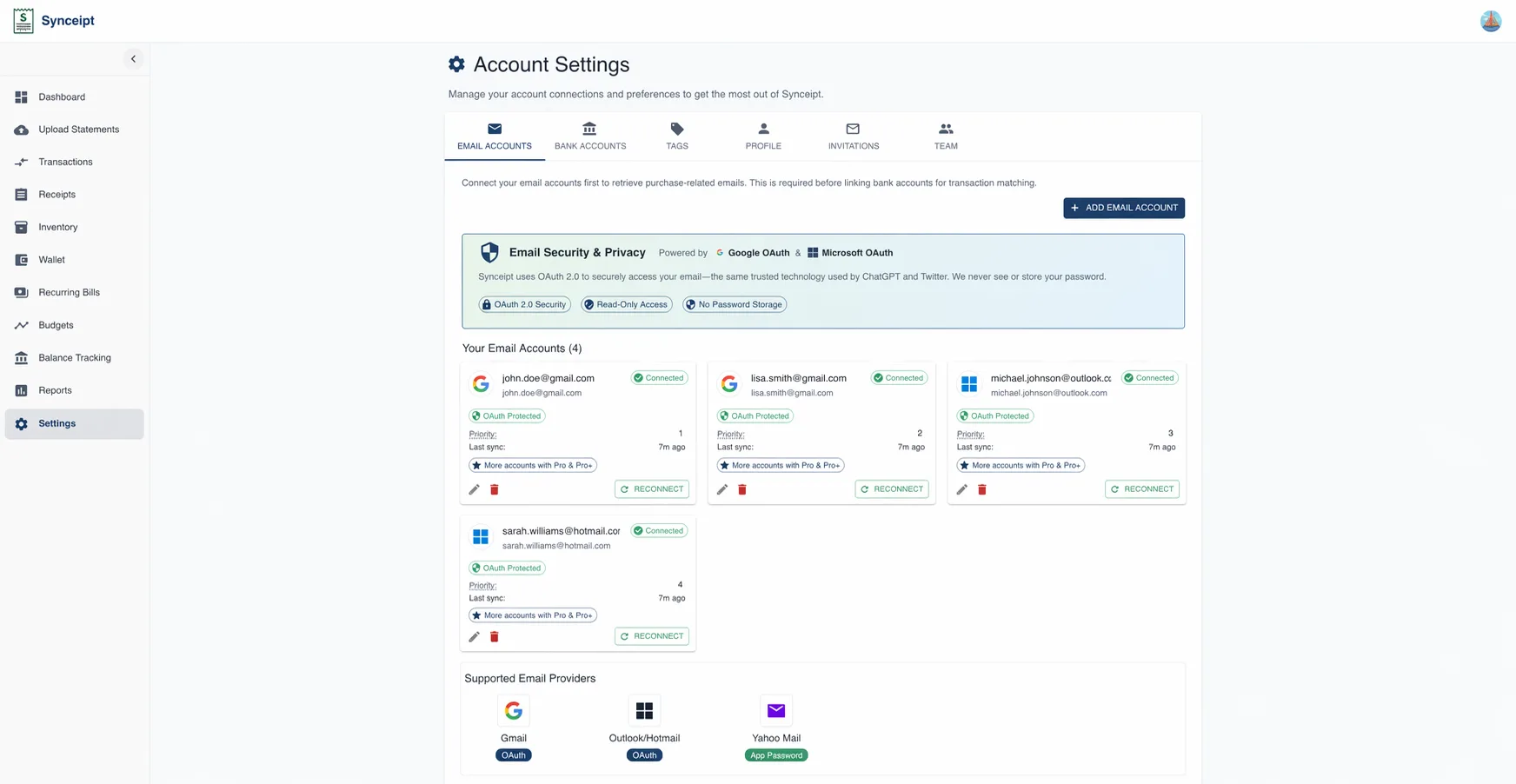
Amazon order emails go to whichever email address is set as your Amazon account's primary contact — usually Gmail, Outlook, or Yahoo Mail. Connect that account and Synceipt starts watching it for new Amazon emails right away.
- 1
Open Settings → Email Accounts
Navigate to Settings from the main menu and select Email Accounts.
- 2
Click Add Email Account and choose your provider
Select Gmail or Outlook to authorize read-only access via Google's or Microsoft's OAuth page, or select Yahoo Mail and connect using a Yahoo app-specific password. Either way, Synceipt can only read your emails — it can't send, delete, or modify them.
- 3
Authorize and sync
Complete the authorization. From here, Synceipt watches your inbox and extracts new Amazon emails automatically. To backfill history, use the Sync Email Receipts tool on the Dashboard — each run covers up to 90 days and processes in the background, so a full year takes a few runs.
If you use multiple email addresses with Amazon — for example, a personal Gmail and a work address — you can connect both. Synceipt consolidates receipts from all connected inboxes into one Receipt Inbox.
Step 2: Connect Your Bank or Credit Card
To match Amazon receipts to bank charges automatically, Synceipt needs access to your transactions. The fastest option is Plaid, which connects Synceipt to over 12,000 financial institutions across the US, Canada, and Europe and keeps transactions synced automatically — how quickly a charge appears depends on your bank. If you prefer not to connect your bank directly, you can upload a PDF bank statement instead.
- 1
Open Settings → Bank Accounts
Select Bank Accounts from the Settings menu.
- 2
Click Add Bank Account
Launch the Plaid Link interface. Search for your bank, select it, and complete the login inside that window — at banks that support OAuth, on your bank's own login page. Synceipt never receives or stores your bank login: authentication is handled between Plaid and your financial institution, and Synceipt only ever holds an access token.
- 3
Select the accounts to include
Choose the checking account, credit card, or debit card you use for Amazon purchases. Synceipt will pull transactions from each account you select.
Amazon charges appear under several names on bank statements depending on your bank: AMAZON.COM, AMAZON MKTP US, AMZN MKTP US, and AMZ* are the most common. Synceipt's matching recognises all of these as the same merchant.
How Amazon Orders Match to Bank Transactions
Once both sources are connected, Synceipt's matching engine runs automatically. For each Amazon bank transaction, it searches the Receipt Inbox for an order confirmation with a matching amount, merchant, and date. When a match is found, the transaction is linked to the receipt and updated with the current order status.
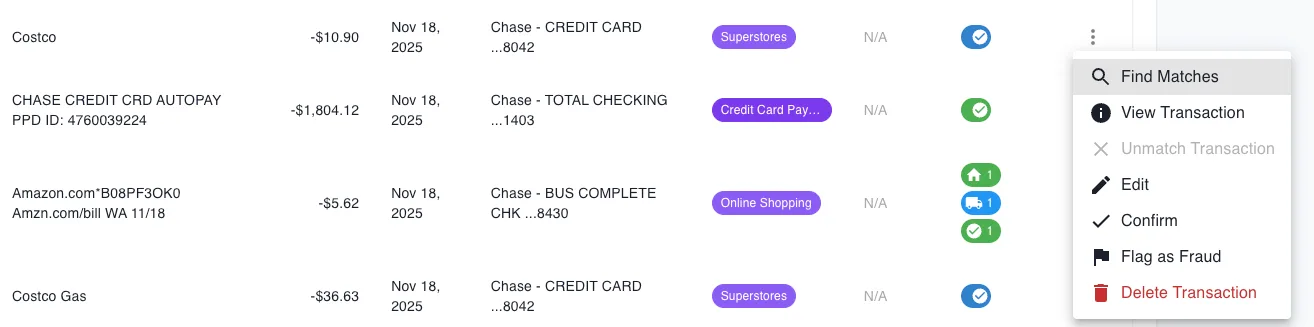
On a matched transaction you can see: the order status (Confirmed, Shipped, or Delivered) and links to all the related receipt emails for that order. As Synceipt extracts subsequent emails — shipping confirmation, delivery notification — the status on the matched transaction updates automatically.
Bulk-Restore Item Details from Your Amazon Order History
Attaching an order summary works well for one receipt. It does not scale to nine months of them. If your account is one of those Amazon switched over in July 2026, you likely have a long tail of receipts that match their bank charges perfectly but read "1 Essentials item" where the products should be.
There is one channel Amazon is still obliged to keep open: on request, it will hand you your own order history as a spreadsheet — product names, quantities, unit prices, order numbers, tracking numbers, the lot. Synceipt imports that file directly. One upload, matched onto the receipts you already have by Amazon order number, and the missing detail comes back across your entire history at once.
Getting the file from Amazon
- 1
Open Your Account on Amazon
Sign in at amazon.com and open the Your Account page — the same page you'd use to change a payment method.
- 2
Find "Manage your data"
Scroll down to the Manage your data section and choose Request your data.
- 3
Request the Your Orders category
On the request page, find Your Orders and click Submit Request. Amazon sends a confirmation email — approve it, or the export never starts.
- 4
Download Order History.csv
Amazon prepares the export asynchronously and emails you a download link when it's ready — in practice this has taken anywhere from a few hours to a couple of days. The file you want is named Order History.csv.
Amazon sometimes delivers the export as a ZIP archive. Synceipt takes the CSV itself — open the archive and upload the Order History.csv inside it. The upload limit is 100 MB, which is far more than even a decade of orders needs. If you want to check you have the right file before uploading, the import dialog has a "Download sample CSV to verify format" link showing exactly which columns are expected.
Uploading it to Synceipt
- 1
Open the Receipts page
In the web app, click Import Amazon Orders at the top right of Receipt Manager. On mobile, the same import sits on the Receipts screen.
- 2
Drop in the CSV
Drag Order History.csv onto the upload area, or click to browse for it. Parsing is immediate — the dialog reports how many orders it found in the file, how many are new, and how many were already imported previously.
- 3
Let matching run
Matching happens on the server in the background. You can close the dialog and carry on working: it keeps running either way, and your receipts update as it finishes.
The import is also offered where you're most likely to want it. The "Some Amazon receipts are missing item details" banner on the Receipts page carries an Import order history action, and the per-receipt Add items dialog offers it as a third option on Amazon receipts — because if one receipt is missing its items, the rest of that year probably is too.
Reading the results
While matching runs you get a live count — waiting, matched, itemised, left untouched, couldn't be matched. Each of those outcomes means something specific:
- Itemised — the order was found in your Receipt Inbox, and its product names, quantities, and unit prices were written onto the receipt you already had. The order number, the total, and any bank match already on it are left exactly as they were.
- Created — the order was in your export but had no receipt at all: an order predating your email connection, or one whose email never arrived. Synceipt creates the receipt from the CSV data, tagged with the source Amazon CSV Import.
- Left untouched — deliberately skipped. Receipts you've already reviewed or locked, and receipts that already carry item details from another source, are never overwritten by an import.
- Couldn't be matched — no corresponding receipt exists and the row didn't line up closely enough to act on with confidence. Nothing is invented to close the gap.
To see exactly what an import produced, use the source filter on the Receipts page and choose Amazon CSV Import — it lists only the receipts that came from an order-history upload. The mobile Receipts screen has the same filter as a chip row.
Split shipments are matched by tracking number, not guesswork
An Amazon order that ships in two boxes exists in Synceipt as a confirmation receipt plus one receipt per shipment. The export carries a "Carrier Name & Tracking Number" column, so matching correlates each row to the right shipment receipt by comparing that tracking number against the one already on the receipt — deterministic, rather than inferring which items were in which box from the amounts.
Where Amazon collapses a row ambiguously — one product's quantity split across several shipments inside a single cell — those items still count toward the order's confirmation receipt, but are left out of shipment-level allocation. Splitting one row's amount across an unknown number of boxes isn't derivable from the data, so it isn't attempted.
Re-uploading is safe. Imported rows are de-duplicated per order and product, so when you request a fresh full-history export six months from now you can upload the whole thing again — only genuinely new orders are added, and everything already imported is reported as a duplicate and skipped. No duplicate receipts, no double-counted spending.
The order-history import is a paid-plan feature. On the free plan the Import Amazon Orders button stays visible with a lock on it rather than disappearing, so you can see what it does before deciding to upgrade. If you're part of a shared team, members inherit the account owner's plan.
Imported Amazon Items Land in Your Inventory Automatically
Restoring item names onto a receipt is half the job. The other half is those items becoming things you can actually track — item-level budgets, warranty and resale records, what you own and what it cost. Until recently, CSV-imported items stopped at the receipt: they showed up as line items but never became inventory items, because the export has no category column and inventory creation was gated on having one.
That gap is now closed, and closed without spending AI credits on it. When you import your order history, recent orders create inventory items directly, with the category resolved by lookup rather than by guessing:
- A shared product catalogue first — if a category has already been established for that exact product, your item inherits it immediately.
- Your own earlier choice second — no shared category yet, but you've categorised the same product on a previous order? Synceipt reuses your choice, so you never categorise the same product twice.
- Other as a last resort — if neither applies, the item is filed under Other rather than skipped or guessed at. You can change it, and the change sticks.
What gets added automatically, and what doesn't
- Recent orders only — orders placed within the last three months. Older history still imports its item details onto the receipt; it just doesn't fill your inventory with things you may have long since used up or thrown away.
- Nothing cancelled, returned, or refunded — an order you sent back never becomes inventory.
- Physical goods only — gift cards, e-gift cards, Kindle editions, Audible credits and memberships, Prime memberships, subscriptions, and digital downloads are recognised by name and skipped.
Adding older orders yourself
For anything outside that automatic window, Receipt Details gives you the controls directly. Add All to Inventory adds every line item on the receipt that isn't already there. The Inventory column in the line-item table adds them one at a time — for tracking the things worth tracking without filing every line of a grocery order. Items already in your inventory show a check mark instead of a button, so nothing gets added twice.
The manual path applies no age cutoff and no digital-item filter. Those exist to keep an automatic bulk import conservative; when you point at a specific item and say add this, that's a decision, not a heuristic that needs a safety net. Inventory tracking is a paid-plan feature, shown locked rather than hidden on the free plan.
Categorise once, not once per order
When you set a category on an imported item, Synceipt applies it to your other items of the same product — including ones already imported and still sitting under Other — instead of only applying it going forward. Buy the same coffee filters four times a year and you categorise them once, not four times.
Your choice also counts as one vote toward that product's shared category: once two different accounts independently land on the same category for the same product, it becomes the default everyone gets, which is why so many common products are categorised correctly the moment they're imported. One person's choice never seeds the shared catalogue on its own, and what's shared is only a product-name-to-category mapping — never your orders, prices, or purchase history.
Amazon's Order History vs. a Real Financial Record
The FAQ below explains why Amazon's order history isn't the full picture. Here's that gap made concrete — side by side against tracking purchases in a spreadsheet and a matched Synceipt record:
| What you need to know | Amazon order history | Manual spreadsheet | Synceipt |
|---|---|---|---|
| What you ordered | Yes | If you enter it yourself | Yes — extracted automatically when Amazon includes it; bulk-restored from your order-history export when it doesn't |
| Whether your bank was actually charged | No | Only if you check and log it | Yes — matched to the real posted charge |
| Split shipments tied back to one order | No — shows the order, not the per-shipment charges | Only if you track it yourself | Yes — link every charge to the same receipt |
| Refund tracked back to the original charge | Separate refund page, not linked to your bank | Only if you track it yourself | Yes — automatic round-trip record |
| Counted in your budgets and reports | No | No, unless you re-enter it | Yes — automatically, by category |
The test: could you tell someone, right now, exactly how much Amazon actually charged your card last month — not what you ordered, what actually posted? Amazon's order history can't answer that on its own. A matched Synceipt record can, every time.
Split Shipments: One Order, Multiple Charges
Amazon frequently ships items in a single order separately, charging your card for each shipment as it leaves the warehouse. A $75 order might arrive as a $45 charge on Tuesday and a $30 charge on Thursday. Both charges reference the same order number, but they appear as two distinct transactions on your bank statement.
Synceipt handles this with one-receipt-to-multiple-transactions linking. When you open the order confirmation receipt and select Link Transaction, you can attach each additional charge to the same order record. Each linked transaction is recorded with its own amount and date, and together they account for the full order value.
- Open the order confirmation receipt in the Receipt Inbox
- The first shipment charge may already be auto-matched — check the Transactions page
- For each additional charge from the same order, use the Link Transaction option on the receipt to attach it
- Each shipment's shipping confirmation email links to its respective charge via the Order Timeline
- The receipt record shows the full order value and the sum of all linked transaction amounts side by side
Tracking Amazon Refunds
When you return an item, Amazon sends a return confirmation email and, once the refund is processed, a separate refund notification. Synceipt extracts both. The return confirmation is stored as a RETURNED status receipt linked to the original order. The refund notification is stored as a REFUNDED status receipt.
The refund credit that appears on your bank statement — typically labeled AMAZON REFUND or similar — can be matched to the refund receipt just like any other transaction. The result is a complete round-trip record: original charge, item shipped, item returned, refund credited.
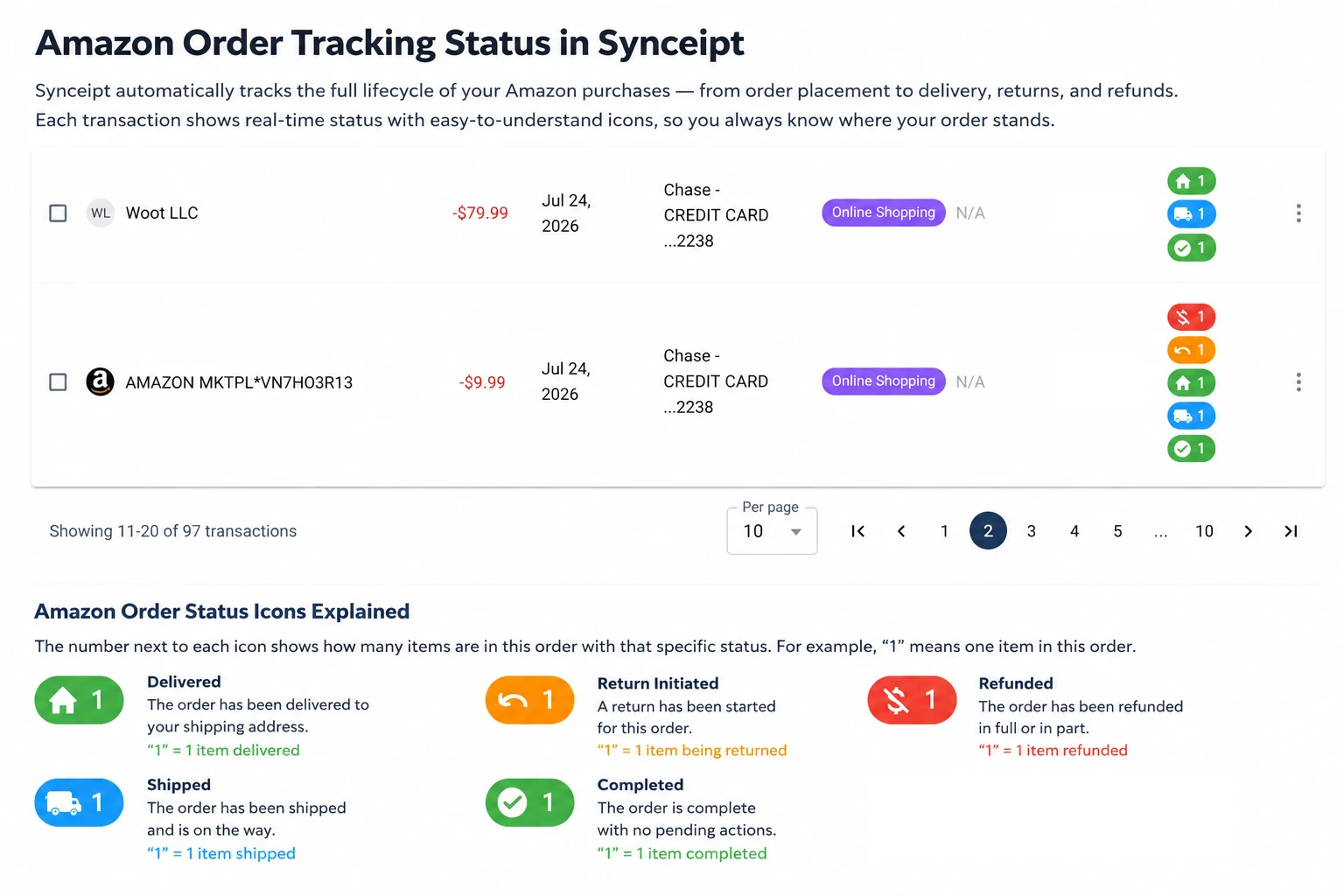
- Original order confirmation → matched to the initial charge (CONFIRMED)
- Return confirmation email → RETURNED receipt linked to the original order
- Refund notification email → REFUNDED receipt
- Refund credit on bank statement → matched to the REFUNDED receipt
Tracking refunds is especially useful for detecting partial refunds — cases where Amazon refunds less than the original charge, or where a return is accepted but the bank credit takes several days to appear.
Manual Matching for Edge Cases
Automatic matching handles the majority of Amazon transactions, but a few common scenarios require a manual step.
- Digital purchases (Kindle books, Prime Video rentals, app purchases) — these generate an order confirmation email but the charge may appear as 'AMAZON DIGITAL SVCS' on your statement rather than AMAZON.COM. Use Manual Matching mode to find the transaction by amount and date and link it to the receipt.
- Amazon Pay — purchases made through Amazon Pay at third-party retailers appear under the retailer's name on your statement, not Amazon. The order confirmation email will be extracted; link it manually to the merchant transaction.
- Amazon Prime membership — the annual or monthly fee appears as 'AMAZON PRIME' or 'PRIME VIDEO'. These are service charges rather than product orders and may not generate an order confirmation email. Add a manual transaction or receipt entry to track these.
- Marketplace sellers — some third-party seller transactions appear under the seller's own name rather than Amazon. If automatic matching doesn't catch these, the receipt is in your Receipt Inbox and can be linked manually.
Documenting a Tracking Number
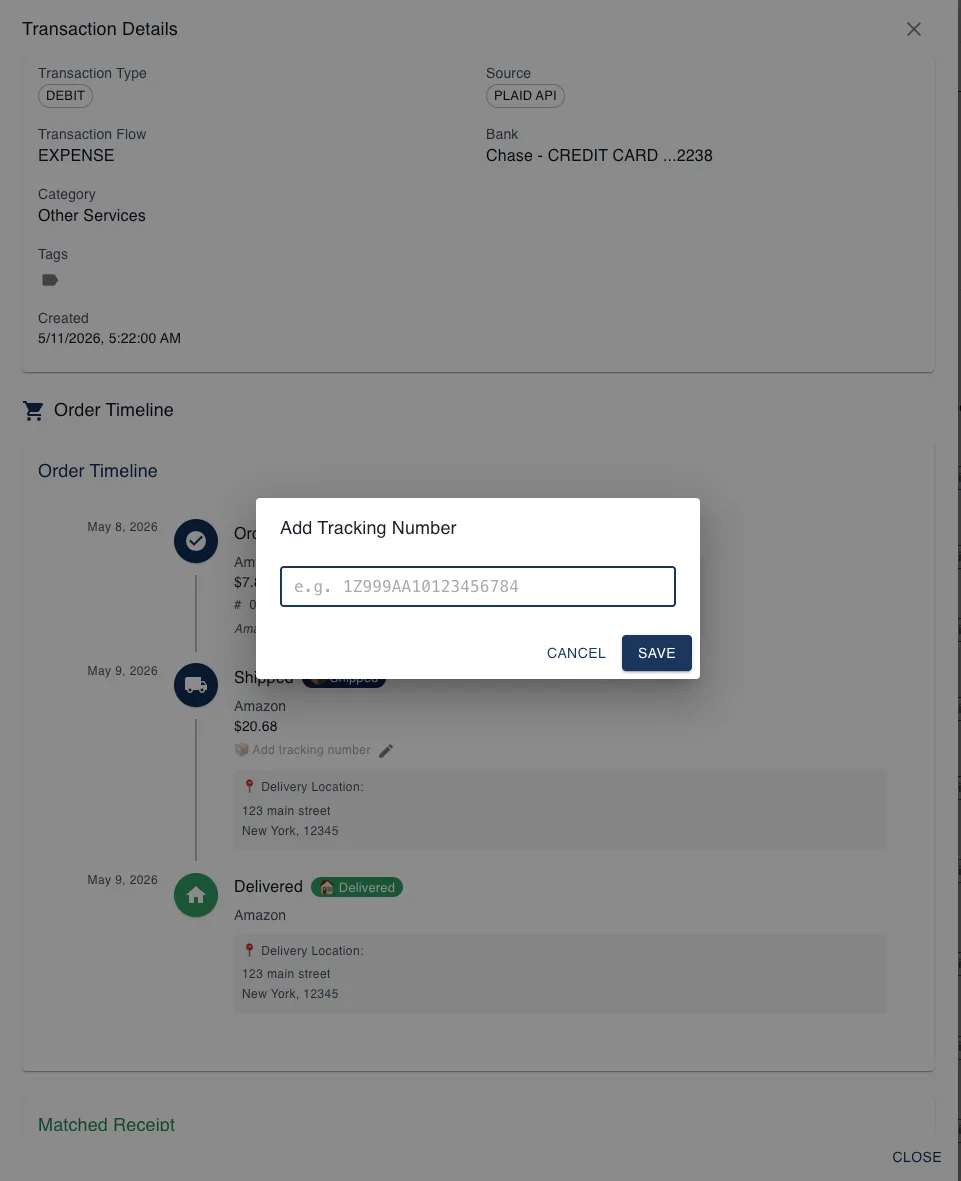
Amazon's shipping confirmation emails no longer include a plain tracking number in the email body — instead they contain a "Track your package" link. Because the number isn't in the text, Synceipt can't extract it automatically. If you want a tracking number on record, you can add it yourself directly on the transaction.
Open the transaction in Synceipt and scroll to the Order Timeline. On the Shipped event, tap the pencil icon next to "Add tracking number" and type or paste the carrier tracking code (for example, a UPS 1Z number). The number is saved to that shipment event and stays visible alongside the order status, delivery address, and matched receipt.
Frequently Asked Questions
Does Synceipt work with Amazon order emails?
Yes. Connect the Gmail, Outlook, or Yahoo account where Amazon sends your receipts and Synceipt automatically extracts order confirmations, shipping notifications, delivery updates, and return or refund confirmations.
Why don't my Amazon receipts show what I actually bought?
Beginning in July 2026, Amazon started sending less detailed order emails to many US customers, replacing product names with broad categories like "1 Essentials item". Amazon has confirmed the simplification is deliberate and that an affected account can't opt out. It does not appear to have reached every Amazon marketplace, so some Amazon emails still arrive with full item details — Synceipt extracts whatever is actually in the email rather than assuming a format. When details are withheld, the order number, total, item count, and delivery status still come through, so matching and your transaction-level budgets and reports are unaffected. To restore the breakdown, open the receipt, choose Add items, and upload a screenshot or PDF of the Amazon order summary — or import your whole order history at once.
Does this Amazon email change affect Amazon UK, Canada, Germany, or other countries?
Not as far as we can tell. The simplified format was widely reported for Amazon.com in the United States from July 2026, and Amazon's public statement doesn't name any international marketplace. Reporting from France in late July found the new emails appeared to be US-only, with Amazon order tracking still working normally there, and we've found no comparable wave of reports from the UK, Canada, Germany, France, Italy, Spain, Japan, Australia, or India. Synceipt doesn't gate its Amazon extraction by country either way: if the email contains product names, they're extracted; if it only contains a category and a count, the receipt is marked merchant-withheld and nothing is guessed at.
Can I restore all my missing Amazon item details at once?
Yes — that's what the order-history import is for. Request your data from Amazon (Your Account → Manage your data → Request your data → Your Orders → Submit Request), wait for the export email, then open the Receipts page in Synceipt and click Import Amazon Orders. Upload the Order History.csv you received and Synceipt matches each order to your existing receipts by Amazon order number, filling in product names, quantities, and unit prices — hundreds of receipts in a single pass. Orders in the export that have no receipt at all get one created from the CSV.
Will re-uploading my Amazon export create duplicate receipts?
No. Imported rows are de-duplicated per order and product, so you can upload a full fresh export any time — only genuinely new orders are added, and everything already imported is counted as a duplicate and skipped. Receipts you've already reviewed or locked, or that already carry item details from another source, are left untouched rather than overwritten.
Is the Amazon order-history import included in the free plan?
It's a paid-plan feature. On the free plan the Import Amazon Orders button stays visible with a lock so you can see what it does before upgrading, rather than the option being hidden. Members of a shared team inherit the account owner's plan.
Do imported Amazon items show up in my inventory?
Orders from the last three months do, automatically, as long as they weren't cancelled, returned, or refunded — gift cards, Kindle editions, memberships, and other digital items are skipped by name. For older orders, open the receipt and use Add All to Inventory, or add individual line items from the Inventory column. No AI extraction credits are used on either path.
How do imported Amazon items get categorised?
By lookup, not by guessing. If a category is already established for that exact product, the item inherits it. If not, Synceipt reuses your own earlier category for the same product, so you never categorise it twice. If neither applies, the item is filed as Other — and when you correct that, the correction is applied to your other items of the same product too, including ones already imported.
What if Amazon splits my order into multiple shipments and charges?
Synceipt supports linking one receipt to multiple bank transactions. Open the order receipt and use Link Transaction to attach each additional charge from the same order. Each linked amount is recorded separately, and together they account for the full order value.
How does Synceipt handle Amazon refunds?
Return and refund confirmation emails are extracted automatically and linked to the original order. The refund credit on your bank statement can be matched to the refund receipt, giving you a complete record of the purchase, return, and credit.
Amazon charges show as 'AMZN MKTP US' on my statement — will they still match?
Yes. Synceipt recognises common Amazon merchant name variations including AMAZON.COM, AMAZON MKTP US, AMZN MKTP US, and AMZ* prefixes. If a transaction still doesn't auto-match, use Manual Matching mode to link it by amount and date.
How is this different from just checking Amazon's own order history page?
Amazon's order history shows what you ordered, not whether your bank was actually charged, especially with split shipments and processing delays. Synceipt matches each order to the real charge that posted, giving you a verified record — which then feeds your budgets and reports automatically.
Can I export my Amazon purchase history for taxes or budgeting?
Yes. Matched Amazon orders are part of your regular transaction history and export to CSV like any other data, filterable by date, category, or tag — useful for isolating deductible purchases at tax time.
Can I exclude certain Amazon purchases, like gifts for someone else?
Yes, using the Exclude action — it removes a transaction from your active budgets and reports without deleting the record. Excluded items stay visible in the Excluded view and can be restored anytime.
How do I find and download my Amazon receipts once they're extracted?
Every extracted Amazon email lands in your Receipt Inbox, searchable by merchant, date, or amount. Once matched, it's part of your regular transaction history and exports to CSV like everything else — no separate 'Amazon receipts' export to manage.
Can I see my total Amazon spending broken down by category?
Yes. Each matched Amazon transaction carries a category like any other, so your category budgets and spending reports include Amazon purchases automatically. You can also filter to just Amazon-matched transactions to see the total on its own.
Can I track Amazon purchases as part of a specific project, like a renovation or a trip?
Yes. Project Journal lets you link any matched transaction — including Amazon purchases — to a named project regardless of category or date. Open the project, click Add Transactions, and Synceipt suggests likely matches based on merchant, date, and category.
Works with Gmail, Outlook, and Yahoo Mail for receipt extraction, and over 12,000 financial institutions through Plaid for bank sync — free to try, with no card required to connect your first account.
Try Importing Your Last 12 Months of Amazon Orders
Connect the inbox where Amazon sends your receipts and new orders start matching automatically right away. Already have a backlog? Import your Amazon order-history export to itemise it in one pass, and run a few 90-day email sync passes from your Dashboard to fill in the rest — all of it processes in the background while you keep working.