
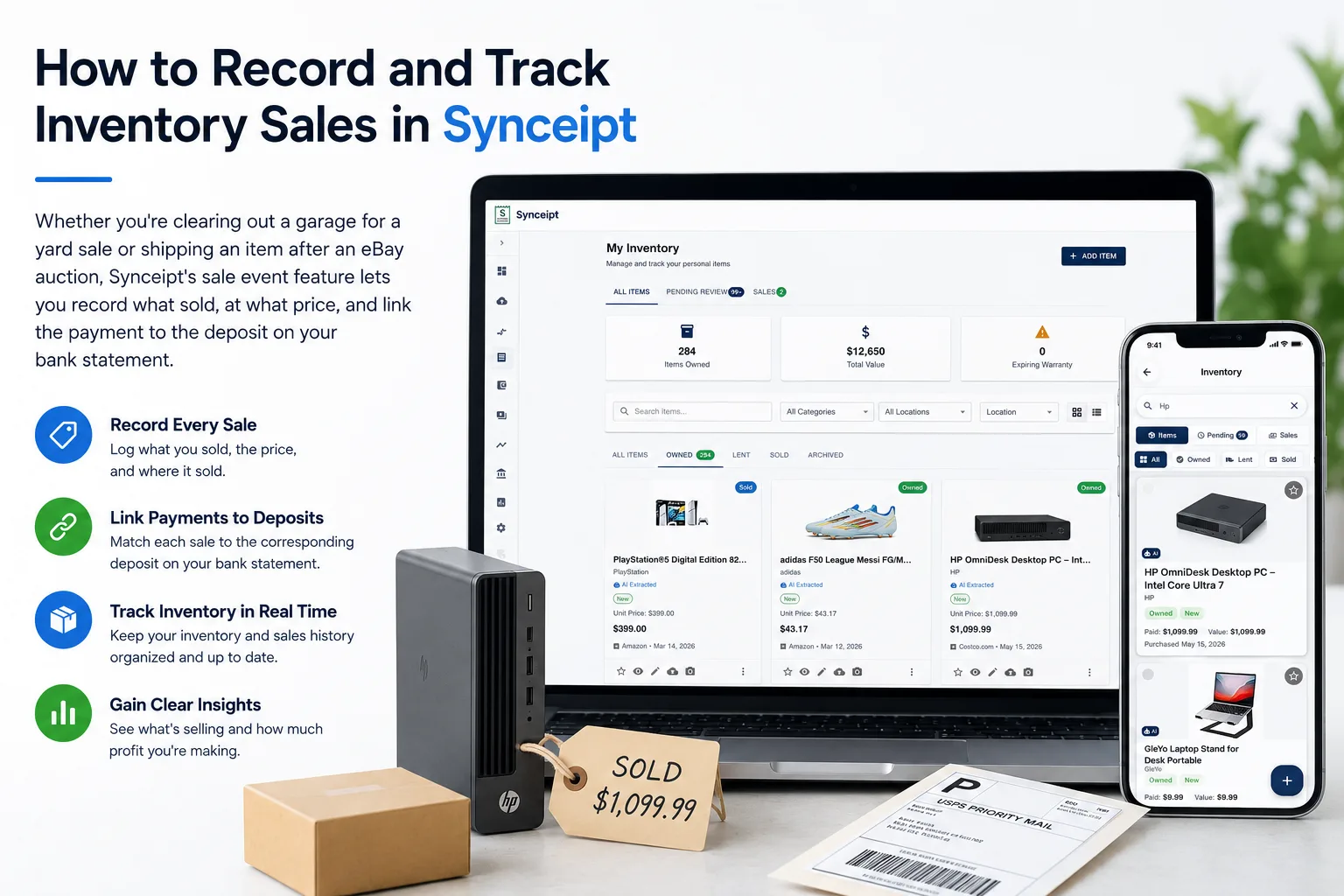
Selling things you own — whether at a weekend yard sale or through an online marketplace like eBay — generates money that eventually shows up on your bank statement. But there's usually no receipt trail the way there is when you buy something. You know a $120 Venmo deposit arrived, but three weeks later it's hard to remember exactly what sold, at what price, or to whom.
Synceipt's sale event feature closes that gap. You create a record of each sale, itemize what you sold, and then link the deposit on your bank statement back to that sale. The result is a clean paper trail for every item that leaves your inventory — useful for personal accounting, tax season, or simply knowing where your money came from.
How Sale Events Work
A sale event is a record you create to represent a single selling occasion — one yard sale, one eBay order, one Facebook Marketplace transaction. You start a sale from the Inventory OWNED tab: check the items you want to sell, then tap the SELL button at the bottom of the screen. The selected items are carried into the sale creation screen, where you set a title, sale date, optional buyer information, and a payment method. For a single item, you can also use the quick MARK AS SOLD action directly on the item card.
The most important rule: a sale is linked to one bank transaction, and the total of all items in the sale must equal that transaction amount. Only add items to a sale if they were all paid together in a single payment. If one buyer paid cash and another paid via Venmo, those are two separate transactions — create two separate sales.
- OPEN — the sale is in progress. Items can be added or removed at any time. Useful for yard sales that run across multiple hours.
- FINALIZED — the sale is complete. No further items can be added, and the sale is now eligible to be linked to a bank transaction.
- Reopen — if you finalized too early or made an error, you can reopen a finalized sale, make changes, and finalize it again.
Transaction linking is only available on finalized sales, and it only reconciles correctly when the sale total equals the bank deposit amount. Group items by payment — not by event or day.
Example 1: Recording a Yard Sale
You're running a Saturday yard sale from 8am to 2pm. By the end of the day you collected $340 in cash across many buyers and $75 via Venmo from one buyer. Because cash and Venmo are two separate transactions, they must be tracked in two separate sales — one for the cash items (totaling $340) and one for the Venmo items (totaling $75). This is the rule: a sale can only be linked to one bank transaction, and the sum of the items in the sale must equal that transaction amount.
Only include items in a sale that were paid together in a single transaction. If the sale total does not match the bank deposit amount, the link will not reconcile correctly. Group by payment — not by event.
Set Up the Cash Sale
- 1
Navigate to Inventory → OWNED tab → check the first cash items → tap the SELL button at the bottom
In the OWNED tab, tap the checkbox on each item card you are selling for cash. A SELL button appears at the bottom of the screen — tap it to open the sale creation screen. Title it "June Yard Sale — Cash", set the sale date to today, choose Cash as the payment method, and enable Keep Open. Keep Open lets you add more cash items throughout the day as they sell without finalizing after each buyer.
- 2
Add more cash items as they sell throughout the day
Each time another cash item sells, return to the OWNED tab, check that item, and tap the SELL button (or the floating SELL button). Since the sale is Keep Open, the item is added to your existing cash sale rather than creating a new one. Enter the price it sold for. Only add items that were paid in cash — for example: vintage lamp → $25, box of books → $10, children's bicycle → $45, kitchen mixer → $65. By the end of the day the cash sale total should equal $340.
- 3
Finalize the cash sale at the end of the day
When the yard sale is over, open the cash sale and tap Finalize. Review the item list and confirm the total is $340. Cash sales are tracked in your Wallet balance — no bank transaction linking is needed.
Set Up the Venmo Sale Separately
- 1
Navigate to Inventory → OWNED tab → check only the Venmo buyer's items → tap SELL
When the Venmo buyer pays, go back to the OWNED tab, check only the items they purchased, and tap SELL. Create a new sale: title it "June Yard Sale — Venmo", set payment method to Bank, and set the sale date to today. The items in this sale must total exactly $75 — the amount of the Venmo deposit that will appear on your bank statement. Enable Keep Open only if the Venmo buyer is still selecting items; otherwise leave it off and finalize immediately.
- 2
Finalize the Venmo sale and link it to the bank deposit
Once the Venmo buyer's items are all added, tap Finalize. Then open the finalized sale, tap Link Transaction, and select the $75 Venmo deposit from your bank statement. Synceipt will show the transfer as a suggested match because the sale total equals the deposit amount. After linking, the sale record shows the itemized list, the payment method, and the exact bank transaction it corresponds to.
Example 2: Recording a Multi-Item eBay Sale
You sold two items on eBay: a PlayStation®5 Digital Edition and an Amazon Fire TV Stick 4K. Both were in your inventory. eBay will deposit a combined payout of $520.00 into your bank account. You want a single sale record that ties both sold items to that one bank deposit.
Select Both Items and Create the Sale
- 1
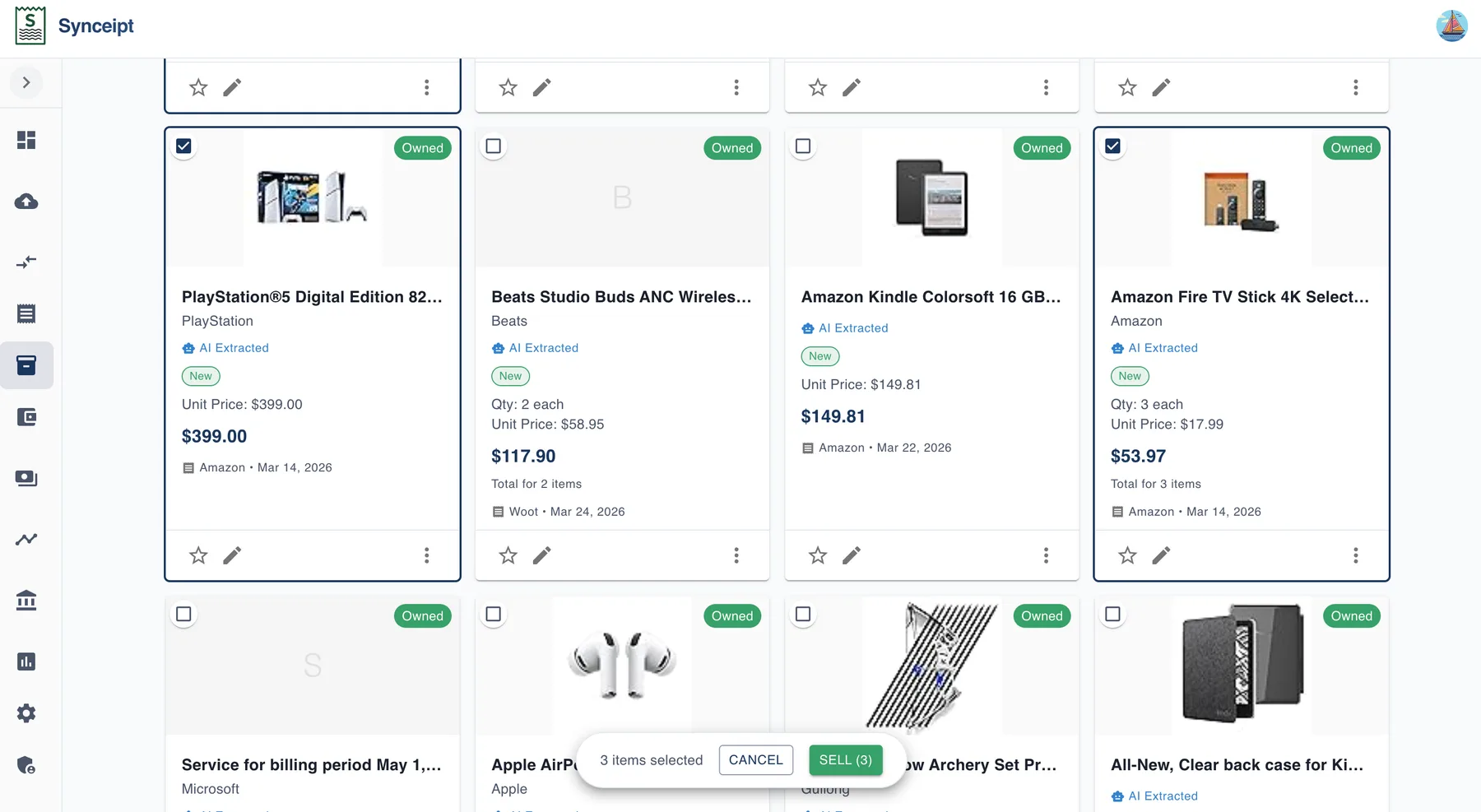
Navigate to Inventory → OWNED tab → check the PS5 and the Fire TV Stick → tap SELL
In the OWNED tab, tap the checkbox on the PlayStation®5 item card and the Amazon Fire TV Stick 4K item card. The selection bar at the bottom of the screen shows how many items are selected and reveals the SELL button. Tap SELL to open the Record Sale dialog.
- 2
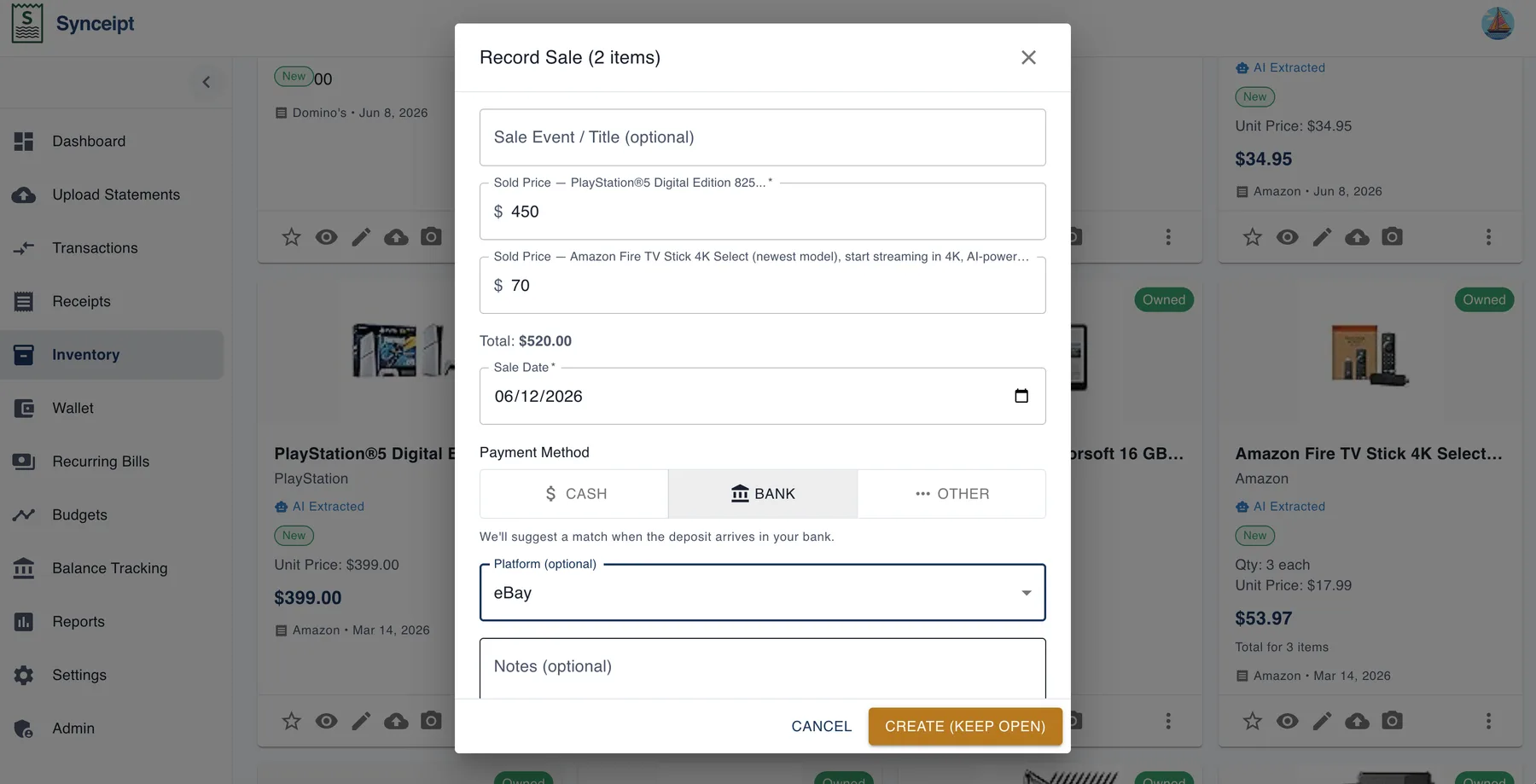
Set the sale price for each item, choose Bank, and set the platform to eBay
The Record Sale dialog lists each selected item with its own price field. Enter $450.00 for the PlayStation®5 and $70.00 for the Fire TV Stick — these are the net amounts that make up the $520.00 eBay payout. The Total field updates to $520.00 as you type. Set the Sale Date to today, select Bank as the payment method, and choose eBay from the Platform dropdown. Synceipt will search for a bank deposit matching $520.00 when the payout arrives. Tap CREATE (KEEP OPEN) if more items may be added to this payout, or CREATE to save and proceed.
Review the Open Sale and Finalize
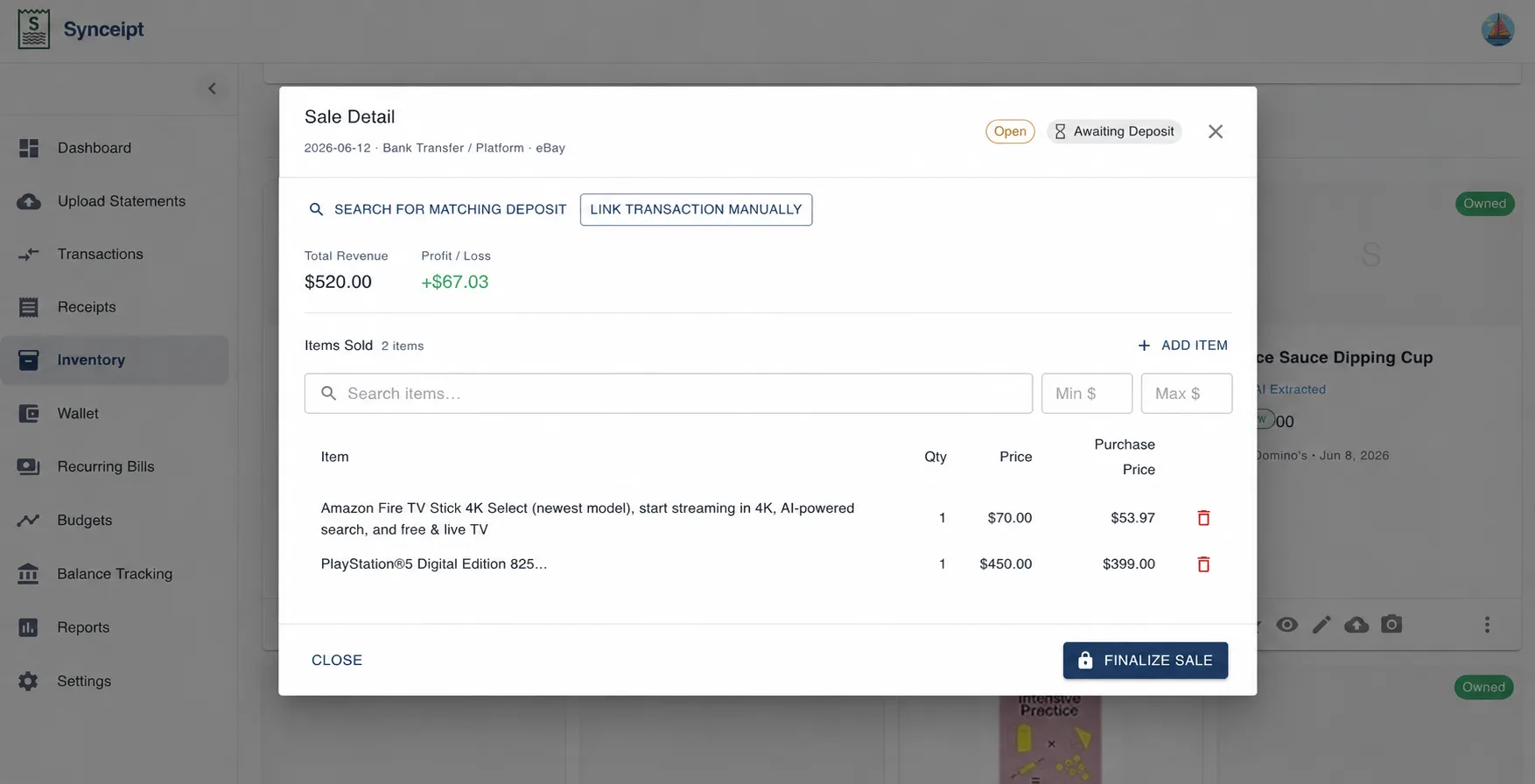
After creating the sale, Synceipt opens the Sale Detail. The status shows Open — Awaiting Deposit, and the record already displays the total revenue ($520.00) and profit (+$67.03, calculated from your original receipt purchase prices (not item's listed price, for example, list price is $499.99, your bought price was $399.00 from the extracted email receipt)). You can tap SEARCH FOR MATCHING DEPOSIT at any time to find the eBay payout in your synced bank transactions — Synceipt shows deposits within ±10% of the sale total as candidates.
Once both items are shipped and you're ready to close the record, tap FINALIZE SALE. The PS5 and Fire TV Stick are marked as sold in your inventory.
Link the eBay Payout to Your Bank Statement
When the eBay payout arrives — open the sale and tap SEARCH FOR MATCHING DEPOSIT. Synceipt lists bank transactions within ±10% of $520.00. Find the eBay deposit and tap LINK to connect it to the sale record.
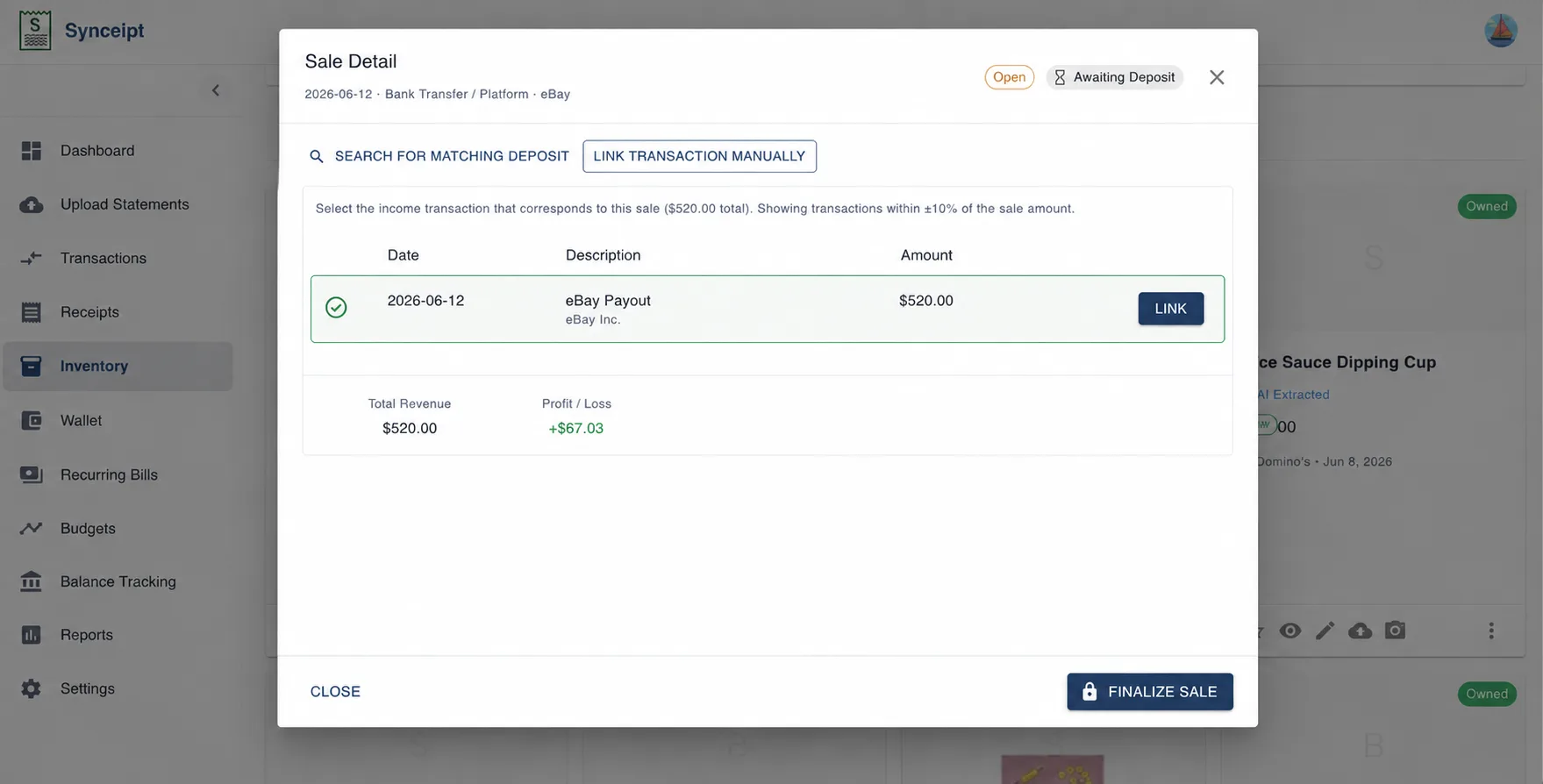
Once linked, the sale record shows everything in one place: both items sold (PS5 and Fire TV Stick), the platform (eBay), total revenue ($520.00), profit (+$67.03), and the exact bank deposit it corresponds to. The link turns a raw bank line into a fully explained transaction.
Reopening a Sale to Make Corrections
If you finalize a sale and then realize you forgot to add an item, recorded the wrong price, or need to update buyer information, use the Reopen option. Reopening returns the sale to OPEN status. Any existing transaction link is cleared, so you'll need to re-link after finalizing again.
- Open the finalized sale and tap Reopen
- Make your changes — add or remove items, update prices, edit buyer details
- Tap Finalize when the corrections are complete
- Re-link the bank transaction using Link Transaction
Keep Open and Reopen are Pro plan features. The basic flow — create a sale, add one item, finalize, link a transaction — is available on all plans.
Payment Methods and What They Affect
Setting the right payment method on a sale determines how the payment is tracked.
- Cash — the payment is recorded in your Wallet cash balance. No bank transaction linking is required or expected. Use this for in-person sales paid in bills.
- Bank — the payment arrives as a bank deposit (Venmo, PayPal, Zelle, eBay Payments, etc.). Use Link Transaction after finalizing to match the deposit on your bank statement.
- Other — for gift cards, store credit, trades, or any payment type that doesn't fit Cash or Bank. The sale is recorded but no automatic bank matching is applied.
What Gets Tracked in the Sale Record
Each sale event stores the following information, all editable while the sale is OPEN.
- Title — a label for the sale (e.g., "June Yard Sale", "eBay — Vintage Camera")
- Platform — where the sale happened: eBay, Facebook Marketplace, Craigslist, or any custom value
- Sale Date — when the transaction occurred
- Payment Method — Cash, Bank, or Other
- Buyer Name, Email, Phone — optional contact information for the buyer
- Notes — any additional context, such as fee amounts or shipping details
- Items — the list of inventory items sold, each with its sale price
- Linked Transaction — the bank deposit matched to this sale (set after finalizing)
Frequently Asked Questions
What is a sale event in Synceipt?
A sale event is a record for selling one or more inventory items. It holds the buyer details, items sold, sale date, payment method, and — once finalized — a link to the corresponding bank deposit. It gives you a complete record of what left your inventory and where the money went.
Can I add items to a sale while it is still in progress?
Yes. Enable Keep Open when creating the sale and it stays in OPEN status until you manually finalize it. To add more items, return to the OWNED tab, check them, and tap SELL — they are added to the existing open sale. Only add items that are part of the same payment transaction. The sale total must equal the bank deposit amount when you finalize and link.
What's the difference between OPEN and FINALIZED?
OPEN means the sale is still in progress — items can be added or removed. FINALIZED means the sale is complete and ready for bank transaction linking. If you need to edit a finalized sale, use Reopen to return it to OPEN status.
How do I link a sale to a bank deposit?
After finalizing the sale, open it and tap Link Transaction. Synceipt shows suggested bank transactions that match the sale amount and date. Select the correct deposit to link it. For the link to reconcile correctly, the sale total must equal the deposit amount — make sure you only included items that were paid in that single transaction.
Can I record a cash sale?
Yes. Set the payment method to Cash when creating the sale. Cash sales are recorded in your Wallet balance and don't require a bank transaction link. The items are still marked as sold in your inventory.
Know Exactly What Sold and Where the Money Went
Synceipt's sale event feature tracks every item you sell — from a yard sale table to an eBay listing — and links each payment to your bank statement automatically.